How To Get More Email Subscribers On Your WordPress Site

No matter what type of website you’re running, building an email list creates an evergreen asset that will keep working no matter what Google decides to do with your rankings or how viral your content goes on social media. As a wise man once said, there’s always money in the banana stand, and the same ... Read moreHow To Get More Email Subscribers On Your WordPress Site

The post How To Get More Email Subscribers On Your WordPress Site appeared first on Learn WordPress with WPLift.

Weekly WordPress News: WordPress 5.0 “Bebo” Is Out

In the biggest news in a long time, WordPress 5.0, named “Bebo”, was officially released on December 6. As such, the new Gutenberg block editor is officially part of the WordPress core. Be careful about updating and consider using the official Classic Editor plugin if you’re not ready to move to Gutenberg. This week was ... Read moreWeekly WordPress News: WordPress 5.0 “Bebo” Is Out

The post Weekly WordPress News: WordPress 5.0 “Bebo” Is Out appeared first on Learn WordPress with WPLift.

Weekly WordPress News: WordPress 5.0 Further Pushed Back

A little while ago, the core team pushed the expected WordPress 5.0 release date from November 19 to November 27. Well, as the fact that there’s still no WordPress 5.0 indicates, that release date has been pushed back again. In their release post for the WordPress 5.0 Release Candidate 1, the team only said that ... Read moreWeekly WordPress News: WordPress 5.0 Further Pushed Back

The post Weekly WordPress News: WordPress 5.0 Further Pushed Back appeared first on Learn WordPress with WPLift.

The Free Themes Roundup of November 2018

There is an excellent bunch of themes to choose, so a helping hand will be quite useful to give you a chance to make a good web design choice. These are some of the best new free WordPress themes for November for you to consider as a design solution for your blog or website. Travel Gem This ... Read moreThe Free Themes Roundup of November 2018

The post The Free Themes Roundup of November 2018 appeared first on Learn WordPress with WPLift.

WordPress FTP Access Guide: How To Use FTP For Your WordPress Site

When you’re just getting started with WordPress, it’s normal to do everything through the WordPress admin dashboard. But as you start to become more familiar with your website, learning how to set up WordPress FTP access can help you more easily manage your site and solve some issues that you may encounter. In this article, ... Read moreWordPress FTP Access Guide: How To Use FTP For Your WordPress Site

The post WordPress FTP Access Guide: How To Use FTP For Your WordPress Site appeared first on Learn WordPress with WPLift.

Weekly WordPress News: Save Big With WordPress Black Friday And Cyber Monday Deals!

Do you smell the discounts in the air? It’s that time of year again! And to help you save big on WordPress products, we collected the best WordPress Black Friday and Cyber Monday deals for 2018. Save big on awesome tools like Elementor, Divi, WP Rocket, and lots more. Beyond the deals, it’s been a ... Read moreWeekly WordPress News: Save Big With WordPress Black Friday And Cyber Monday Deals!

The post Weekly WordPress News: Save Big With WordPress Black Friday And Cyber Monday Deals! appeared first on Learn WordPress with WPLift.

How to Add a FTP like File Manager in Your WordPress Dashboard

Do you want to add an FTP like file manager in your WordPress admin area? A file manager can help you edit WordPress configuration, themes, plugins, and other files right from your WordPress dashboard. In this article, we will show you how to easily add an FTP like file manager in WordPress.

Adding an FTP like file manager in WordPress

Why You Need an FTP like File Manager in WordPress?

A file manager in WordPress allows you to manage files on your WordPress website directly from your WordPress admin area. It works like a web-based FTP client allowing you to browse and manage files with a simple user interface.

Our recommendation is to always use an FTP client using SSH or SFTP protocols to securely transfer WordPress files.

However, a file manager is helpful when you don’t have access to FTP or cPanel of your website. It works similar to an FTP client, so you can edit, preview, upload, and download the WordPress configuration and other files.

That being said, let’s take a look at how to easily add an FTP like file manager in WordPress.

Adding a FTP like File Manager in WordPress

First thing you need to do is to install and activate the File Manager plugin. For more details, see our step by step guide on how to install a WordPress plugin.

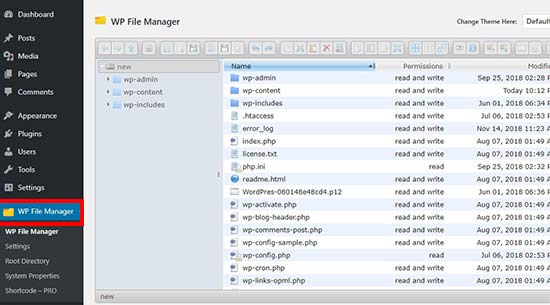
Upon activation, the plugin will add a new menu item labeled ‘WP File Manager’ in the WordPress admin sidebar. Clicking on it will launch the file manager app, which will show your WordPress files and folders.

WP File Manager

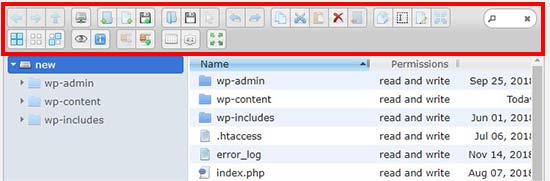
You can find the settings in the toolbar above the files section. This toolbar is similar to the settings in an FTP client. It allows you to preview, edit, upload, download, and delete files or folders.

Toolbar

You can select a file and choose the option in the toolbar to perform an action.

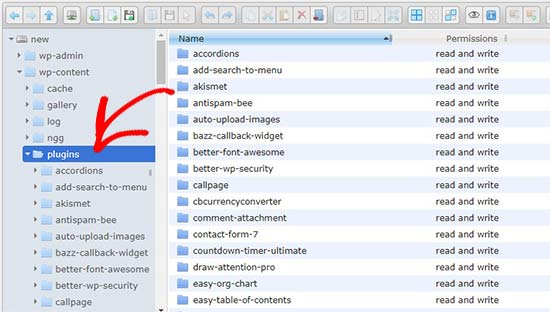
The folders will work the same way as they do in any modern FTP client. You can click on any folder to open and view its contents.

Edit plugin files

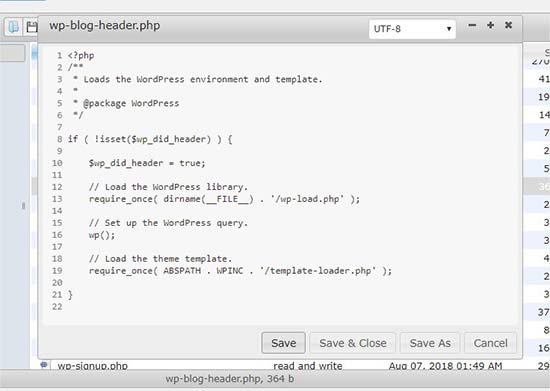
You can edit any file using the toolbar menu option. It’ll open the file in a popup, so you can make changes and save it.

Edit file manager

If you don’t want to make changes in the file, then you can click on the preview option to see the code.

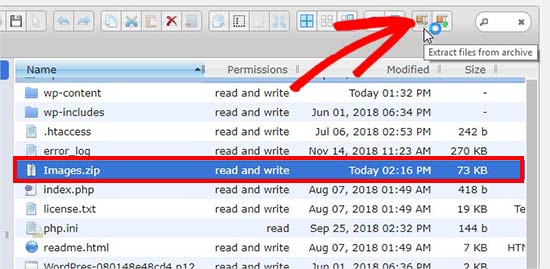
You can access the media files in the wp-content » uploads folder. The ‘Upload Files’ option in the toolbar allows you to upload multiple images in 1-click. You can also upload zip files and extract them in the file manager.

Extract zip file

That’s all. We hope this article helped you learn how to add a FTP like file manager in WordPress. You may also want to see our guide on useful WordPress configuration tricks that you may not know.

If you liked this article, then please subscribe to our YouTube Channel for WordPress video tutorials. You can also find us on Twitter and Facebook.

The post How to Add a FTP like File Manager in Your WordPress Dashboard appeared first on WPBeginner.

What’s The Best WordPress Related Posts Plugin? 6 Great Options

Looking for the best WordPress related posts plugin for your site? Picking a related posts plugin is a bit of a tricky subject because they can be bad for your site’s performance. That’s why a lot of managed WordPress hosts hate certain related posts plugins. For example, WP Engine bans a bunch, and so does ... Read moreWhat’s The Best WordPress Related Posts Plugin? 6 Great Options

The post What’s The Best WordPress Related Posts Plugin? 6 Great Options appeared first on Learn WordPress with WPLift.

How to Create a WordPress Member Directory (And Why You’d Want To)

If you run a membership website, you’ll need an easy way for people to get in touch with one another. This means making everyone’s contact information and other key details readily available. To do that, you can put together a WordPress member directory. For best results, however, you’ll want to design this directory carefully. It ... Read moreHow to Create a WordPress Member Directory (And Why You’d Want To)

The post How to Create a WordPress Member Directory (And Why You’d Want To) appeared first on Learn WordPress with WPLift.

How to Add Social Media Icons to WordPress Menus

Do you want to add social media icons on your WordPress menu? While WordPress does not come with a social media profiles section, you can easily use WordPress navigation menus to add and display social media icons on any widget-ready area in WordPress. In this article, we will show you how to add social media icons to WordPress menus.
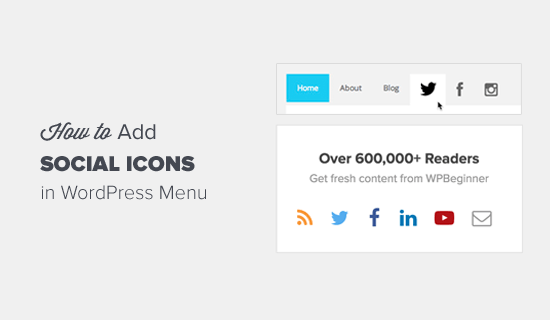
How to Add Social Media Icons in Menu

Why You Should Add Social Media Icons to Menus?

The biggest advantage of adding social media icons using WordPress menus is that you have the ability to change the order they appear in with a simple drag and drop interface.

While you can use third-party plugins to display social media icons in your sidebar, most of those solutions aren’t as flexible.

Aside from the easy drag & drop interface, when you add social media icons to WordPress menus, you can display it on any widget-ready area on your site including your sidebar, footer area, below posts, etc.

That being said, let’s take a look on how to easily add social media icons to WordPress menus.

Adding Social Media Icons to WordPress Menus

First thing you need to do is to install and activate the Menu Image plugin. For more details, see our step by step guide on how to install a WordPress plugin.

Upon activation, you need to visit Appearance » Menus page and create a new menu.
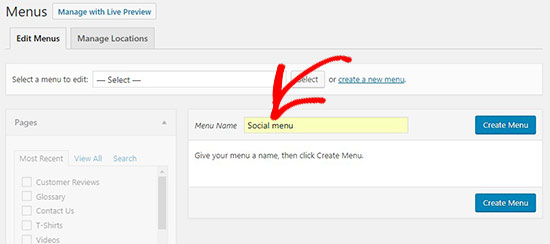
New social menu

Next, you need to add custom links for each social media channel separately in your new social menu.

You will notice that there is a menu image button option under each menu item. You can use it to upload your social media icon here.
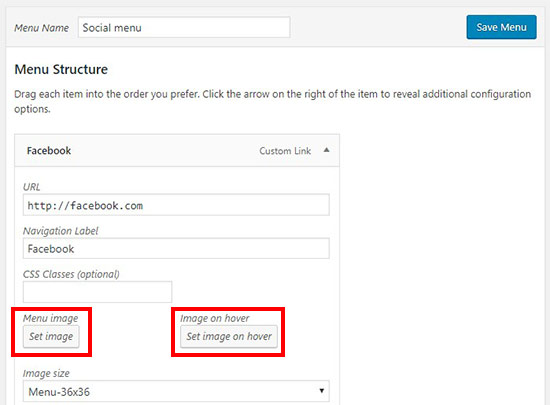
Set menu icon

It allows you to upload a different icon on hover with the main icon image to display on mouseover.

After that you can select a size for the social icon. There are multiple options for the image size. Make sure that you select the same size for all your social menu icons, so it doesn’t break the menu area.
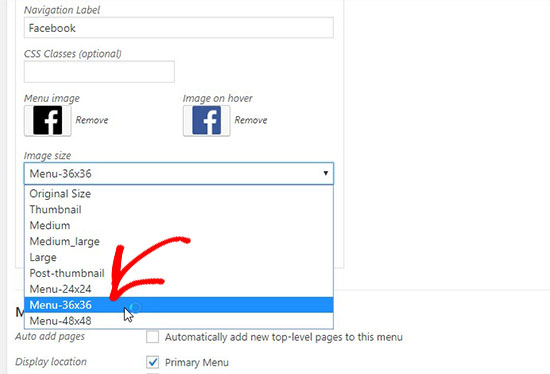
Social icon size

Next, you need to select a position to display the name of each social channel with your icon. If you only want to display the social icon without any label, then you need to select the ‘Hide’ option under the Title position setting.
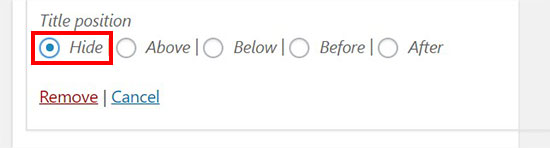
Menu title position

Simply repeat the same to add as many social icons as you need.

Once you are done adding menu items, you need to select the display location for your social menu and click on the ‘Save Menu’ button.
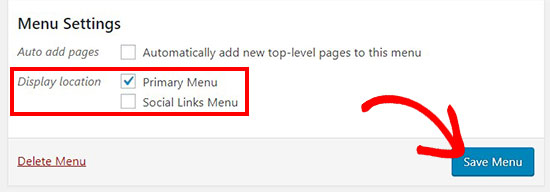
Menu display location

Now you can visit your website to see the social media icons in your WordPress menu.
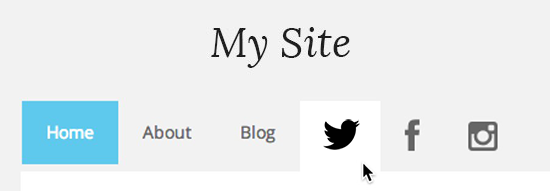
Social media menu

You can also add the social icon menu in your WordPress sidebar. Simply go to Appearance » Widgets page and drag the ‘Navigation Menu’ widget in the sidebar widget area.
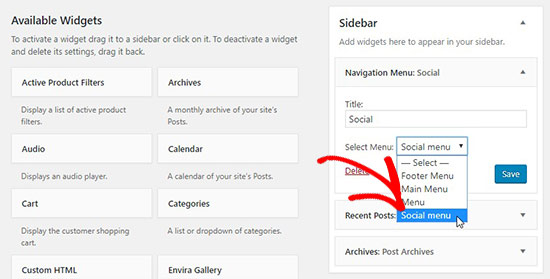
Social menu in widget

In the Select Menu dropdown, you should select the social menu that you created above and click on the ‘Save’ button.
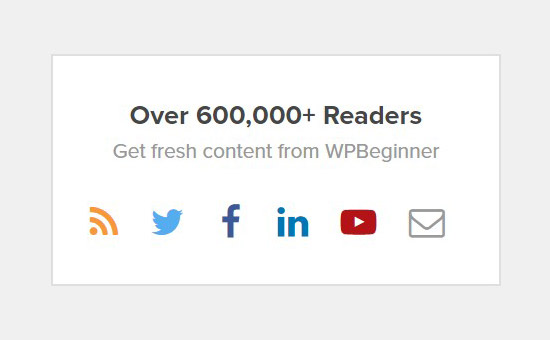
Social menu in sidebar

Note: The above image is displayed for example purposes only. To get the widget to look exactly like that, you will need to add custom CSS.

That’s all. We hope this article helped you learn how to add social media icons to WordPress menus. You may also want to see our guide on how to style WordPress navigation menus.

If you liked this article, then please subscribe to our YouTube Channel for WordPress video tutorials. You can also find us on Twitter and Facebook.

The post How to Add Social Media Icons to WordPress Menus appeared first on WPBeginner.