Category Archives: Tutorials

WordPress SMTP Tutorial: How to Configure WordPress to Use SMTP Server

You know what sucks? When your emails show up in your intended recipients’ spam folders. You’re sending content that needs to be seen, but the Internet gatekeepers are sending it straight to junk. It’s annoying. But as anyone who has tried to receive Contact Form 7 emails at their Gmail account can attest to, it happens far too often with emails sent by your WordPress site.

The post WordPress SMTP Tutorial: How to Configure WordPress to Use SMTP Server appeared first on Learn WordPress with WPLift.

How to Connect Your WordPress Media Library to Google Drive

Looking for an easy way to connect the WordPress Media Library to Google Drive? In this article, I’m going to show you a simple way to sync your WordPress Media Library with Google Drive in both directions. That is, when you add a file to your WordPress Media Library, that file will show up in ... Read more

The post How to Connect Your WordPress Media Library to Google Drive appeared first on Learn WordPress with WPLift.

What Is WP-Cron? Plus How to Disable WP-Cron in 2020

Wondering what WP-Cron is, whether or not your site needs it, and/or how to disable WP-Cron (I guess that’s kind of a spoiler to the previous question)? In this post, I’m going to take you through everything that regular WordPress users need to know about WP-Cron. I’ll explain what WP-Cron is, how it works, and ... Read more What Is WP-Cron? Plus How to Disable WP-Cron in 2020

The post What Is WP-Cron? Plus How to Disable WP-Cron in 2020 appeared first on Learn WordPress with WPLift.

WordPress mu-Plugins: Your Guide to Using Must-Use Plugins

Interested in WordPress must-have plugins? No, I’m not talking about the essential plugins that all WordPress sites need, I’m talking about a little-known WordPress core feature called mu-plugins. In a nutshell, WordPress mu-plugins, or must-have plugins if you enjoy extraneous typing, let you force activate certain features on your site. Neither you nor pesky clients ... Read more WordPress mu-Plugins: Your Guide to Using Must-Use Plugins

The post WordPress mu-Plugins: Your Guide to Using Must-Use Plugins appeared first on Learn WordPress with WPLift.

How to Use Shopify With WordPress (Display Products on WordPress)

Want to use Shopify with WordPress? That is, display Shopify products on WordPress? In a lot of posts, you see people compare WordPress and WooCommerce vs Shopify as if they’re always two separate platforms. But did you know that it’s actually possible to use Shopify with WordPress, which kind of gives you the best of ... Read more How to Use Shopify With WordPress (Display Products on WordPress)

The post How to Use Shopify With WordPress (Display Products on WordPress) appeared first on Learn WordPress with WPLift.

WordPress Block Patterns: What They Are & How to Use Them

If you’re using the WordPress block editor (AKA Gutenberg), WordPress 5.5 brought a flexible new feature – WordPress block patterns. In a nutshell, block patterns are basically pre-arranged collections of blocks that help you create more attractive designs and save time while doing so. All in all, they’re a pretty useful feature. However, since WordPress ... Read more WordPress Block Patterns: What They Are & How to Use Them

The post WordPress Block Patterns: What They Are & How to Use Them appeared first on Learn WordPress with WPLift.

WordPress Category vs Tag: Key Differences & When to Use Each

Struggling to understand the difference between a WordPress category vs tag? Categories and tags are both tools to help you organize your blog posts. However, while they share a lot of similarities, they’re different in some ways, so you’ll want to make sure you understand the differences so you know when to use each. In ... Read more WordPress Category vs Tag: Key Differences & When to Use Each

The post WordPress Category vs Tag: Key Differences & When to Use Each appeared first on Learn WordPress with WPLift.

WordPress Post vs Page: Key Differences & When to Use Each

Struggling to understand the difference between a WordPress post vs page? Both make it easy to add new content to your site. However, posts and pages serve different purposes, so you’ll want to make sure you’re using the right type of content for your needs. In this post, we’ll help you understand the difference between ... Read more WordPress Post vs Page: Key Differences & When to Use Each

The post WordPress Post vs Page: Key Differences & When to Use Each appeared first on Learn WordPress with WPLift.

How to Create Google Web Stories on WordPress (Without Code)

Want to create a better, more engaging experience for mobile visitors to your WordPress site? Google Web Stories help you create unique, “snackable” stories for your mobile visitors. They’re a vertically optimized, swipeable form of storytelling that’s great for people on the go – I’ll show you some examples in the next section. With the ... Read more How to Create Google Web Stories on WordPress (Without Code)

The post How to Create Google Web Stories on WordPress (Without Code) appeared first on Learn WordPress with WPLift.

How to Create a Separate Page for Blog Posts in WordPress

Do you want to create a separate page for blog posts in WordPress? By default, WordPress displays your blog posts on the homepage.

However, if you are making a business website or simply want to customize your homepage, then you may want a separate page for your blog section.

In this article, we will show you how to easily create a separate page for blog posts in WordPress.
Creating a separate blog page in WordPress

Setup WordPress to Create a Separate Blog Page

WordPress allows you to easily configure your website to have a custom home page. This feature also allows you to choose any other page on your website to be used as your blog page.

First, you need to create two pages in WordPress that you would like to use as your homepage and blog page.
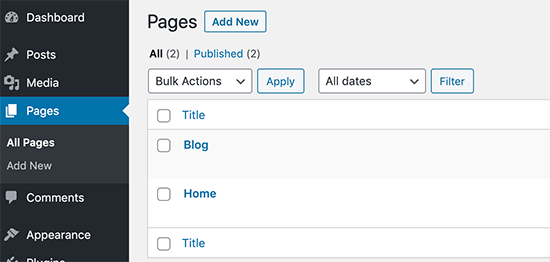
Publish blog and home pages in WordPress

You don’t need to add any content to those pages, and you can even name them anything else if you want. For instance, some business websites use News for their blog page.

Once you have created those pages, you can head over to the Settings » Reading page in the WordPress admin area.

Under the ‘Your homepage displays’ section, you need to click on the ‘ A static page’ option. After that, you can select the home and blog pages you created earlier.
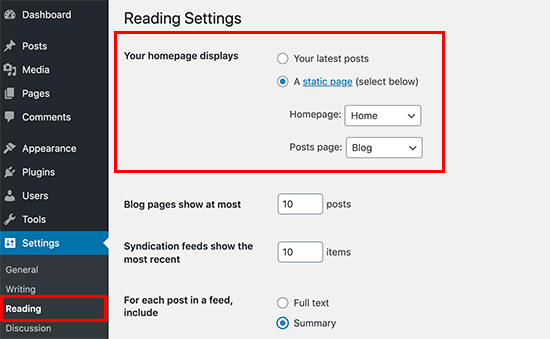
Select blog and home page

You can now go to Pages » All Pages section in admin area. You’ll notice your blog and homepage with new labels. Go ahead, and click on the View link under those pages to preview them.
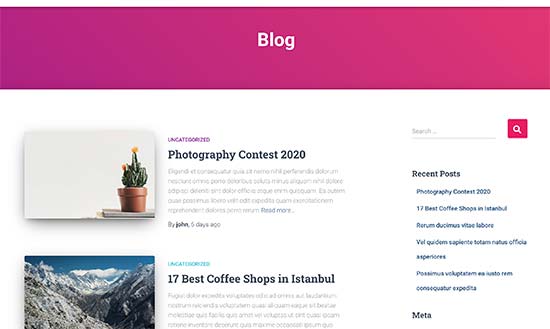
Blog page preview

The appearance of these pages depends on your WordPress theme, and you may need to configure your theme settings.

Since each WordPress theme has different options, you’ll have to check out your theme’s documentation or check the options under Appearance » Customize page.

We’ll also show you other methods later in this article.

Put The Blog Page Link to Your Website’s Navigation Menu

Blog link in navigation menu

Now that you have created a separate blog page let’s help your website visitors find that.

Simply visit the Appearance » Menus page and add the Blog page you created earlier to your website’s navigation menu.
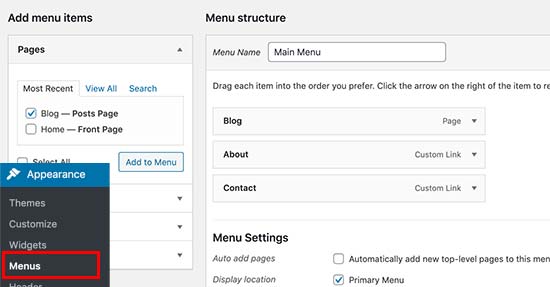
Adding blog page link to navigation menu

For more detailed instructions, see our beginner’s guide to navigation menus in WordPress.

Customizing Your Homepage

By default, many WordPress themes come with a built-in template to display a static page as your website’s front page. However, you’ll still need to set it up under Appearance » Customize.
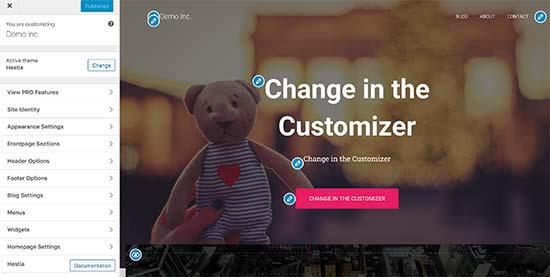
Theme customizer

Some WordPress themes also allow you to choose a homepage template for your page. If your theme comes with such a template, then you can select it by editing the Home page.
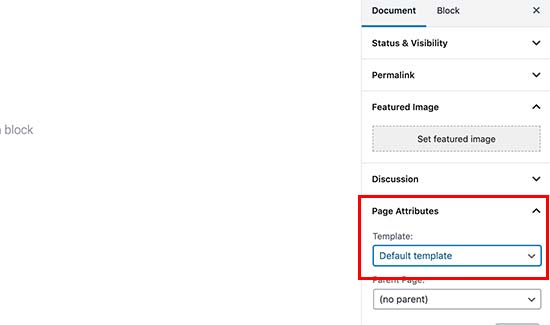
Selecting a page template

Finally, you can use a WordPress page builder plugin to use simple drag and tools to create your homepage from scratch.

We recommend using Beaver Builder as it is the best WordPress WordPress page builder plugin on the market. It is super-easy to use, includes ready-made templates, and super-flexible to create any layout you want.
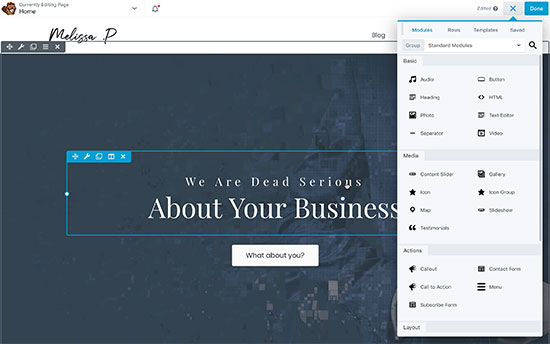
Editing homepage in Beaver Builder

For more details, see our tutorial on how to create a how to create a custom home page in WordPress.

Customize Your Blog Page Design

By default, WordPress automatically looks for a template in your WordPress theme to display posts on a separate blog page.

If your theme does not have one, then it automatically falls back to the archive template. For more details, see our guide on the WordPress template hierarchy.

Now, if you don’t like how your theme handles your blog page, then you can change that using some extra tools and without writing any code.

First, you will need to install and activate the Beaver Builder and Beaver Themer plugins. For more details, see our step by step guide on how to install a WordPress plugin.

Beaver Themer is an add-on plugin for Beaver Builder and enables you to not just create pages but entire new WordPress themes from scratch.

First, you need to visit Beaver Builder » Themer Layouts page and click on the Add New button.
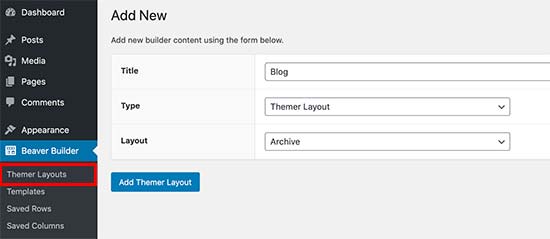
Themer Layout

From here you can provide a name for your layout, select ‘Themer Layout’ as your type, and then select Archive as your layout.

This will create a themer layout for the archive templates. On the next screen, you need to select ‘Post Archive’ for location option and then click on the ‘Launch Beaver Builder’ button.
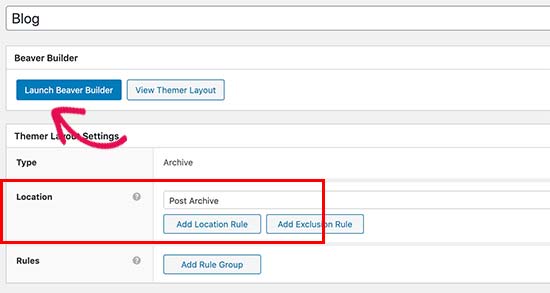
Launch Beaver Builder

This will open the Beaver Builder with your selected layout. You can simply point and click at any item on the screen and start editing it. You can also add new rows, columns, and web elements to the page.
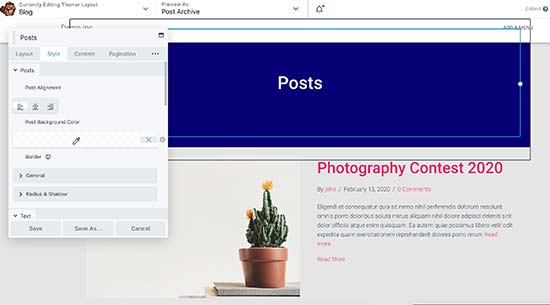
Editing your blog posts layout in Beaver Builder

For more details, see our guide on how to create a custom WordPress theme (without coding).

Once you are finished editing, you can simply publish your layout. After that, visit your blog page to see it in action.
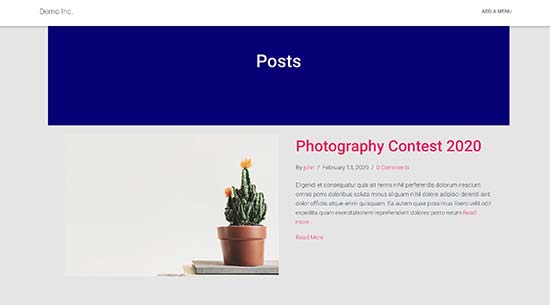
Blog page template

We hope this article helped you create a separate page for blog posts in WordPress. You may also want to see our guide on how to increase blog traffic and our list of must have WordPress plugins.

If you liked this article, then please subscribe to our YouTube Channel for WordPress video tutorials. You can also find us on Twitter and Facebook.

The post How to Create a Separate Page for Blog Posts in WordPress appeared first on WPBeginner.