Category Archives: WordPress Plugins

How to Get Email Notification for Post Changes in WordPress

Do you want to get email notifications for post changes in WordPress?

By default, WordPress doesn’t send notifications when posts are changed by a user. If you run a multi-author WordPress site, then you may want to stay informed about post changes on your website.

In this article, we will show how to get email notifications for post changes in WordPress.
How to Get Email Notification for Post Changes in WordPress

Why Set Up Email Notifications for Post Changes in WordPress?

If you’re the only one working on your own WordPress website, then it is easier to keep an eye on everything that is happening on your website.

However, if you have other authors writing blog posts, or SEO specialists optimizing blog posts for SEO, then you may want to keep an eye on the changes they make.

For instance, you may want to be alerted when a new post is published or if changes were made to an older article.

This also helps all team members be accountable. If they make a mistake, then it can be easily caught and remedied quickly.

That said, let’s take a look at how to get email notifications for post changes in WordPress. We’ll cover two methods so you can choose one that works best for you. We’ll also show you how to undo post changes and make sure your notification emails are delivered.

Method 1: Getting Notifications for Post Changes Using WP Activity Log

This method is recommended for all users as it is easy, powerful, and flexible.

The first thing you need to do is install and activate the WP Activity Log plugin. For more details, see our step-by-step guide on how to install a WordPress plugin.

Upon activation, you’ll be asked to enter your license key. You can find this information under your account on the WP Activity Log website.
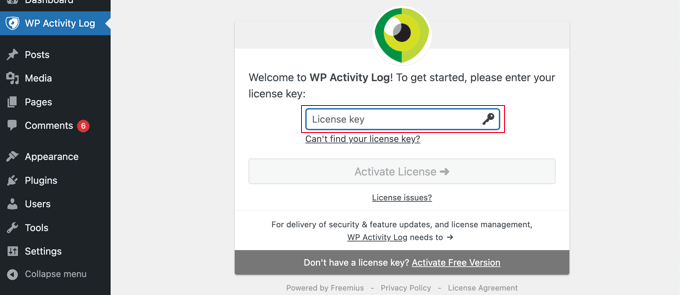
Add license key for WP Activity Log

Next, you’ll be given the option to run the setup wizard. You can answer a few quick questions to set up important monitoring and logging features.

All these things can be changed later in plugin settings too.
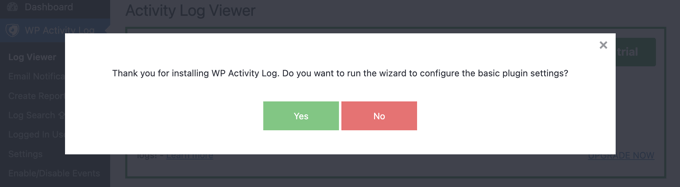
WP Activity Log setup wizard

Setting Up Email Notifications for Post Changes in WordPress

After that, you need to visit the WP Activity Log » Email & SMS Notifications page and switch to the ‘Content Changes’ tab.
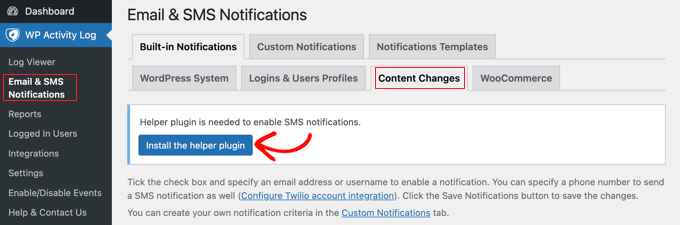
Installing the Helper Plugin in WP Activity Log

You will see a message that a helper plugin is needed to enable SMS notifications.

If you want to receive SMS notifications as well as email notifications, then simply click the button labeled ‘Install the helper plugin’. You will finish setting up SMS notifications in the next step.

Now you need to select the events that will trigger notifications. The plugin comes with three default notifications covering most content changes.
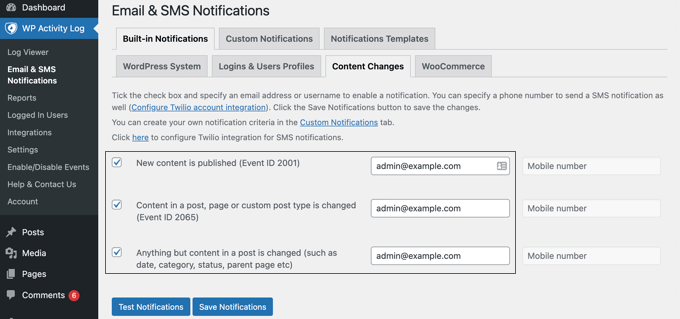
Setting up content change notifications in WP Activity Log

Next to each event, you need to enter the email address the notifications should be sent to. In the next step, you will also add a mobile phone number if you want to get SMS notifications for post changes.

Finally, click on the ‘Save Notifications’ button to store your changes.

Setting Up SMS Notifications for Post Changes in WordPress

WP Activity Log allows you to easily receive SMS notifications for post changes and other WordPress activities. To do that, you’ll need a Twilio account and a phone number.

Twillio is a paid service with a pay-as-you-go pricing model for SMS messages. Pricing starts at $0.0079 per SMS, and you’ll also need to purchase a virtual phone number which will be used to send messages.

Simply go to the Twilio website and signup for a free trial account.

Sign up for a Twilio account

After setting up your account, you’ll reach the Twilio Console.

Here, you can copy your Account SID, Auth Token, and get a trial phone number.
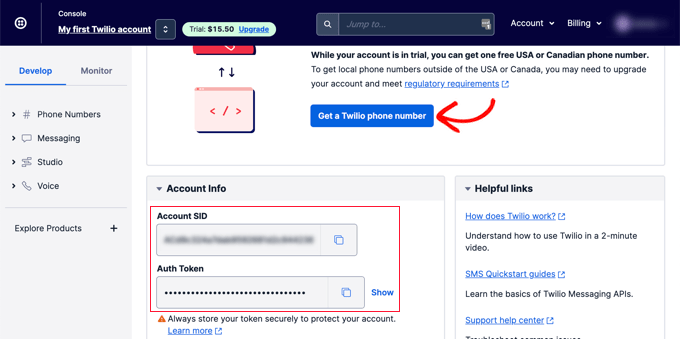
Getting your Twilio credentials

Copy and paste these values to a text editor or leave this browser tab open.

Next, you need to switch back to your WordPress website admin area and visit the WP Activity Log » Settings page. From here, switch to the SMS Provider tab and enter your Twilio Account SID, Auth token, and number.
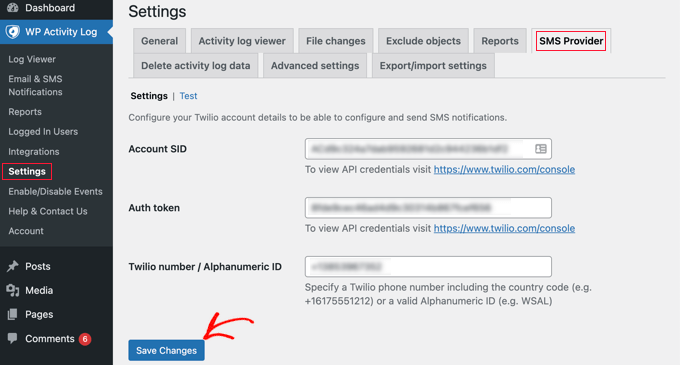
Entering your Twilio credentials

Don’t forget to click on the ‘Save Changes’ button to store your settings.

Now you can navigate back to WP Activity Log » Email & SMS Notifications and switch back to the ‘Content Changes’ tab. Here you can add a mobile phone number to get SMS notifications for post changes.
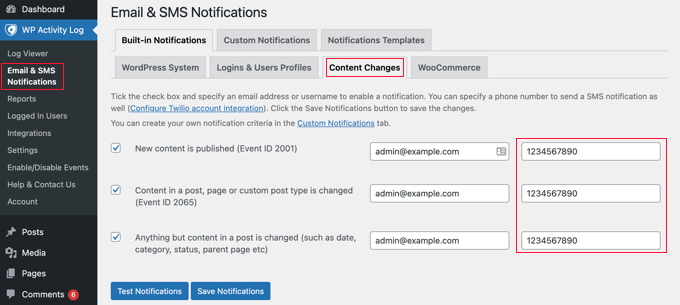
Entering the Phone Number for SMS Notifications

Testing Post Change Notifications with WP Activity Log

WP Activity Log allows you to easily test your post change notifications.

First, make sure you are on the ‘Content Changes’ tab of the WP Activity Log » Notifications page.
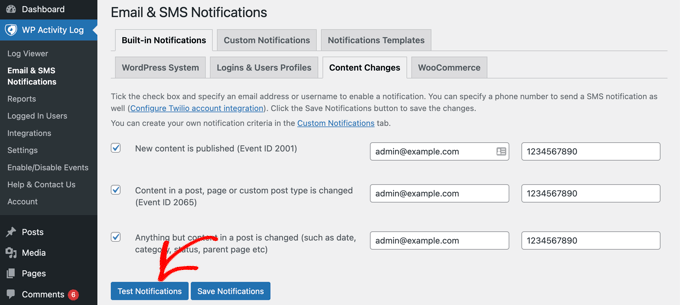
Test notifications in WordPress Activity Log

Now you can scroll down and click the ‘Test Notifications’ button.

This will bring up a popup window where you can enter an email address and a mobile phone number to send notifications.
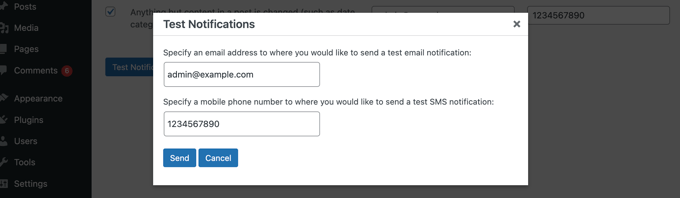
Send test notifications

WP Activity Log will then send test notifications. If you do not receive an email notification right away, then you can jump to the section below on troubleshooting email notifications.

If you fail to receive SMS notifications, then check your Twilio credentials to make sure they are correct.

Method 2: Getting Notifications for Post Changes With Better Notifications for WP

This method is easy to use, but it doesn’t come with ready-made templates. While this method will send an email notification when a post is changed, you will have to write the email yourself and investigate the activity on your own.

First, you need to install and activate the Customize WordPress Emails and Alerts – Better Notifications for WP plugin. For more details, see our step-by-step guide on how to install a WordPress plugin.

Upon activation, you need to visit the Notifications » Add New page to create your first custom notification.
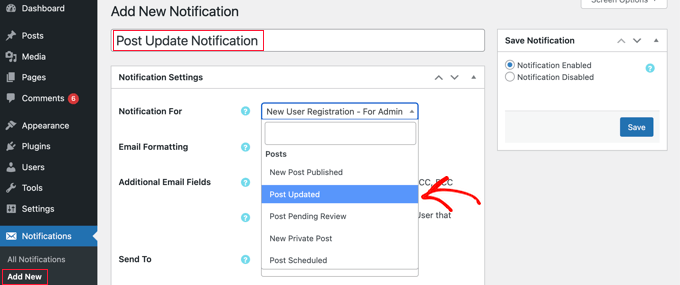
Creating a post change notification

First, you need to provide a title for the notification. After that, you can choose a ‘Notification For’ option from the drop-down menu. This is the event that will trigger this notification, such as ‘Post Updated’ in the screenshot above.

If you like, you can check the ‘Additional Email Fields’ box so you can enter custom email addresses for the sender, cc, and more. If this option is left unchecked, then the plugin will simply use your default WordPress email settings.

Next, you need to select the users or user roles that will receive this notification under the ‘Send To’ option. Below that you can write the email subject and the message itself.
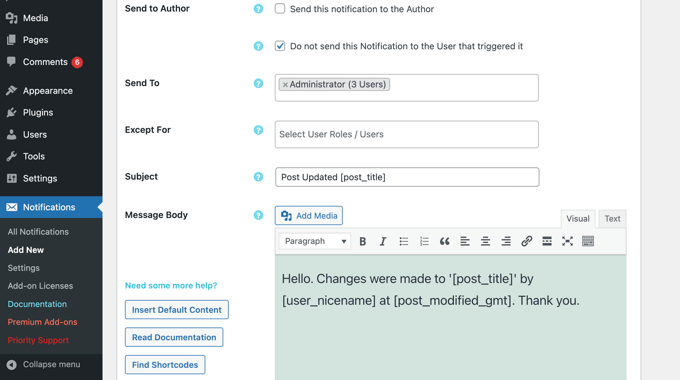
Setting up email settings

The Better Notifications for WP plugin doesn’t come with a template for post changes. This means you’ll need to write your own email message.

The plugin comes with a bunch of shortcodes that you can use to customize your notifications. You can view all of them by clicking on the ‘Find Shortcodes’ button.

Lastly, you need to click on the ‘Save’ button to store your email notification. Once you’ve done that, you’ll be able to click on the ‘Send Me a Test Email’ button to see if it is working.
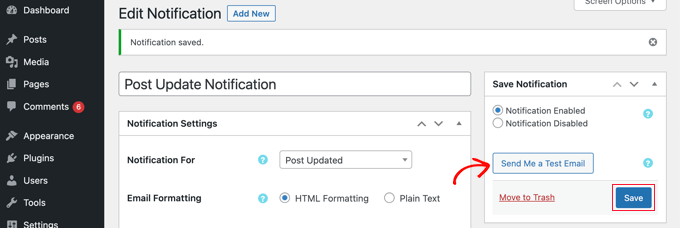
Save and test your email notification

Better Notifications for WP is not an activity monitoring plugin. This means you’ll need to set up multiple notifications to cover different types of content changes in WordPress.

For instance, you may want to set up a ‘Post Published’ notification or another one for when a category or tag is changed.

The plugin also allows you to create custom notifications or modify default WordPress notifications as well. For more details, see our article on how to create better custom notifications in WordPress.

Revising and Undoing Post Changes in WordPress

Once you have received an email notification for post changes, you may want to see what changes were made, who made them, and when.

WordPress comes with a built-in revision management system that keeps track of all changes made to an article.

Simply edit the post or page that you want to review and then click on the ‘Revisions’ tab under the ‘Post’ settings from the right column.
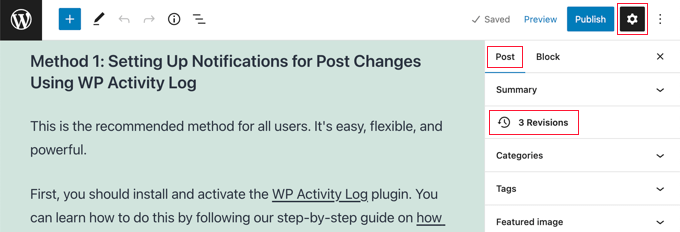
Open revisions for a post or page in WordPress

This will bring you to the post revisions screen.

You can check the ‘Compare any two revisions’ box and then move the slider below to compare the changes.
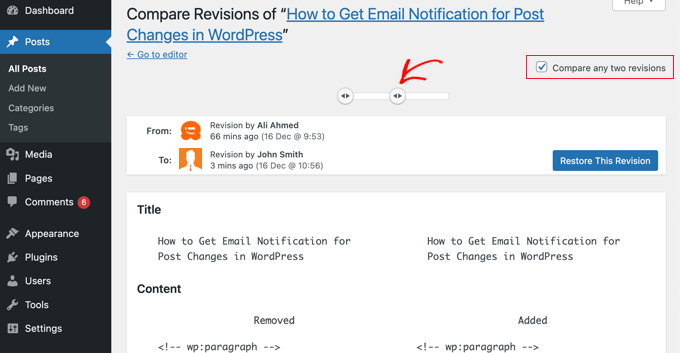
Comparing revisions in WordPress

When you scroll down the post, you will see the changes between the two revisions highlighted in red and green colors.

If you don’t like the changes, then you can simply click on the ‘Restore This Revision’ button to undo them and return to the previous version.
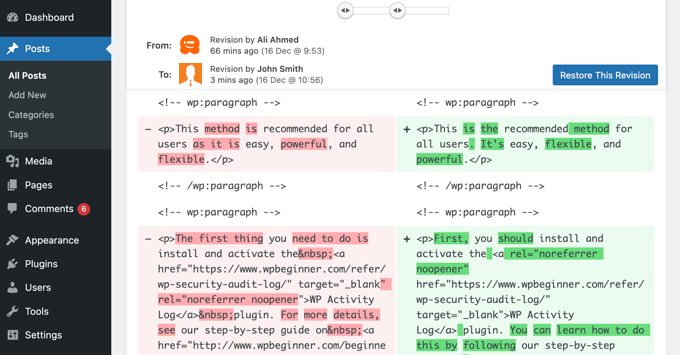
Changes highlighted in revision history

For more details, see our guide on how to undo changes in WordPress with post revisions.

Troubleshooting Email Notifications in WordPress

By default, WordPress uses the PHP mail() function to send emails. This method does not use proper authentication (login or password) which means it can be easily misused. This is why most spam filters mark such emails as spam or block them altogether.

To fix this, you need to use a proper SMTP service provider to send out WordPress emails. There are even free SMTP servers like SendLayer, Gmail, Sendinblue, Sendgrid, and more that you can use with WordPress.

To set up SMTP, you need to install and activate the WP Mail SMTP plugin. For more details, see our step-by-step guide on how to install a WordPress plugin.

WP Mail SMTP allows you to connect your WordPress site to your SMTP service provider and send all your WordPress emails with much higher deliverability.

Upon activation, you need to go to the WP Mail SMTP » Settings page in your WordPress admin area to set up the plugin.
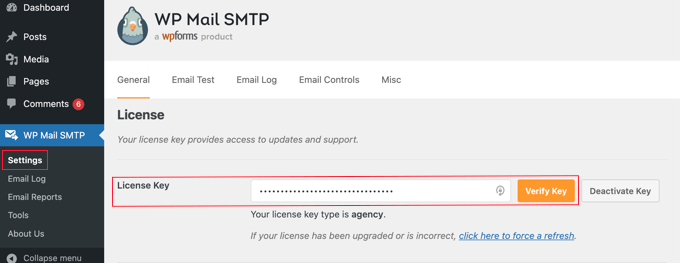
WP Mail SMTP license

First, you need to enter your license key. You can find this information under your account on the WP Mail SMTP website.

After that, scroll down to the ‘Mailer’ section to select your SMTP service provider. WP Mail SMTP will show all top SMTP service providers. You can click on your provider and then enter the required information below (usually an API key).
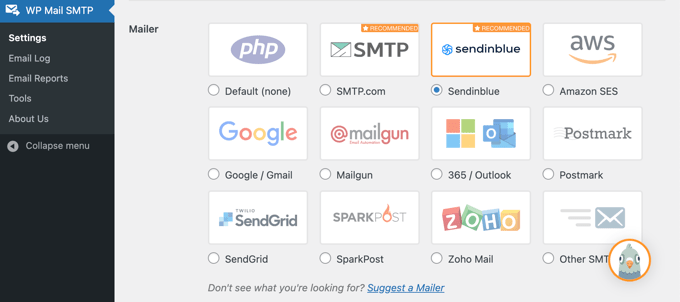
SMTP mailers in WP Mail SMTP

If your mailer is not listed, then you can simply choose ‘Other SMTP’ option and enter the required information.

To learn more, see our tutorial on how to fix WordPress not sending email issue.

We hope this article helped you set up email notifications for post changes in WordPress. You may also want to see our tips on getting more traffic to your blog and the best WordPress SEO plugins and tools to grow your website.

If you liked this article, then please subscribe to our YouTube Channel for WordPress video tutorials. You can also find us on Twitter and Facebook.

The post How to Get Email Notification for Post Changes in WordPress first appeared on WPBeginner.
How to Export Email Addresses from WordPress Comments

Do you want to export email address from your WordPress comments?

The people who comment on your site are already engaged with your content, and that makes them the perfect audience for email marketing or retargeting ads. As long as you get the right permissions, you can target these users by exporting their contact information.

In this article, we will show you how you can export email addresses from the WordPress comment section.

How to export email addresses from WordPress comments

Why Export Email Addresses From WordPress Comments?

There are a few different reasons why you may want to export email addresses from WordPress comments but the most common is to build an email list.

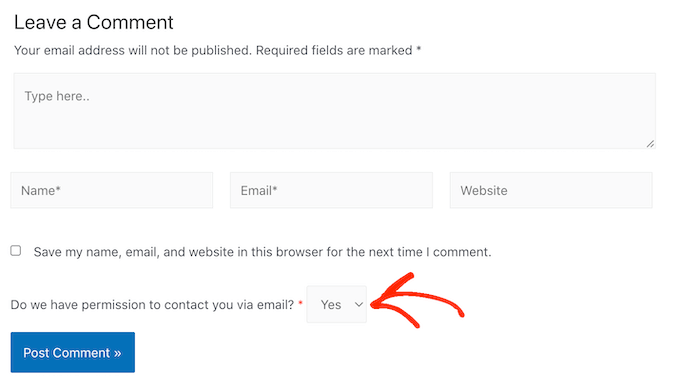
However, according to digital privacy guidelines, you must have permission to contact the people who comment on your website. The default WordPress comment form doesn’t give users a way to opt into your email updates, which means you can’t simply add these people to your mailing list. One easy fix is to add custom fields to the comment form in WordPress so that anyone who leaves a comment can opt into getting emails from you.

The following screenshot shows an example of how this might look on your website.

An example of a custom comment form

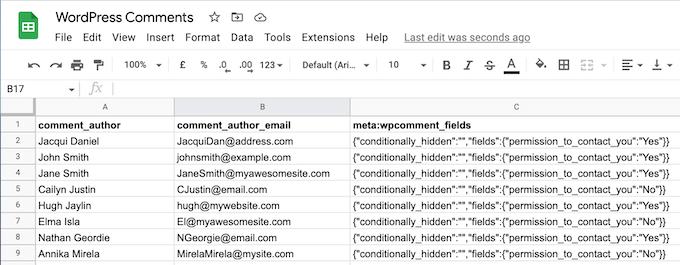
When the person posts their comment, their response is added as comment meta data. You can then export the meta data along with the email address, and see whether you have permission to email that person.

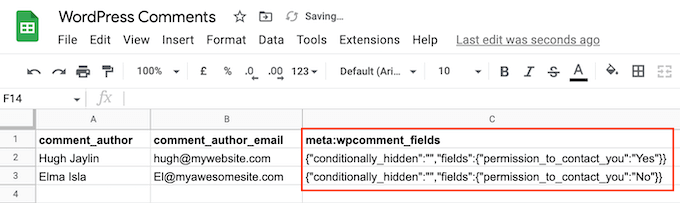
In the following image, you can see an example of a spreadsheet containing one comment author who has opted into getting email updates and one author who doesn’t want to receive any messages from you.

A list of exported email addresses

This allows you to build a mailing list without breaking important privacy rules such as GDPR.

There may also be some sites where you already have permission to email anyone who comments on your content. This often includes private WordPress blogs such as a classroom website or a family blog. In this case, simply exporting the list of email addresses may be easier than asking every single person for their contact information.

With that in mind, let’s see how you can export email addresses from WordPress comments.

How to Export Email Addresses from WordPress Comments

The easiest way to export email addresses from your WordPress comments is by using WordPress Comments Import & Export.

This plugin lets you export different information from the WordPress comment section including email addresses and any meta data that was added via a custom field.

To begin, you’ll need to install and activate the plugin. If you need help, then please see our guide on how to install a WordPress plugin.

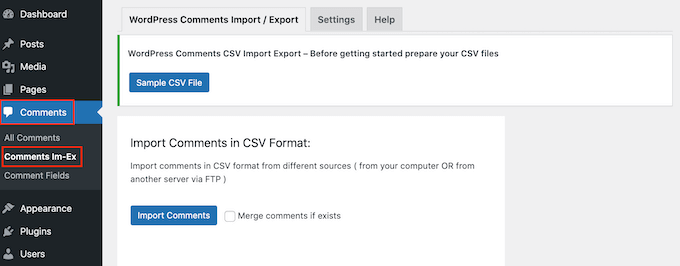
Upon activation, go to Comments » Comments Im-Ex.

The WordPress Comments Import & Export plugin

By default, the plugin will export data from all the comments that people have posted across your website.

Depending on your site, this might be a lot of information for you to read through.

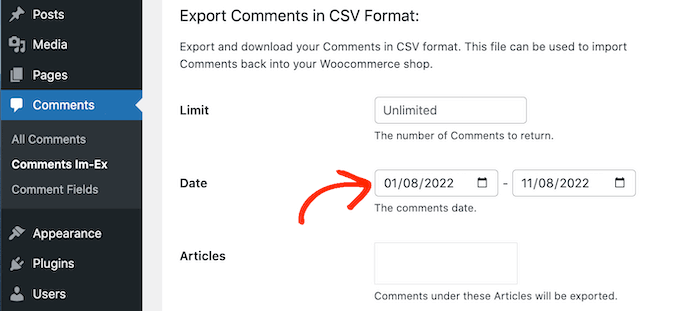
With that being said, you may want to filter the comments that the plugin exports. One option is to only export comments that were posted within a particular timeframe.

To set a time limit, scroll to the ‘Date’ section. You can then click on each date field and then choose a start and end date from the calendar popup.

Filtering the WordPress comments export

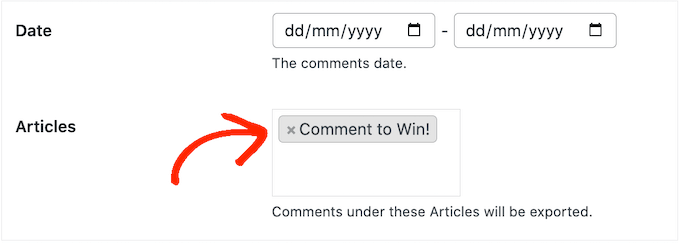
You can also export comments from a specific post only. For example, you might be running a giveaway or contest where everyone who comments on a particular post gets entered into a prize draw.

You can then export the email addresses from this post and pick your winner.

To limit the export to a specific page, click on the box next to ‘Articles’ and then select any post from the list.

Filtering the WordPress comment export

Once you’ve done that, scroll to the ‘Columns’ section which lists all the information you can include in the export.

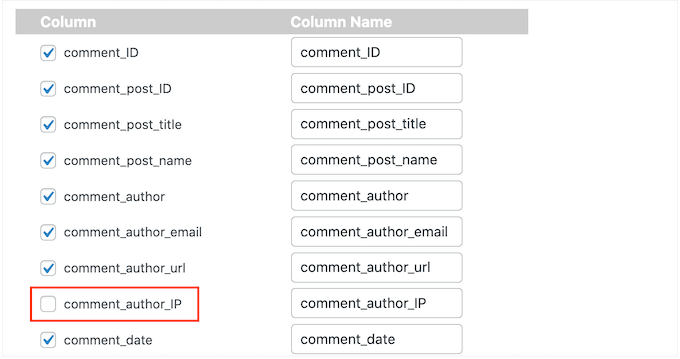
By default, the plugin exports all the data from each comment, so you’ll typically want to uncheck the information you don’t need. For example, if you’re not interested in the author’s IP address then you can click to uncheck the comment_author_ip box.

Building the comment form export

You can check or uncheck any boxes you want. However, since we want to export a list of email addresses it’s important to check the comment_author_email box.

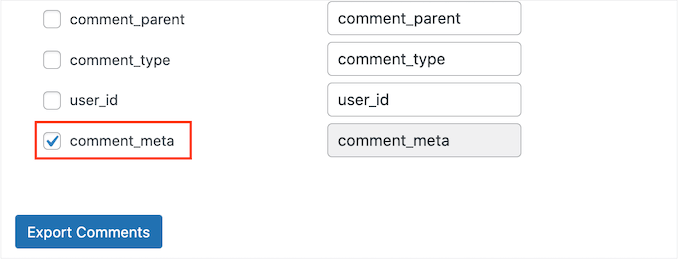
Did you add a custom opt in field to the comment form? Then make sure you check the comment_meta box so you can see whether the author opted into receiving email updates.

Exporting custom meta data from WordPress comments

When you’re happy with how the export is set up, go ahead and click on the Export Comments button.

The plugin will now export all the email addresses and you can download that CSV file.

Next, open the file using any app or program that supports the CSV format, such as Microsoft Excel or Google Sheets, as you can see below.

How to export email addresses from WordPress comments

You can now filter the comments based on whether these people opted into receiving emails.

How to Get the Most Out of Your Exported Email Addresses

After exporting the email addresses from your WordPress comments, there are a few different ways that you can use them.

If the comment author opted into getting email updates from you, then you might add them to your email newsletter. You can then send these people news, tips, and updates about your business or website.

You can also add the users in your CRM to do regular personal reach outs to build your network.

Another use for your exported email addresses is for Facebook retargeting ads. Facebook lets you upload a list of email address so you can target only those users with your ad campaign.

We hope this article helped you learn how to export email addresses from WordPress comments. You may also want to check out our guide on how to allow user registration on your WordPress site and the best contact form plugins.

If you liked this article, then please subscribe to our YouTube Channel for WordPress video tutorials. You can also find us on Twitter and Facebook.

The post How to Export Email Addresses from WordPress Comments first appeared on WPBeginner.
7 Best WordPress Plugins for Sitemap Creation

Wondering which WordPress plugin is best for sitemap creation?  Sitemap helps you ensure your web pages are indexed properly and increases online visibility.  Sitemaps are like a “roadmap” of your website, allowing search engines and humans to navigate and read your content more effectively. XML sitemaps and HTML sitemaps are two formats of sitemaps created [...]

Read More...

The post 7 Best WordPress Plugins for Sitemap Creation appeared first on Learn WordPress with WPLift.

Converter for Media Review: Future-Proof Your Website with AVIF Images

Is the fear of slower page load time preventing you from using high-quality images? Are you struggling to compress your existing images without them losing quality? With Converter for Media, you can overcome these limiting factors and efficiently improve your website’s speed. Converter for Media is a premium WordPress plugin that helps you reduce the [...]

Read More...

The post Converter for Media Review: Future-Proof Your Website with AVIF Images appeared first on Learn WordPress with WPLift.

Content at Scale (Leadfuze) Review: The Easy Way to Improve Your Content Production with Artificial Intelligence

If you’re relying on quality search engine-optimized posts to grow your WordPress website but you’re struggling to find the time, energy, and effort to create those posts, this Content at Scale review is worth paying attention to.  Launched in late 2022, this powerful AI platform promises to take your keywords and turn them into complete, [...]

Read More...

The post Content at Scale (Leadfuze) Review: The Easy Way to Improve Your Content Production with Artificial Intelligence appeared first on Learn WordPress with WPLift.

CommandBar For WP Admin: Navigate Your WordPress Site Like You’re DC’s Flash

The WordPress admin dashboard, also called WP admin, is the mission control for your blogging or business website. It lets you create and manage pages, change styling with the help of themes, add functionality using plugins, and do much more. However, you don’t get any shortcuts or actions for quick navigation, meaning it could take [...]

Read More...

The post CommandBar For WP Admin: Navigate Your WordPress Site Like You’re DC’s Flash appeared first on Learn WordPress with WPLift.

Your Complete Guide to WooCommerce: Everything You Need to Know About the Leading WordPress eCommerce Tool

There’s no denying that if you want to monetize your site or build an eCommerce store with WordPress, WooCommerce is the way to go. The powerful, versatile plugin currently powers over 6.5 million active online stores, making it the global leader in the world of eCommerce software platforms with a total market share of 36.68%. [...]

Read More...

The post Your Complete Guide to WooCommerce: Everything You Need to Know About the Leading WordPress eCommerce Tool appeared first on Learn WordPress with WPLift.

The Ultimate Beginner’s Guide to WordPress Plugins 

One of the many things that make WordPress the most popular CMS in the world is the huge array of WordPress plugins that can be used to add just about any kind of functionality you can think of. That’s great, but if you’re new to all this, the above statement probably raises more questions than [...]

Read More...

The post The Ultimate Beginner’s Guide to WordPress Plugins  appeared first on Learn WordPress with WPLift.

Salon Booking System Review 2022: Streamline Your Business’ Bookings With This Feature-Rich Plugin

In this comprehensive Salon Booking System review, we’ll be taking a look at a WordPress plugin that promises to answer the prayers of many a service-based business owner by taking the hassle and hard work out of filling up your appointment calendar. Whether you’re new to running your salon or you’ve been operating at a [...]

Read More...

The post Salon Booking System Review 2022: Streamline Your Business’ Bookings With This Feature-Rich Plugin appeared first on Learn WordPress with WPLift.

Geotargeting WP Review: Map Your Content to The Most Appropriate Target Audience

There’s no denying that content works best when it’s segmented and personalized. And for WordPress site owners, the best way to achieve that might be to use geotargeting. Geotargeting WP is a suite of plugins that lets you target content and offers based on the location of your visitors. From specific cities to country-wide geotargeting, [...]

Read More...

The post Geotargeting WP Review: Map Your Content to The Most Appropriate Target Audience appeared first on Learn WordPress with WPLift.