24 Best WordPress Themes for Art Gallery

Are you looking for the best WordPress themes for art galleries? Most WordPress themes for business and personal websites do not match the creativity and features required for an art gallery website. In this article, we have hand-picked some of the best WordPress themes for art galleries.

Best WordPress themes for art galleries

Making an Art Gallery Website with WordPress

WordPress is the most popular website builder in the world. It comes in two flavors, WordPress.com which is a hosted solution and WordPress.org also known as self-hosted WordPress.

We recommend using WordPress.org due to the flexibility it offers. It also gives you access to all WordPress features out of the box (See our comparison of WordPress.com vs WordPress.org).

You’ll need a domain name and a WordPress hosting account to create an art gallery website.

We recommend using Bluehost. They are one of the officially recommended WordPress hosting providers and one of the largest hosting companies in the world.

After signing up for your hosting account, you can checkout our guide on how to make a website for step by step setup instructions.

That being said, let’s take a look at some of the best WordPress themes for art galleries. All these themes are mobile friendly.

1. Reel Story

Reel Story

Reel Story is a beautifully crafted WordPress theme for creative professionals, artists, and galleries. It is designed to showcase your work and put it front and center. It includes a beautiful portfolio section, photo galleries, and support for video embeds.

It comes with a powerful visual page builder plugin and has a custom theme options panel for quicker setup.

2. Ultra

Ultra

Ultra is an all purpose WordPress theme suitable for art galleries, artists, photographers, and other creative professionals. It comes with several ready-made designs that you can install with 1-click. It also includes an easy to use page builder to edit your pages.

It has portfolio section to beautifully display art work, also included are gorgeous templates for photo galleries with multiple layouts.

3. Indigo

Indigo

Indigo is a beautifully designed WordPress theme with a modular approach to design. It is suitable for all kind of websites including art galleries, artists, and creative spaces.

It includes beautiful modules to add photo galleries, portfolio, contact form support, testimonials, and more. It is quite easy to setup and includes multiple designs that can be installed with 1 click.

4. Meteor

Meteor

Meteor is an excellent WordPress portfolio and resume theme suitable for art galleries and exhibitions. It includes a powerful portfolio post type with masonry, grid, and carousel layouts. Each portfolio item has its own page with beautiful galleries and descriptions.

It is super easy to use and designed to work out of the box with minimal settings to configure. Inside you will also find a getting started guide that will walk you through theme setup.

5. Freelo
Freelo

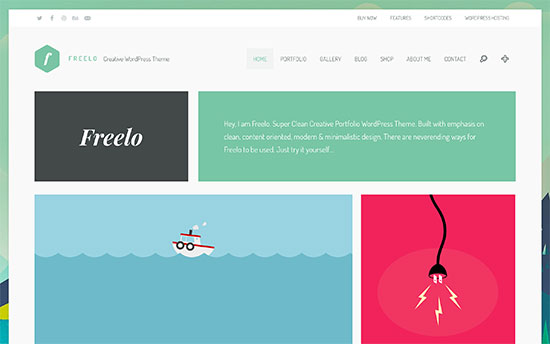
Freelo is an elegantly designed WordPress theme for art galleries, exhibitions, and artists. It comes in multiple color schemes and you can use your own colors as well. It has an beautifully designed portfolio section with multiple styles.

Other notable features include support for Google Fonts, multiple page templates, unlimited sidebars, and an easier theme options panel.

6. Coastline

Coastline

Coastline is a powerful WordPress portfolio theme with a unique design that puts your artwork front and center. It features a masonry grid layout on the front page with a static sidebar on the left.

It also includes a portfolio section, photo galleries, custom widgets, and social media integration. All theme options are neatly organized under live theme customizer.

7. Shutter

Shutter

Shutter is feature-rich WordPress theme for photography websites and art galleries. It comes with 5 demo designs with dummy content that can be installed with 1-click.

It is SEO friendly and includes tons of features like Google fonts, portfolio, galleries, beautiful sliders, and more. Theme settings are super easy with a custom theme options panel.

8. Float

Float

Float is a modern WordPress theme with beautiful parallax background design. Suitable for art galleries looking for a modern and futuristic look for their website.

It includes an intuitive drag and drop page builder, multiple styles and layouts, page templates, custom widgets, and social media integration. Theme demo can be installed with 1-click installer and customizations can be made using custom theme settings page.

9. Hellomouse
Hellomouse

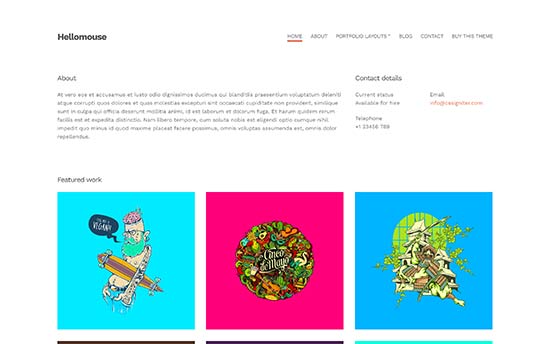
Designed specifically for creative works, Hellomouse is a beautiful WordPress portfolio theme. Optimized to create a great first impression, its homepage features a welcome message with contact information, followed by your portfolio items displayed in a grid.

For customizations, it has more than 60 options with in live theme customizer. It comes with custom widgets, drag and drop homepage settings, social media integration, and more. It works with all top WordPress plugins.

10. Peak
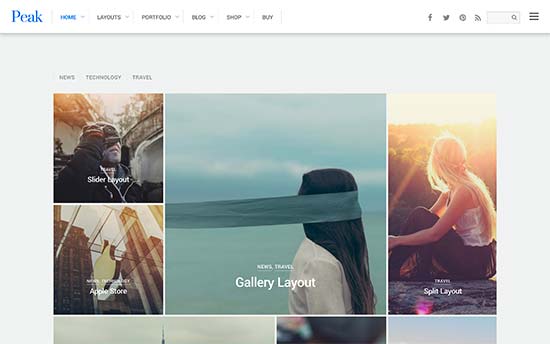
Peak

Looking for an elegant and feature rich theme for your art gallery? Check out Peak. This beautifully designed WordPress theme is perfect for photography, artists, and other creative works.

It comes with multiple gallery layouts, page templates, multiple styles, slideout widgets, page title banner and more. It is powerful yet quite easy to use with detailed theme options that help you walk through setup.

11. North
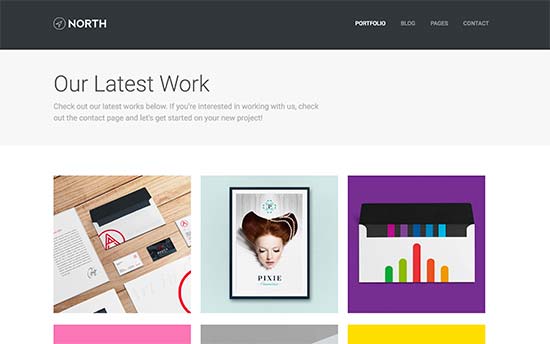
North

If you are looking for a minimalist WordPress theme for your art gallery, then take a look at North. This beautifully designed WordPress theme comes with a built-in portfolio content type and gorgeous templates to display it.

It includes multiple ways to display your galleries and portfolio items. It is super easy to use and all theme options are available under customizer with live preview.

12. Creativo

Creativo

As the name suggests, Creativo is a WordPress theme for creative professionals, agencies, and galleries. This beautiful theme comes with multiple ready to use designs that you can install with one click.

It ships with a premium slider plugin and a visual page builder. It is WooCommerce ready and can also be used to add an online store to your website.

13. Eclection
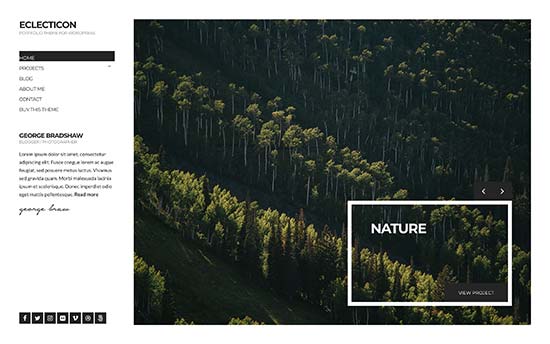
Eclection

Eclection features unique design with minimalist approach. It’s homepage displays a large fullscreen featured slider with a sidebar on the left.

It has a beautifully designed section to display your projects with a separate page for blog section. It is super easy to use and comes with tons of options that you can use to make it uniquely yours.

14. Inspiro

Inspiro

If videos play an important role in your art gallery, then you may want to take a look at Inspiro. This WordPress theme for videos comes with a featured video slider on top followed by your most important content.

This ecommerce ready theme comes with a custom theme options page for easier setup. It also includes photo galleries, custom widgets for social media and contact information, 5 demo designs, and a simple drag and drop page builder.

15. iRibbon Pro
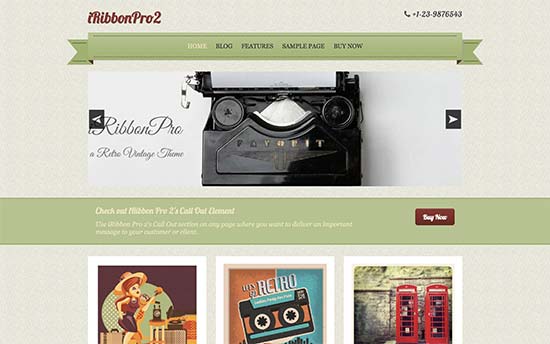
iRibbon Pro

iRibbon pro is an excellent WordPress theme featuring a retro vintage design. It comes in 4 color schemes including green, blue, red and teal blue. It has a built-in slider on top followed by a call to action section.

It includes portfolio and testimonials section, contact page template, phone number location, and multiple sidebar layouts for different sections of your website. It is super easy to use and comes with a custom theme settings area.

16. Corner
Corner

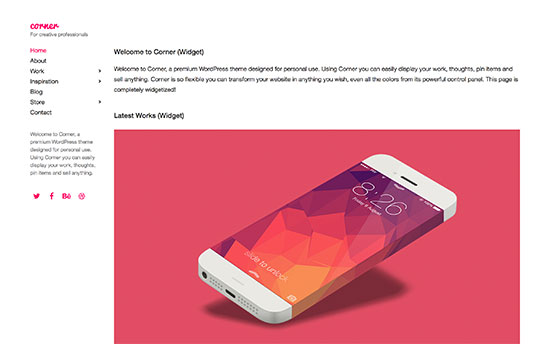
Corner is an excellent minimalist WordPress theme for creative works, art galleries, and artists. It features a narrow left sidebar with a large content area to showcase your projects.

It uses lots of white space and allow you to choose your own colors to use. It has a separate blog page, photo gallery templates, custom widgets, and it also supports WooCommerce to add an online store.

17. Eclipse
Eclipse

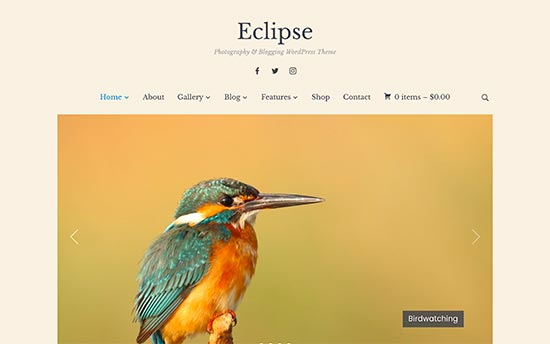
Eclipse is feature-rich yet very simple WordPress theme. It features beautiful typography with social icons and navigation menu on the top, followed by a large slider, boxes, and your recent content.

It also comes with Instagram widget, multiple layouts, and unlimited color choices. It works out of the box and it is super-easy to setup even for absolute beginners.

18. Ambiance
Ambiance Pro

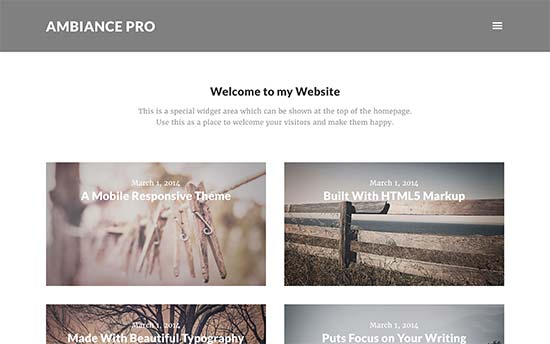
Built on top of the Genesis theme framework, Ambiance Pro is a beautiful WordPress theme with a minimal approach to design. Its homepage features a collapsed navigation menu, welcome message, and the grid layout of your latest work.

It has a widgetized homepage which allows you to drag and drop widgets to setup your homepage. You can customize theme settings using theme options page and live customizer.

19. True North
True North

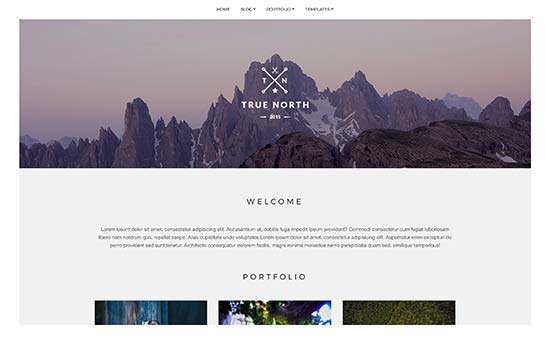
True North is an ideal WordPress theme for artists, photographers, and art galleries. It features a sticky navigation menu on top, a large full width header image, followed by your portfolio and other sections.

It comes with multiple layouts including filterable portfolio, grid, slideshow, and column listing. It is also packing tons of customization options that allow you to easily tweak theme settings and make it your own.

20. Parallax

Parallax

If you are looking for a modern WordPress one-page theme, then Parallax would be an excellent choice. It uses highly engaging parallax background effects with vertical navigation menus.

It comes with portfolio, 11 header styles, smart layouts, custom header, slider, and animated bars and support for RTL languages. It comes with multiple demos and a super easy visual page builder that allows you to create your own custom WordPress layouts.

21. Atmosphere Pro
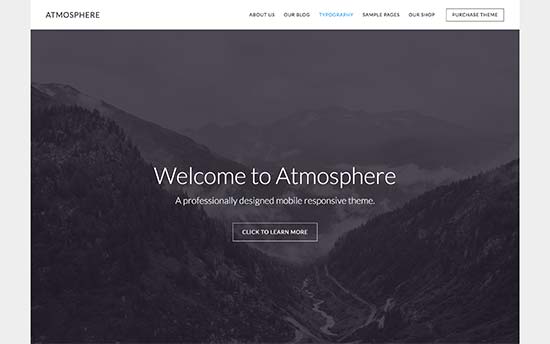
Atmosphere

Atmosphere Pro is an all-purpose, minimalist style WordPress theme with lots of white space and beautiful typography. It is built on Genesis theme framework which makes it SEO friendly out of the box.

Most noteable features include customizable header, widgetized homepage, custom widgets, eCommerce support, and more. It works out of the box and you can use custom theme settings page and live customizer for additional changes.

22. Pepper+

Pepper+

Pepper+ is a modular WordPress theme with easy to use modules that you can just drag and drop and create any kind of website in minutes. You wouldn’t need to do that, as it already includes 6 ready-made designs that you can install instantly.

It has everything you would want from a premium WordPress theme. Most noteable features include sliders, visual page builder, Google Fonts, header layouts, Typekit fonts support, pricing tables, and more.

23. Verb
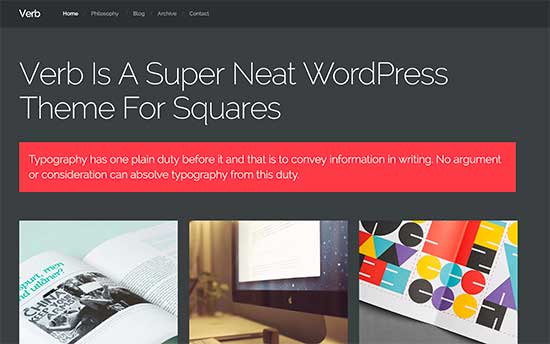
Verb

Verb is a beautifully crafted WordPress theme for artists, art galleries, and creative venues. It features a dark color scheme with bright accent colors to create a beautiful visual presentation.

It includes handsome designs for portfolio pages and individual projects. It uses crisp typography and works out of the box. It has minimal theme options so you don’t have to struggle setting up your website.

24. The Chatter

Chatter

The Chatter is WordPress theme for artists, art magazines, galleries, and similar projects. It uses lots of white space for an open spacious layout for improved readability.

It has three slider styles, unlimited colors, beautiful header styles, multiple layouts, and a visual page builder. It also gives you access to 22 other themes that you can install. It can also be used to create multilingual WordPress websites with WPML.

We hope this article helped you find the best WordPress themes for art gallery. You may also want to see our guide on how to speed up WordPress and boost performance for beginners.

If you liked this article, then please subscribe to our YouTube Channel for WordPress video tutorials. You can also find us on Twitter and Facebook.

The post 24 Best WordPress Themes for Art Gallery appeared first on WPBeginner.

How To Create A Landing Page On WordPress Without Any Code

WordPress does a lot of things well. But, at least out of the box, being able to create a conversion-hungry landing page is not one of those things. Let’s change that – in this post, I’ll teach you how to create a landing page on WordPress even if you don’t know how to write a ... Read moreHow To Create A Landing Page On WordPress Without Any Code

The post How To Create A Landing Page On WordPress Without Any Code appeared first on Learn WordPress with WPLift.

How To Create Custom User Roles On WordPress (And Edit Capabilities)

User roles are what allow you to control which actions other users on your site can perform and what content those users have access to. By default, WordPress single site installs come with five user roles, but many plugins add additional user roles, and you’re also free to create your own user roles. If you’re ... Read moreHow To Create Custom User Roles On WordPress (And Edit Capabilities)

The post How To Create Custom User Roles On WordPress (And Edit Capabilities) appeared first on Learn WordPress with WPLift.

How to Export WordPress Users Data to a CSV File

Do you want to export WordPress users data to a CSV file? Sometimes you may need the user data to add into a new website or to use in other marketing campaigns. The default WordPress export tools do not let you export user accounts. In this article, we will show you how to easily export WordPress users data to a CSV file.

Export WordPress users data to CSV file

When and Why Export WordPress Users Data to a CSV File

The default WordPress export tool does not include user accounts. It allows you to create user accounts during the import, only if those users have content. This excludes user roles with no writing privileges like subscribers or customers in an ecommerce store.

If you are moving a WordPress website, then user data will already be included in your WordPress database backup. What if you just wanted to move user data and not the whole website?

Many businesses and site owners may want to use the user data in their CRM platforms, email lists, or other marketing campaigns.

This is when you’ll need a tool to easily export user data in a CSV file. These are plain text files where each user data field is separated by a comma. CSV files can be opened in any spreadsheet software like Google Sheets, Microsoft Excel, etc.

That being said, let’s take a look at how to easily export WordPress users data to a CSV file.

Exporting WordPress User Data to a CSV File

First thing you need to do is install and activate the Export Users to CSV plugin. For more details, see our step by step guide on how to install a WordPress plugin.

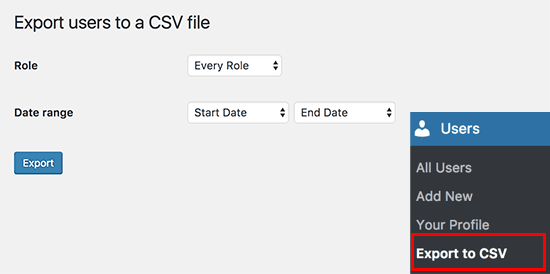
Upon activation, you need to visit Users » Export Users to CSV page to configure plugin settings.

Export to CSV settings

Select the user role you want to export or select ‘Every role’. The plugin also allows you to select a date range to download only users who joined between that period.

Once you are finished, click on the export button to continue.

The plugin will prepare a CSV file containing user data and send it to you as a download. Once downloaded, you can open that file in a spreadsheet program or import it into other programs.

That’s all, we hope this article helped you export WordPress users data to a CSV file. You may also want to see our mega list of handy WordPress tips, tricks, and hacks for beginners.

If you liked this article, then please subscribe to our YouTube Channel for WordPress video tutorials. You can also find us on Twitter and Facebook.

The post How to Export WordPress Users Data to a CSV File appeared first on WPBeginner.

13+ Best WPBakery Page Builder Add-ons – Formerly Visual Composer

In the past few weeks, we’ve been diving into add-ons for popular WordPress page builders. These are essentially “plugins for plugins” that add additional functionality to your favorite page builder. In those weeks, we’ve already looked at Elementor add-ons, Beaver Builder add-ons, and some Divi extensions. Now, we’re going to round things out with a look ... Read more13+ Best WPBakery Page Builder Add-ons – Formerly Visual Composer

The post 13+ Best WPBakery Page Builder Add-ons – Formerly Visual Composer appeared first on Learn WordPress with WPLift.

How to Use Contact Form to Grow Your Email List in WordPress

Did you know that you can use your WordPress contact form to grow your email list? Users are most engaged when they are trying to reach out using the contact form on your website. In this article, we will show you how you can use contact forms to grow your email list in WordPress.

How to use Contact Forms to Grow Your Email List

Why Use Contact Forms for Email List Building in WordPress?

Email marketing is the most cost effective way to reach your audience. If you haven’t started it yet, then you need to see our article on why you should start building your email list right away.

You will need to combine different tools and methods for encouraging users to signup. Offering multiple choices to sign up helps you quickly get more subscribers.

Many users focus on adding email signup forms to their websites, which is good start but you need to get more creative. Contact forms, in fact any kind of forms on your website are the perfect place to add an email signup option.

Here is why:

  • Your users have already entered their email address in the contact form.
  • They are already interested in what you have to offer, that’s why they are filling the form. Why not ask them to subscribe as well?
  • Many users feel that their chances of getting a response will increase if they opted in for your email list
  • You can use it in a variety of ways not just contact forms, but surveys, quizzes, ebook downloads, and more.

That being said let’s see how to easily integrate your email list to your WordPress forms and use contact forms to boost your email subscribers.

Connecting Your Email List to WordPress Contact Forms

First thing you will need to do is install and activate the WPForms plugin. For more details, see our step by step guide on how to install a WordPress plugin.

It is a paid plugin, and you will need at least the Plus plan to access email marketing addons.

You can use this WPForms Coupon: WPB10 to get 10% off your purchase on any WPForms plan.

Upon activation, you need to visit WPForms » Settings page to enter your license key. This will enable automatic updates and give you access to respective addons.

WPForms license key

Next, head over to WPForms » Addons page to install the addon for your email marketing service.

WPForms comes with integration addons for the top email marketing services including Constant Contact, MailChimp, AWeber, and more.

Install addon

Once you have installed and activated the Addon, you need to visit WPForms » Settings page and click on the integrations tab. You will see your email service provider listed there.

Click on your email service provider name and enter the required credentials. You can find this information from your email service account.

Connect your email service provider to WPForms

Now that you have connected WPForms to your email marketing service, you can easily add email optins into your forms and add them anywhere on your website.

Adding Email Signup Checkbox to Your Contact Forms

First you need to create a simple contact form for your website. See our detailed instructions on how to easily create a contact form in WordPress.

Once you have created your form, the next step is to add an email sign up option into the same form. Click on the checkbox field from the fields column.

Add checkbox to your form

You will notice a new field added to your form with three checkboxes. Clicking on the field will open its settings. You need to remove the two checkboxes and change the field label to something appropriate like ‘Signup for our Email List’.

Edit checkbox

You can check the box next to the choice field. Doing so, your email signup field will be checked by default.

Now your form is ready, we just need to tell it what to do when someone fills up the form.

You can do this by clicking on the ‘Marketing’ tab in the form builder. Here you need to select your email service provider and then click on the ‘Add New Connection’ button.

Add new email connection

You will be asked to provide a name for this connection.

Next, WPForms will fetch your email service account. It will show the label you added for the account when you added it in the integrations.

It will also fetch email lists available under your email service account. You need to select the email list where you want to add users.

Mapping form fields to email list fields

In the next section, you will be asked to map the form fields to your email service fields. After that you need to click on the checkbox next to ‘Enable conditional logic’ option.

Enable conditional logic

Select ‘Process’ this form if condition and then select your checkbox field and the checked reply.

Your contact form with email signup optin is now ready. You need to click on the Save button at the top bar and then exit form builder.

You can now add this form into any WordPress post or page. Simply click on the Add Form button when editing a post and then select your contact form.

Add form button

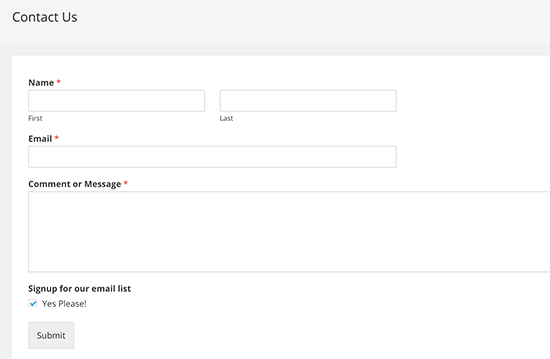
Here is a preview of a contact form on our demo website with email sign up optin.

A contact form with email subscription optin

Adding Email Subscription Checkbox to Other Forms

You can add email subscription checkbox to any form you create with WPForms. Here are a few creative ways to display forms and then you can add email subscription option to all these forms.

We hope this article helped you learn how to use contact forms to build your email list in WordPress. You may also want to see our ultimate guide on how to do lead generation in WordPress like a pro.

If you liked this article, then please subscribe to our YouTube Channel for WordPress video tutorials. You can also find us on Twitter and Facebook.

The post How to Use Contact Form to Grow Your Email List in WordPress appeared first on WPBeginner.

How to use FTP to upload files to WordPress for Beginners

Are you looking to learn how to use FTP to upload files on your WordPress website? FTP or file transfer protocol is a fast and simple way to upload files from your computer to your website. In this article, we will show you how to use FTP to upload files to WordPress.

Using FTP to upload files in WordPress

Video Tutorial

If you don’t like video tutorials or want to move at your own pace, then continue reading the instructions below.

What is FTP?

FTP is short for File transfer protocol. It allows you to transfer files from your computer to your website hosting account.

Now you might be thinking there is already a media uploader inside the WordPress admin area for uploading files like images, video, audio, PDF and more.

Why do you need FTP?

You need FTP to be able to manually upload files in WordPress that sometimes won’t work due to an error on your site.

Normally, you don’t need FTP to upload files at all. You can easily upload images from WordPress admin area. You can even upload plugins and themes from WordPress itself.

However, sometimes you will need to upload a plugin or theme file manually for WordPress troubleshooting purposes and fixing most common WordPress errors.

Using FTP to Upload WordPress Files

First, you will need to download and install a FTP client on your computer. FTP client is an app that helps you connect to your website and transfer files using the FTP protocol.

Here are some of the most popular FTP clients that you can install.

For the sake of this tutorial, we will be using FileZilla. You can use any other FTP client that you like. The basic concepts are the same regardless of the software you use.

Connecting To Your WordPress Site Using FTP

When you open your FTP software, it will ask you to connect to your website using your FTP login credentials.

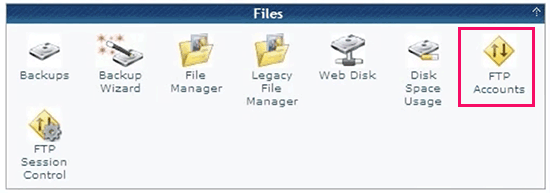
Your FTP login credentials are sent to you via email when you sign up for your WordPress hosting account. You can also find your FTP account information in your hosting account’s cPanel dashboard.

Managing FTP accounts inside cPanel

If you cannot find the login credentials, then you can contact your hosting provider to get this information.

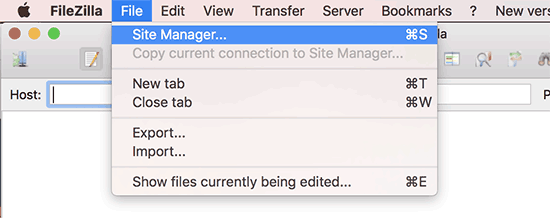
Once you have the login information, you need to open FileZilla and then go to File » Site Manager.

Site manager in FileZilla FTP client

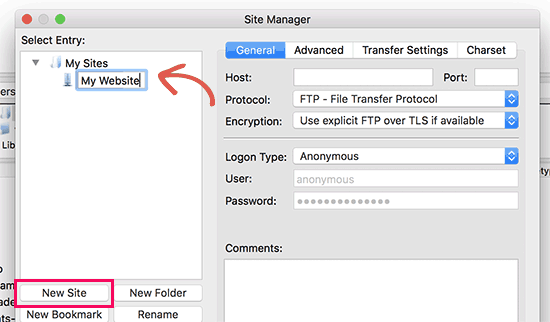
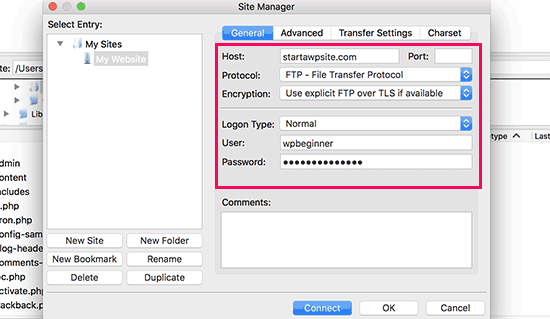
This will bring up a pop up window where you can add your website information. Click on the ‘New Site’ button and provide a title for your website.

Adding a new website in FileZilla

In the next column, you will be asked to enter your host. This is usually your domain name.

Under the logon type field, select ‘Normal’ and then enter your FTP username and password.

Login credentials

Now you can click on the connect button to continue. FileZilla will save your website settings for future logins and open a new FTP connection to your website.

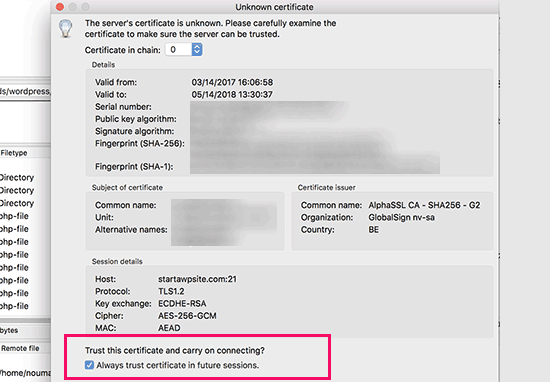
If this is your first time connecting to your website from this computer, then FileZilla may show you a certificate popup.

Trust certificate

Check the box next to ‘Always trust certificate for future sessions’ and click on the OK button to continue.

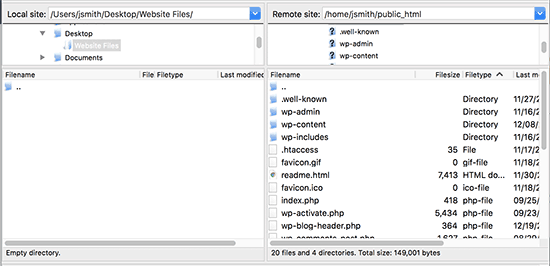
FileZilla will now attempt to login to your website using the credentials you entered. Once connected, you will see the list of files and folders on your website under the ‘Remote site’ column.

Local and remote file columns in Filezilla

The remote site column displays files and folders on your website and the ‘Local site’ section shows files on your computer.

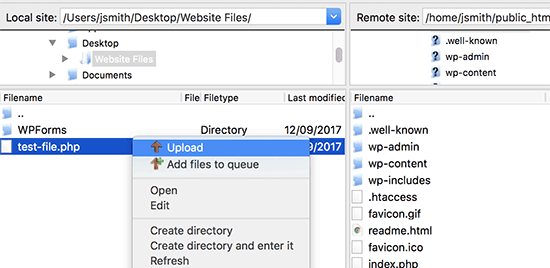
You can browse Local site to locate the files on your computer that you want to upload to your website. Next, you need to right click the file and select upload from the menu.

Upload file from your computer to your website

FileZilla will now transfer the file from your computer to your WordPress site.

However, WordPress needs certain files and folders in specific locations to work properly. This means you cannot just upload a file anywhere. You need to know where to upload a file in your WordPress site.

For example, if you want to manually upload a plugin to your WordPress website. Then first you will need to download the plugin to your computer.

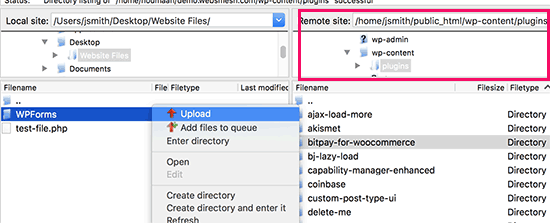
After that you will need to unzip the plugin file. Inside the zip file, you will find the plugin folder. WordPress looks for plugins in the /wp-content/plugins/ folder.

You will first need to go to /wp-content/plugins/ folder in the Remote site column. After that you can upload the plugin folder from your computer to your website.

Upload plugin folder

Once you have uploaded the plugin, you need to visit the plugins page inside your WordPress admin area to activate the plugin.

Installed plugin in WordPress admin area

Similarly, if you wanted to upload a premium theme to your website, you will first download and unzip the theme folder on your computer. After that, you can upload it to /wp-content/themes/ folder on your website.

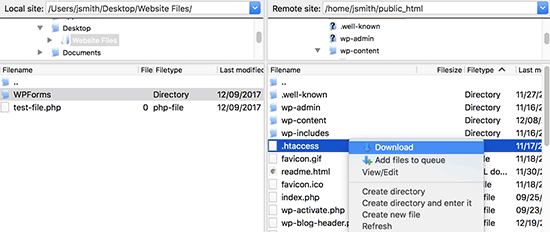
FTP is not just used to upload files from your computer to your WordPress website. It can also be used to download files from your website and edit them.

Simply right-click on the files or folders you want to download under the ‘Remote Site’ column and click on the download button.

Download a file from your website to your computer

You can also use FTP to backup all WordPress files. Simply select all files and folders and download them to your computer.

However, keep in mind that this is just the backup of your WordPress files, and it doesn’t include your content (Database). If you want to backup content as well, then you can do so by creating a manual backup of your WordPress database.

We hope this article helped you learn how to use FTP to upload files to WordPress. You may also want to see our step by step WordPress security guide for beginners.

If you liked this article, then please subscribe to our YouTube Channel for WordPress video tutorials. You can also find us on Twitter and Facebook.

The post How to use FTP to upload files to WordPress for Beginners appeared first on WPBeginner.

Weekly WordPress News: State Of The Word 2017

In case you weren’t aware, WordCamp US went on this past weekend, which gives us lots of juicy WordPress stuff, including Matt’s 2017 State of the Word speech. And there’s also plenty more news about Gutenberg to coincide with WordCamp US (some people even think it’s good now!) Finally, we also have a bunch of ... Read more

The post Weekly WordPress News: State Of The Word 2017 appeared first on Learn WordPress with WPLift.

22 Best WordPress Themes for Recipe Blogs

Are you looking for the best WordPress themes for your recipe blog? Traditional blog themes lack the imagery needed to make your recipes stand out. In this article, we will show you the best WordPress themes for recipe blogs that you can try right away.

Best WordPress themes for recipe blogs

Making a Recipe Blog with WordPress

WordPress is the most easy to use website builder in the market. It is perfect for sharing recipes and creating engaging food related websites.

There are two different types of WordPress available. WordPress.com, which is a hosted platform built on top of WordPress, and then there is WordPress.org also known as self hosted WordPress. For details, see our comparison of WordPress.com vs WordPress.org.

We recommend using self-hosted WordPress.org because it gives you access to all the powerful WordPress features right out of the box.

You will need a WordPress hosting account and a domain name to start your own self-hosted WordPress website.

We recommend using Bluehost. They are one of the largest hosting companies in the world and an officially recommended hosting provider.

They have agreed to offer our users a 60% discount, a free domain, and a free SSL. A deal that you won’t get elsewhere.

After purchasing hosting, you can go ahead and install WordPress. Follow our guide on how to start a blog for step by step instructions.

Once you are all set up, it is time to choose a theme for your website. Let’s take a look at some of the best WordPress themes for recipe blogs.

Note: This list has both free and paid themes and all of them are mobile-responsive.

1. Gourmet

Gourmet

Gourmet is a powerful WordPress theme for food blogs, recipes, and restaurant websites. It is part of a larger pack of 23 ready-made websites that can be installed with 1-click. Each template is fully editable using an integrated drag and drop page builder.

It includes multiple WordPress sliders with different styles, multiple layouts, unlimited color choices, and more. It is super easy to use and includes a powerful theme options panel to setup your website.

2. Igloo

Igloo

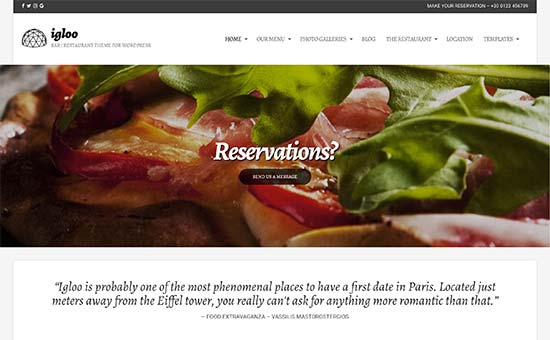
Igloo is another flexible and beautifully designed WordPress theme for a recipe blog, restaurant, or cafe. It features a beautiful modern design, elegant photo galleries, and built-in social media integration.

For restaurant websites, it has a menu management system and testimonial sections. It comes in multiple color schemes and you can change colors for individual pages as well. All theme options are easy to configure using theme customizer with live preview.

3. Molino

Molino

Molino is a gorgeous WordPress theme for sharing recipes or building a website for cafes, bakeries, and restaurants. It part of a massive all-purpose WordPress theme which includes several ready-made designs and quick 1-click installer.

All pages can be easily edited using WordPress editor or the integrated drag and drop page builder that comes free with the theme. It offers endless customization choices with tons of colors, layout styles, headers, navigation menu styles, and more.

4. Florentine

Florentine

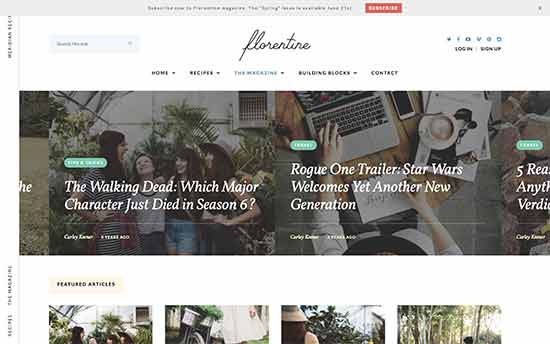
Florentine is an elegant and stylish WordPress theme for food and recipe blogs. It includes a dedicated recipe section allowing you to easily add properly formatted recipes to your website. Your users will also be able to instantly switch to the distraction free cooking mode.

It has built-in social sharing, easy customization, different styles and layout choices. All theme options are neatly organized under theme customizer which makes it quite easy to set up and use.

5. Foodie Pro

Foodie Pro

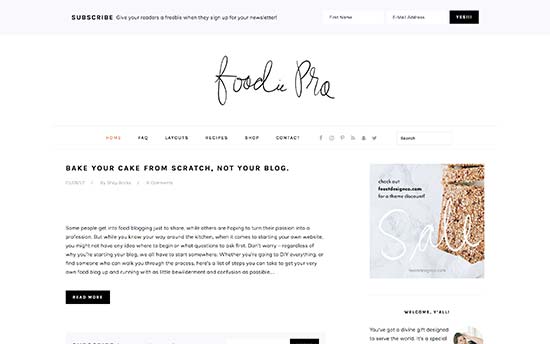
Built on Genesis theme framework, Foodie Pro is a well crafted WordPress theme for recipe blogs, food websites, health and nuitrition related niches. It features a fully widgetized modern layout allowing you to drag and drop items to setup your website.

It includes a custom theme options panel, live customizer support, custom headers, multiple page layouts, and more. It is highly optimized for speed and performance.

6. CupCake

Cupcake

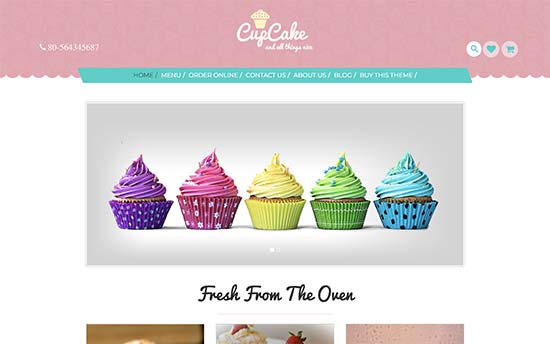
CupCake is a stylish and cute WordPress recipe and food blog theme. It comes with a unique design that utilizes fun color schemes and a modern layout for presentation.

It includes drag and drop elements to setup your homepage. Inside you will find sections to add portfolio items, featured products, sliders, and call to actions. It can also be used to add an online store to your website.

7. Daily Dish

Daily Dish

Daily Dish is a modern WordPress theme for food and recipe websites. It is built on Genesis, and features a two column layout with a focus on beautiful typography and elegant display of images.

It comes with an easy to use theme options panel, customizable header, multiple page templates and widget ready areas. It is eCommerce ready and can be easily used to add a shop section to your website.

8. Foodica

Foodica

Foodica is a beautiful magazine style WordPress theme for food blogs. It features a modern design and comes in 6 color schemes to choose from.

It includes easy to use shortcodes to add recipe ingredients into your articles. It includes dedicated sections to display ad zones and banners to make money online. It includes a simple theme options panel and full live customization support.

9. Food4Soul

Food4Soul

Food4Soul is another excellent option for a WordPress food or recipe theme. It features a modern design with a large header image on top followed by your social profiles and navigation menus.

It includes drag and drop elements to setup your homepage layout. Inside you will find easy sections to manage portfolio, add recent posts, contact form, Google Maps, and more. It is easy to setup and includes a custom theme options panel.

10. Narya

Narya

Narya is a magazine style WordPress theme for food and recipe websites. It comes with a dedicated recipe post format and a custom recipe plugin. It also comes with a premium slider and a layout builder plugin.

Other notable features include 6 homepage layouts, 6 gallery layouts, multiple header styles, custom colors and more. It is easier to setup and all theme options are neatly organized.

11. Foodie

Foodie

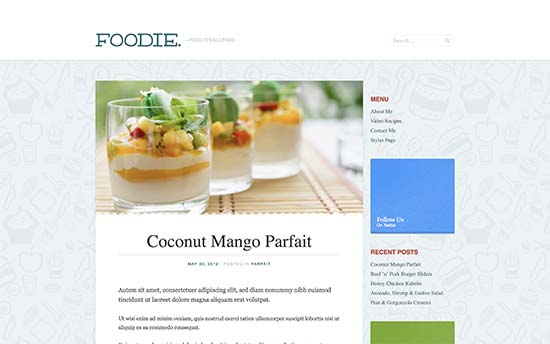
Foodie is a WordPress theme built for chefs, food bloggers, and recipes. It includes a recipe post section with easy to add ingredients, instructions, and even videos. Users can also rate recipes and you can sort your highest rated recipes.

It uses a two column traditional blog layout with support for custom background and custom logo upload. It works out of the box and all theme options can be easily setup with live customizer.

12. Cuisine

Cuisine

Cuisine is a stylish WordPress theme made specifically for food and recipe websites. It ships with a custom recipe plugin that allows you to easily add and manage your recipes. Each recipe has its own dedicated recipe card which can be placed onto multiple pages or posts.

It includes two different layouts, multiple page templates and header styles. It includes custom widgets, unlimited color schemes, beautiful featured image, and more.

13. Food Recipes

Food Recipes

If you are looking for a free WordPress theme for recipes, then check out Food Recipes. It is built on bootstrap framework and features a two column layout with right sidebar. The content area is also divided into a two column grid on the desktop and a single column layout on mobile.

It includes support for custom logo upload, social media menu, fullscreen background image, and more. It is quite easy to setup and can be easily used to quickly start a blog.

14. Savor

Savor

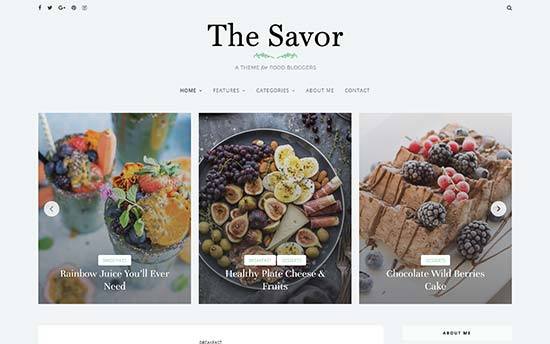
Savor is a fresh and clean WordPress food theme with lots of features for recipe blogs. It comes with multiple layout combinations in two and three column grid layouts.

It also includes a custom recipe card which can be added into any WordPress posts or pages. Other noteable features include a featured content slider, custom widgets, social media integration, unlimited colors, contact form support, and more.

15. Kale

Kale

If you are looking for a free, clean, and simple recipe theme, then take a look at Kale. This minimalist style WordPress theme features a traditional blog layout with all the basic features.

It comes with a special front page showcasing featured posts and a large highlight post. It also has the option to show a banner or a posts slider in the header, and includes full ecommerce and RTL support.

16. Artie

Artie

Artie is a highly customizable WordPress food blog theme. It comes in multiple colors with multiple layout combinations, widget ready areas, and different styles.

It includes support for photo galleries, video galleries, recipe shortcodes, icon fonts, and more. All theme options are neatly organized and quite easy to setup.

17. Pepper+

Pepper+

Pepper+ is an all-purpose WordPress theme with several turnkey designs including one for a food/recipe website. It takes a modular approach to design and comes with different modules that you can just drag and drop to create different layouts.

Pepper+ is ready for WooCommerce and can also be used to create multilingual websites. It offers beginner friendly user experience with simple 1-click installers and quicker theme setup.

18. Salt & Pepper

Salt & Pepper

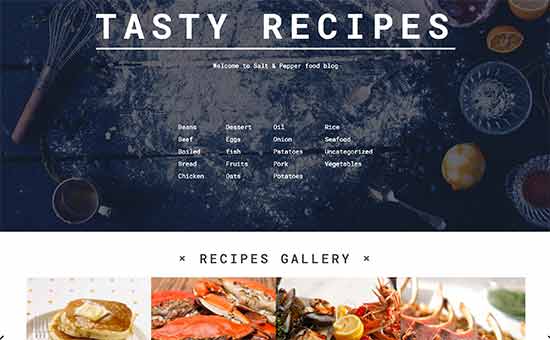
Salt and Pepper is an elegantly designed WordPress theme for food and recipe websites. It has a beautiful recipes section, which allows you to easily add recipes. It includes beautiful templates to display those recipes with category based filters.

For page editing it ships with a visual page builder and slider plugin. It is translation ready and can also be used on multilingual websites.

19. Tastefully

Tastefully

Tastefully is a modern WordPress blog theme for food lovers, restaurant reviews, and recipe websites. It features a large custom header followed by two-column layout with sidebar on the right.

Other features include custom author bio box, social sharing, large featured images, and crisp typography. It is quite simple and works out of the box with minimal setup.

20. Baseline

Baseline

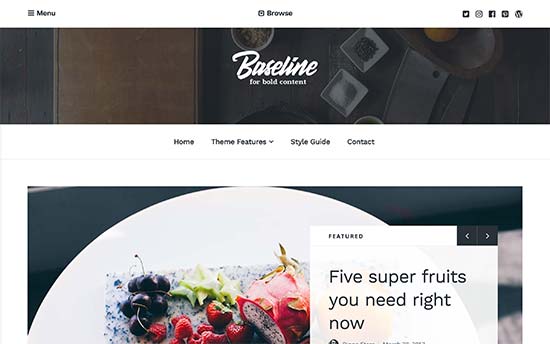
Baseline is a magazine style WordPress blogging theme. It features a beautiful featured content slider on top, which is followed by your most important content.

It focuses on gorgeous display of your images and crisp typography to offer an elegant user experience. It is quite simple to use and doesn’t include any clutter. Inside you will also find a theme-setup guide that will help you get started right away.

21. Yumblog

Yumblog

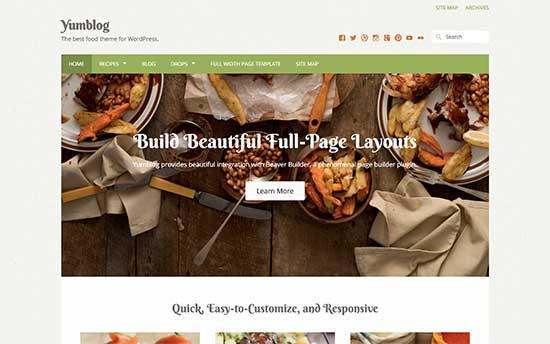
YumBlog is a powerful WordPress recipe theme that ships with a premium WordPress recipe plugin. It allows you to add, manage, and share recipes from your website. It can also be used to allow your users to add their own recipes.

It features a nice modern layout focusing on images make your food photos look amazing. It ships with Beaver Builder to easily create page layouts using drag and drop tools.

22. Flavour

Flavour

Flavour is a well-crafted WordPress theme for restaurants, food, and recipes. It includes beautiful restaurant menus, food icons, custom colors, and custom fonts support.

It is super easy to setup with 1-click demo content installer and a fully integrated visual page builder. You can try different layouts and styles to create a truly unique experience for your website.

We hope this article helped you find the best WordPress themes for recipe blogs. You may also want to see our ultimate step by step WordPress SEO guide for beginners.

If you liked this article, then please subscribe to our YouTube Channel for WordPress video tutorials. You can also find us on Twitter and Facebook.

The post 22 Best WordPress Themes for Recipe Blogs appeared first on WPBeginner.
Elementor vs Visual Composer (WPBakery Page Builder): Which One Should You Choose?

Elementor vs WPBakery Page Builder (formerly known as Visual Composer) is an interesting comparison because it’s pitting two page builders with vastly different market positions. On one side, you have Elementor – the upstart that’s managed to quickly amass 300,000 active installs in under two years. And on the other, you have WPBakery Page Builder, ... Read more
The post Elementor vs Visual Composer (WPBakery Page Builder): Which One Should You Choose? appeared first on Learn WordPress with WPLift.