21 Best WordPress Themes for Nonprofit Organizations

Are you looking for the best WordPress themes for nonprofits? Charity and non-profit websites require appealing presentation with tools to manage their donation goals. In this article, we will show you some of the best WordPress themes for nonprofits that will help you get maximum donations and achieve those goals.

Best WordPress themes for nonprofit organizations

Making a Website for a Nonprofit Organization

WordPress is the most popular website builder among nonprofits around the world. It is free and open source which gives you the freedom and flexibility you need for a solid online presence.

Just to be clear, there are two versions of WordPress. WordPress.com which is a hosted solution, and WordPress.org also known as self-hosted WordPress. See our comparison of WordPress.com vs WordPress.org for more details.

We recommend using self hosted WordPress.org. It gives you access to all the features of WordPress right out of the box (without any restrictions).

You’ll need a domain name and WordPress hosting account to start your self hosted WordPress website.

We recommend using Bluehost. They are one of the largest hosting companies in the world and an official WordPress recommended hosting provider.

They have agreed to offer WPBeginner users discount on hosting plus free domain and SSL Certificate. You’ll need SSL to collect donations in WordPress using third-party services like Stripe.

→ Click here to claim this exclusive Bluehost Offer ←

Once you have purchased hosting, you can move on to installing WordPress. See our guide on how to make a website for step by step instructions.

That being said, let’s take a look at the best WordPress themes for nonprofits and charities that you can use on your website.

1. Philanthropy

Philanthropy

Philanthropy is a WordPress theme designed specifically for nonprofits and charitable organizations. It features an impressive design with integrated donations and fundraising system.

It includes three slider styles to create a stunning first impression. It places call to actions on strategic locations to maximize user engagement. Other features include an integrated event management system, calendar, Google Maps, unlimited customization options, and a powerful drag and drop page builder.

2. Outreach Pro
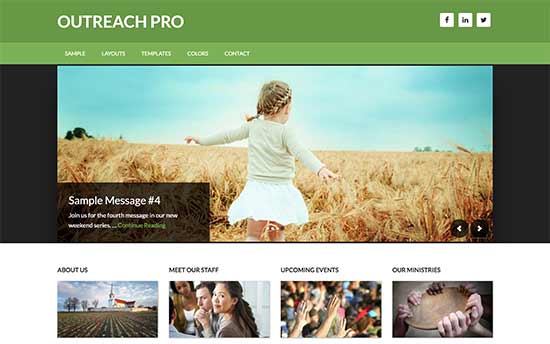
Outreach Pro

Outreach Pro is beautifully designed WordPress theme for nonprofits, charities, and religious organizations. It is built on top of Genesis framework, which ensures rock solid WordPress speed and performance.

It includes page templates for archives, blog section, and a landing page template. Other features include customizable headers, theme options panel, and multiple widget ready areas to just drag and drop items to your website.

3. Creed
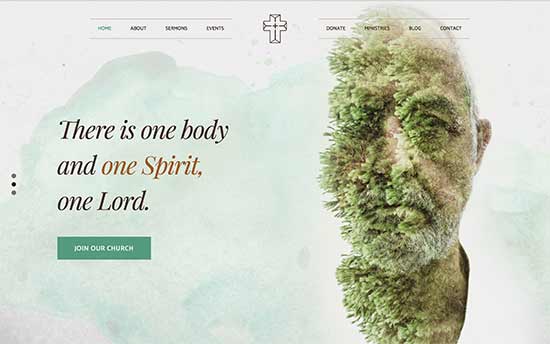
Creed

Creed is a stunningly beautiful WordPress theme for religious, nonprofits, and charities. It is part of a larger theme bundle and includes 23 ready-made websites, integrated page builder, and 1-click demo installer.

It includes donations, event management, photo galleries, unlimited colors, and multiple layout choices. It is super easy to use with a custom theme options panel to walk you through setup process.

4. Charity Foundation

Charity Foundation

Charity Foundation is a WordPress fundraising theme for nonprofits and charities. It comes with built-in system to accept one-time or recurring donations and WooCommerce support to add online store for your charity.

It includes 9 custom post types, 15 custom widgets, multiple layout combinations, and a ready-to-use child theme. It is easy to use and has a custom theme settings page.

5. Hope

Hope

Hope is a super-flexible WordPress theme for NGOs, churches, and charitable foundations. It includes dozens of readymade designs that can be installed with 1-click. All templates can be easily customized with a visual page builder.

It comes with donations, event management, and contact form integrations. It is super easy to setup and optimized for SEO and performance.

6. Social Welfare

Social Welfare

Social Welfare is a beautiful WordPress theme for fundraising, NGOs, and charities. It includes a modern homepage layout with beautiful CSS animations and parallax background effects.

It ships with a premium slider plugin and a visual page builder. It is easy to setup with 1-click demo installer and a simple theme settings panel.

7. Nayma
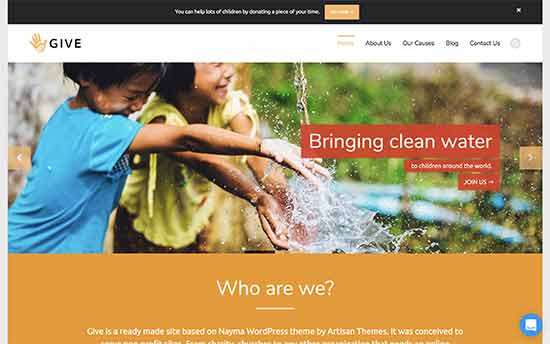
Nayma

Nayma is a thoughtfully designed multipurpose WordPress theme with several ready-made websites included into one package. It includes 1-click installer to setup your website complete with demo content.

It uses a modular approach to design and comes with several modules that you can just drag and drop to create your own page layouts. It is WooCommerce ready and can also be used to create multilingual websites.

8. Zeko
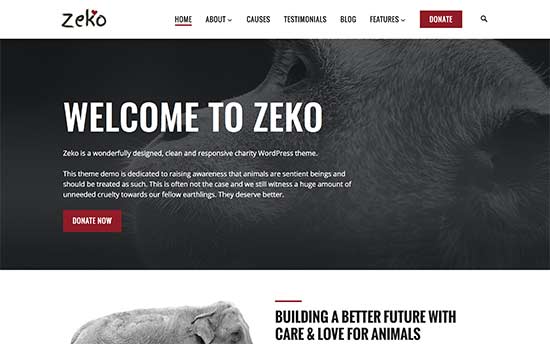
Zeko

Zeko is a wonderfully designed WordPress theme for charities and nonprofits. It features a clean and professional design with flexible options. All theme options can be easily setup using theme customizer with a live preview of your website.

Notable features include 5 page templates, blog with multi-column grid and flexible sidebars, unlimited colors, WooCommerce, BuddyPress, and bbPress support.

9. Grassroots
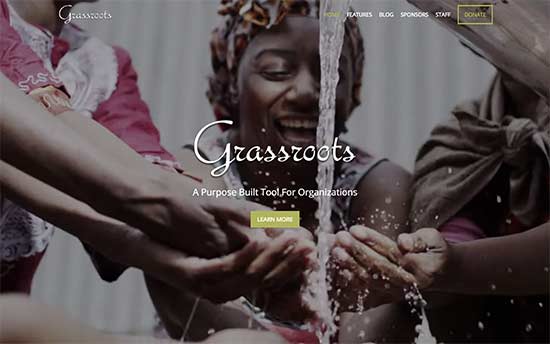
Grassroots

Grassroots is another excellent WordPress themes for nonprofits and fundraising websites. It features fullscreen video backgrounds on the homepage allowing you to create highly engaging landing pages.

For fundraising and donations, the theme supports WooCommerce, contact form, and donation plugins. Other notable features include featured content, staff and sponsors sections, custom logo upload, and multiple colors.

10. Hope

Hope

Hope is another great WordPress theme for nonprofits, fundraisers, and charity websites. It features a modern homepage with a call to action in the header followed by social profiles, navigation menus, and a full width slider.

It includes events and organizers post types, contact form page, shortcodes, and more. You can easily setup and modify theme settings using the live theme customizer.

11. Forward

Forward is a simple and elegant WordPress theme designed specifically for nonprofits. It allows you to easily add your own logo, colors, fonts, and more. It includes all the options you’ll need to build an engaging website.

Other notable features include WooCommerce support, email signup form, staff profiles, sponsors, and live theme customizer support. It easy and quick to setup even for absolute beginners.

12. Maisha

 Maisha

Maisha is a clean and modern WordPress nonprofit theme for NGOs, welfare, and charities. It features a modern homepage with multiple slider styles, headers, and layout settings. It also includes 15 page templates, blog section, and powerful options with live theme customizer.

It supports WooCommerce, WPML, and it is fully translation-ready. It ships with Soliloquy which is the best WordPress slider.

13. Foundation
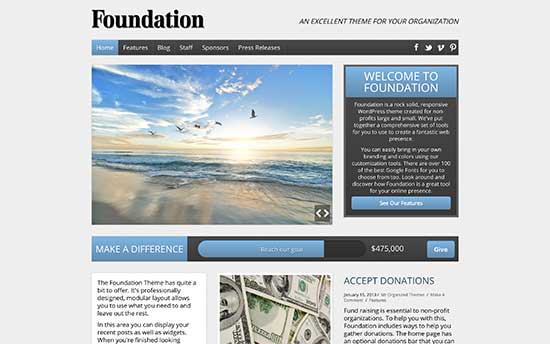
Foundation

Foundation is another excellent WordPress nonprofit theme. Designed to raise funds and engage audiences, it features a prominent welcome message followed by two call to actions both located above the fold on the homepage.

It includes social media integration, custom logo upload, sponsors section, and easy templates to integrate with your donations form. It offers a simple and quick setup with easy customization options.

14. Maranatha
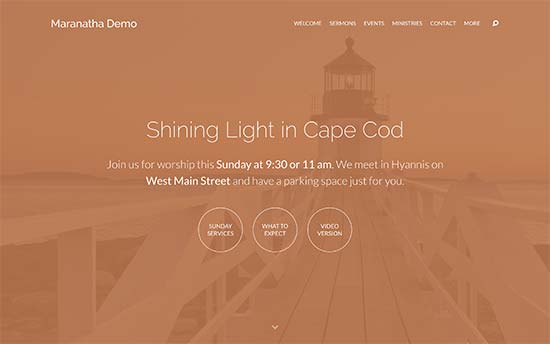
Maranatha

Maranatha is a gorgeous WordPress theme for religious, spirtual, and nonprofit organizations. It comes with built-in sermons management area where you can upload audio, video, PDF, and text files. You can also organize your library in series by topics and books.

Its modern homepage displays a full screen image or video header followed by parallax effect as users scroll down the homepage. It also comes with sections for different locations, events calendar, and news or blog page.

15. Benevolent

Benevolent

If you are looking for a free WordPress theme for nonprofits, then take a look at Benevolent. This versatile theme features a modern homepage with beautiful slider, custom menu, and call to action button.

It has four footer area and a right sidebar and includes four custom widgets for the recent posts, popular posts, social media and the featured post. It is also translation ready and optimized for faster page loads.

16. Ultra

Ultra

Ultra is an all-purpose WordPress mega theme suitable for all kind of websites including nonprofits. It ships with 9 pre-made websites, 1-click demo content installer, and visual page editor to help you create engaging websites in minutes.

It includes animated counters, progress bars, contact form, Google Maps, pricing tables, and more. It is eCommerce ready and beginner friendly.

17. Exodus
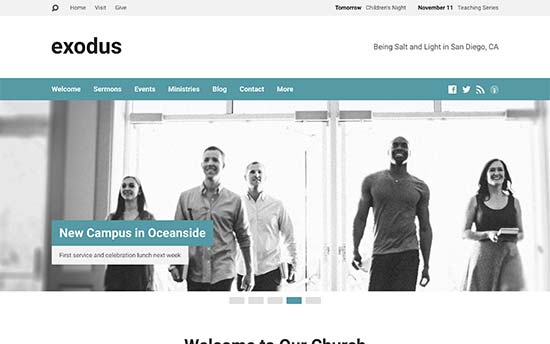
Exodus

Exodus is a beautiful WordPress theme for religious and spiritual organizations. It features a professional homepage with engaging slider and call to action. It also includes a sermon management section with full multimedia support.

It also has sections to add ministries, staff and volunteer profiles, events, locations, etc. It is designed to be easily used even by non-technical users with simple and flexible customization settings.

18. Charity Review
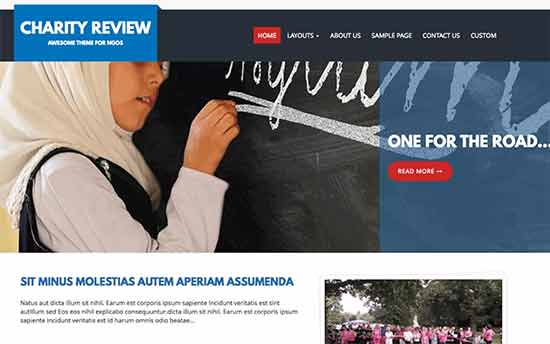
Charity Review

Charity Review is another excellent free WordPress nonprofit theme for NGOs, church websites, and charitable organizations. With a professional clean design and flexible options, it offers an engaging user experience out of the box.

Notable features include custom menu, social media integration, call to action block, banner slider, testimonial sections, and more. It has multiple page layouts for different sections. All theme options are neatly organized under live theme customizer, which makes it quite simple to use.

19. Pena
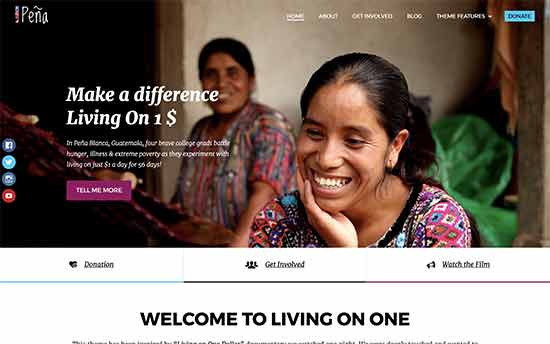
Pena

Pena is a flexible WordPress theme for nonprofit organizations. It is designed to help you raise funds with an visually appealing presentation. It offers multiple slider layouts, header styles, and homepage layout settings to help you create a unique experience for your visitors.

It has 12 page templates, WooCommerce support, donation forms support, email subscriptions, and more. It offers a neat setup process with extensive settings to fine tune each aspect of your website.

20. Saved
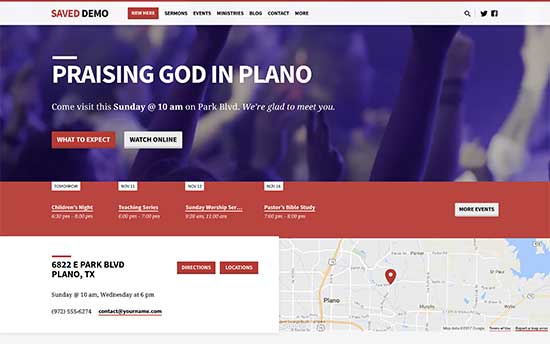
Saves offers a very modern looking WordPress theme for religious and nonprofit organizations. It includes a drag and drop homepage layout, video background, slider, and contact details widget with Google maps.

Church websites can use the Theme’s companion church content plugin, which adds sermons and multimedia library support to your website. It also includes sticky navigation menu, custom colors, custom widgets, typography, and custom logo support.

21. The Core

The Core

The Core is a mega pack of multiple ready-made WordPress themes for all kind of individuals and organizations. Any of these designs can be installed with 1-click including demo content. To make it even more easier, each of these design can be easily edited with the built-in visual page editor.

It offers unlimited design possibilities with countless combinations of header styles, layout types, beautiful animations and scrolling effects. It also comes with a powerful custom theme options page with simple on/off buttons to add or remove features you want to use. It is super easy and helps beginners create professional websites with minimal effort.

We hope this article helped you find the best WordPress theme for nonprofits. You may also want to see our step by step WordPress SEO guide for beginners and a list of must have WordPress plugins.

If you liked this article, then please subscribe to our YouTube Channel for WordPress video tutorials. You can also find us on Twitter and Facebook.

The post 21 Best WordPress Themes for Nonprofit Organizations appeared first on WPBeginner.
Weekly WordPress News: WordPress 4.9 Is Here!

In the biggest news this week, WordPress 4.9 is out and available to the public! Click here to see all the new stuff. Post Status also has an interview with Matt Mullenweg and there are some big WordPress changes over at Envato Elements. And we just published a post on the best WordPress Black Friday ... Read more

The post Weekly WordPress News: WordPress 4.9 Is Here! appeared first on Learn WordPress with WPLift.

Best WordPress Black Friday & Cyber Monday Deals & Coupons (2022)

If you were looking to build a business website, start an online store, or simply improve your existing website, there is no better time than now. With this year’s WordPress Black Friday deals, you can avail your favorite plugins, themes, hosting, and services for a fraction of the cost! Ready to get massive savings on [...]

Read More...

The post Best WordPress Black Friday & Cyber Monday Deals & Coupons (2022) appeared first on Learn WordPress with WPLift.

How To Start A Travel Blog: Beginner’s Guide

So you want to start a travel blog? Congrats! That’s awesome. I’ve been known to dabble in travel blogging and it’s a nice change from writing more technical articles like this one. But if you want to create your own travel blog, you’re going to need your own website…and that might not be as easy ... Read more

The post How To Start A Travel Blog: Beginner’s Guide appeared first on Learn WordPress with WPLift.

What’s New in WordPress 4.9

WordPress 4.9 was released just few hours ago. It is the second and last major WordPress release of 2017 with some exciting new features and enhancements. In this article, we will show you what’s new in WordPress 4.9 and which features you should try after updating your websites.

What's new in WordPress 4.9

4.9 is a major WordPress release, and unless you are on a managed WordPress hosting service, you will have to manually initiate the update.

Important: Don’t forget to create a complete WordPress backup before starting the update.

New Theme Browsing Experience in The Customizer

WordPress 4.9 brings several improvements to the customizer. These changes offer a better user experience and a new set of tools for developers.

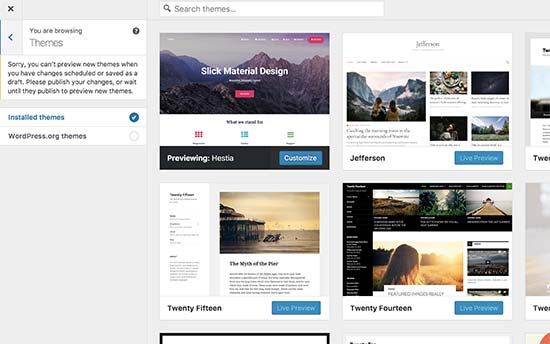
Previewing and changing themes directly from customizer is now more user friendly. You can view all your installed themes in the preview panel and click on the live preview button to load them in customizer.

Browsing themes in customizer

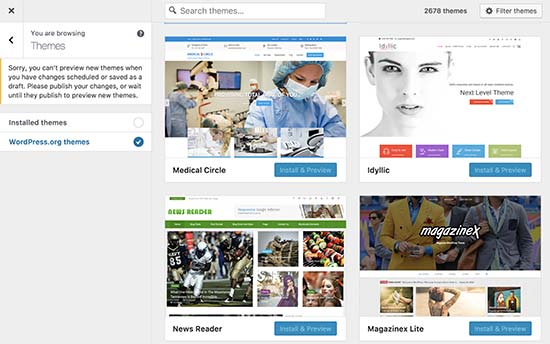
You can also browse and search WordPress.org themes and install them directly from customizer.

Install and preview WordPress.org themes directly from customizer

Save and Schedule Changes in The Customizer

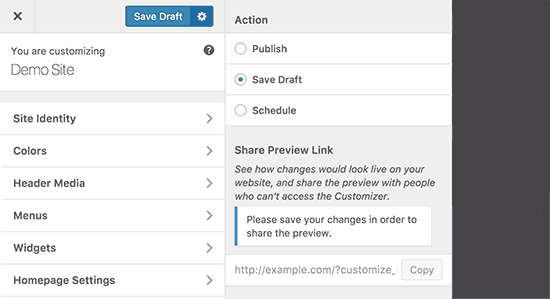
WordPress 4.9 brings changesets to theme customizer. It is like post revisions but for your theme changes. You can store changes without applying them.

Save theme draft

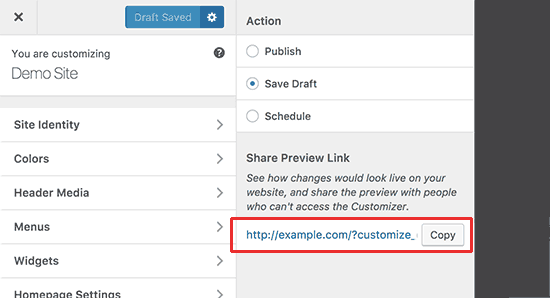
This new feature also allows you to easily share a preview of those changes with anyone. Simply copy the preview URL and send it to any user. They will be able to see the new changes without login.

Share customizer changes preview

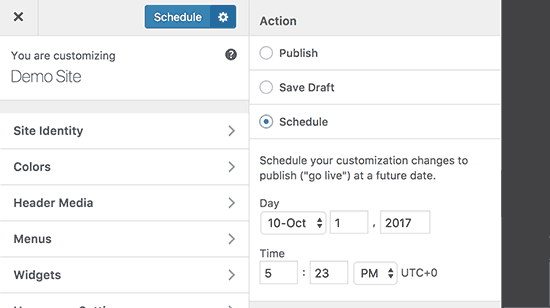
WordPress 4.9 also allows you to easily schedule theme changes to be automatically published later.

Schedule theme changes in customizer

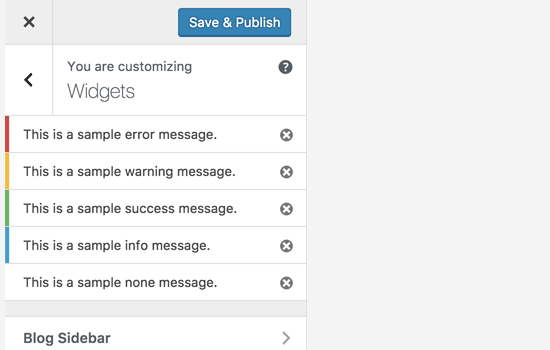
Theme developers will now be able to use these new changes in the customizer JS API. These changes will allow them to add better controls, beautiful outer panels, and display notifications on screen.

Better notifications in customizer

New Gallery Widget in WordPress 4.9

WordPress 4.8 introduced new media widgets which included rich text, audio, image, and video. WordPress 4.9 builds up on that with the introduction of the new gallery widget.

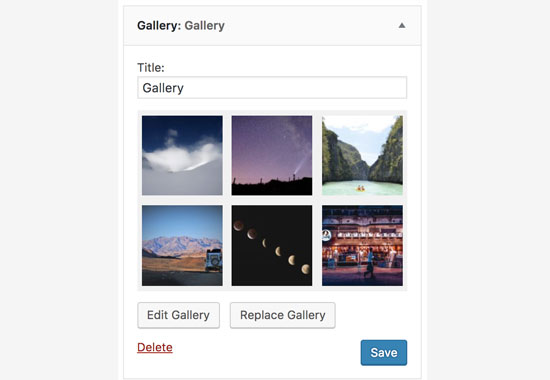
This new widgets allows you to create a native WordPress gallery and add it to your WordPress sidebar or any widget ready areas.

New gallery widget in WordPress 4.9

Just like the native WordPress galleries, this widget is also limited in terms of functionality. If you want a more powerful gallery with albums, then you need to look at a third-party plugin like Envira Gallery.

Add Media Button in Text Widget

The text widget in WordPress 4.8 came with plain text and HTML tabs. However, if you wanted to add an image in sidebar text widget, then you still had to write the HTML code.

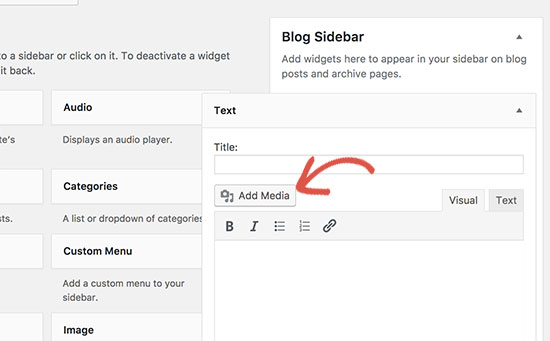
WordPress 4.9 has fixed this by adding the ‘Add Media’ button in the text widget. Now you can easily select or upload an image directly inside the text widget.

Add Media button in text widget

OEmbed Support Outside Post Content

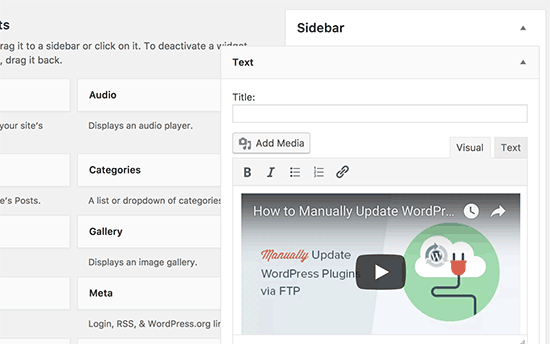
Previously automatic embeds didn’t work in areas other than post content. With WordPress 4.9, oEmbeds will now work in text widgets and other areas as well.

oEmbed in sidebar widgets

Shortcode in Sidebar Text Widgets

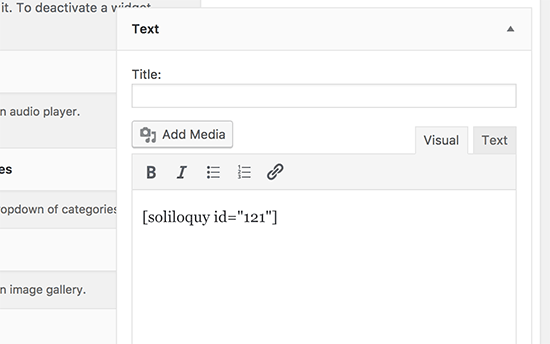
WordPress didn’t allow shortcode execution in text widgets. Users had to explicitly enable shortcodes in text widgets. WordPress 4.9 will finally change that and users will be able to add shortcodes in text widgets out of the box.

Shortcodes in sidebar widgets

New Code Editing Experience in WordPress 4.9

WordPress allows you to add HTML/CSS code at various places like theme editor, custom CSS panel, or in custom HTML widget.

Previously, these areas were plain text boxes and didn’t look or act like a proper code editor.

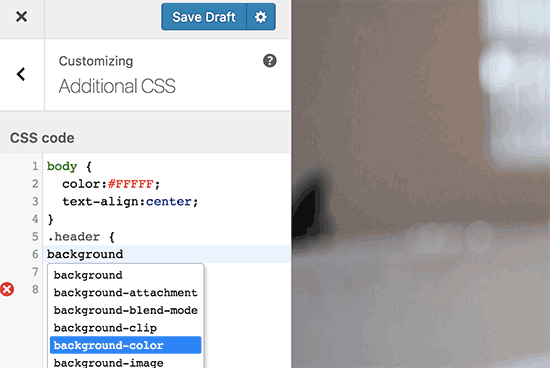
WordPress 4.9 has changed that by adding syntax highlighting, code suggestions, and auto-completion into those areas.

Code editing in WordPress 4.9

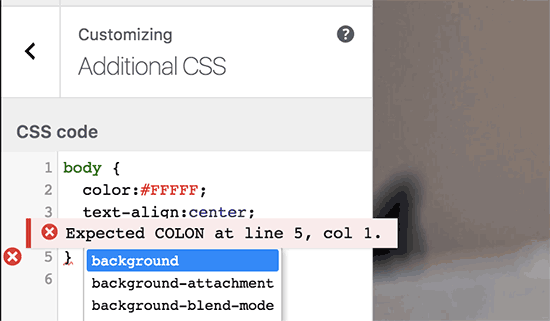
If you have ever faced syntax error when editing your theme, then this enhancement will automatically fix many common mistakes that cause such errors.

Error highlighting

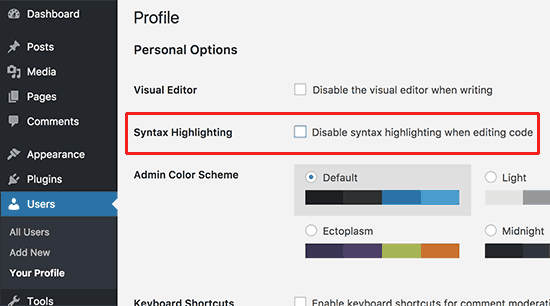
If you don’t want to use the syntax highlighting feature, then you can still easily disable it. Simply go to your profile page and uncheck the syntax highlighting option.

Disable syntax highlighting

One of the big usability issues beginners faced was directly making changes from WordPress built-in editor without fully understanding the consequences. A slightest mistake would lead to a syntax error and making their websites inaccessible.

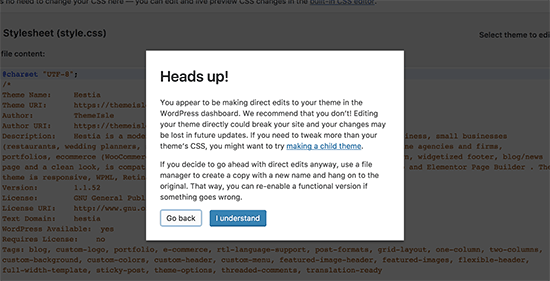
WordPress 4.9 now shows a warning to users when they access the editor.

Theme editor warning

It will also show users helpful tips and point them to custom CSS panel in the customizer.

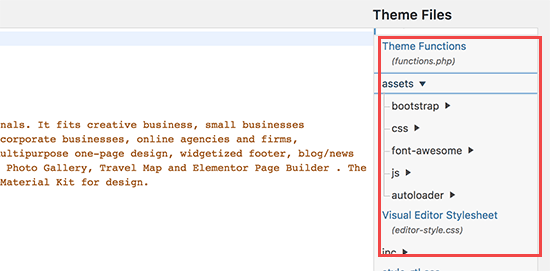
However, many users access the editor not to make changes but to quickly look up code. Particularly when they are working on child themes. To help those users, the editor will now recursively show files and folder in the sidebar for easier browsing of all files in a theme folder.

Files and directories in theme editor

Under The Hood Changes

WordPress 4.9 also brings several great changes for developers as well. Here are some of those under the hood improvements.

Better mapping for theme widgets and navigation menus after switching themes. #39693, #39692

Removal of SWFUpload library from the core. #41752

Require a confirmation link in an email to be clicked by admin when a user attempts to change their email address. #16470

We hope this article offered you a good insight into what’s new in WordPress 4.9. We are particularly excited about the customizer changes. What are you excited about?

If you liked this article, then please subscribe to our YouTube Channel for WordPress video tutorials. You can also find us on Twitter and Facebook.

The post What’s New in WordPress 4.9 appeared first on WPBeginner.

How to Fix Secure Connection Error in WordPress

Are you seeing ‘Unable to establish secure connection error’ in WordPress? It is a common WordPress error and usually occurs when you are trying to install or update a WordPress plugin or theme from official WordPress.org directory. In this article, we will show you why this error occurs and how to easily fix secure connection error in WordPress.

Fixing secure connection error in WordPress

What Causes Unable to Establish Secure Connection Error in WordPress?

WordPress comes with a built-in system to manage updates. This system regularly checks for updates and show notifications for you to install plugin / theme updates.

However, it needs to connect to the WordPress.org website in order to check for updates or install them. Due to some misconfiguration on your WordPress hosting server, your website may fail to connect with WordPress.org website.

This will result in a secure connection error, and you will see an error message like this:

An unexpected error occurred. Something may be wrong with WordPress.org or this server’s configuration. If you continue to have problems, please try the support forums. (WordPress could not establish a secure connection to WordPress.org. Please contact your server administrator.) in /home/username/public_html/wp-admin/includes/update.php on line 122

Secure connection error in WordPress

That being said, let’s see how to easily fix secure connection error in WordPress.

Fixing Secure Connection Error in WordPress

There are multiple ways to fix the unexpected secure connection error in WordPress. You can try one of the following solutions based on your situation.

Hosting and Server Related Issues

If your shared hosting server is under DDoS attack, then it is likely that the connection to WordPress.org will timeout causing the secure connection error.

In that case, you can wait for a few minutes and try again. If the error persists, then you need to reach out to your web hosting company’s support team.

Cloud or VPS Server Connectivity Issue

If you are on a cloud or VPS hosting, then it is possible that your server is unable to connect to WordPress.org due to some DNS issues.

In that case, you can point your server directly to WordPress.org servers. You will need to connect to your server using SSH.

SSH is short for secure shell which is an encrypted protocol that allows you to connect to your server using command line tools.

Windows users can use a tool called PuTTy whereas Mac / Linux users can use the terminal app.

You will need login credentials for the account with shell access to your hosting account. You can get this information from your hosting account’s cPanel dashboard or ask your web hosting server provider.

In the terminal, you can connect to your server like this:

ssh [email protected]

Don’t forget to replace username with your own username and example.com with your own domain name.

Once connected, you need to run the following command:

sudo nano /etc/hosts

This will open a file, and you will need to add the following code at the bottom of the file:

66.155.40.202 api.wordpress.org

You can now save your changes and exit the the editor. Visit your website to see if this resolved the error.

Fixing WordPress Secure Connection Error on Localhost

If you are running WordPress on your own computer (localhost), then you may not have cURL extension enabled for PHP. This extension is required to access WordPress.org for updates.

You will need to edit the php.ini file on your computer. This file is usually located in the PHP folder of your Mamp, Xampp, or WAMP folder.

If you are on a Windows computer, then look for the following line:

;extension=php_curl.dll

Mac and Linux users would have to look for this line:

;extension=curl.so

Now you need to remove the semicolon before the text to enable the extension. Don’t forget to save your php.ini file.

Lastly, don’t forget to restart the Apache server for changes to take affect.

Check Open Ports in Firewall

If cURL extension is properly installed on your local server, then the next step is to check your internet connection firewall.

Your computer’s firewall may be blocking outgoing connections from local server to WordPress.org. If you are on Windows, then press the start button and search for Windows Firewall. Mac users can find firewall settings in System Preferences » Security & Privacy

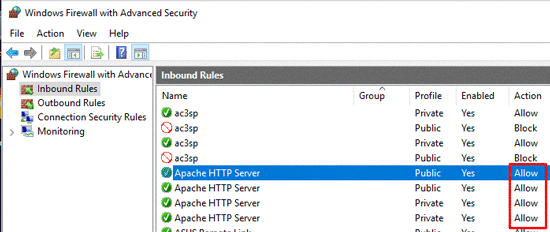
You need to add Apache to your firewall’s allowed programs and allow both incoming and outgoing connections.

Firewall Apache

You will need to restart Apache for changes to take effect.

We hope this article helped you solve the WordPress secure connection error. You may also want to see our ultimate step by step WordPress security guide for beginners.

If you liked this article, then please subscribe to our YouTube Channel for WordPress video tutorials. You can also find us on Twitter and Facebook.

The post How to Fix Secure Connection Error in WordPress appeared first on WPBeginner.
How To Add Google Tag Manager To WordPress + Insert Scripts

When it comes to adding scripts to WordPress, most people recommend that you use a plugin like Code Snippets or your own custom plugin (or, if you’re wild and crazy, you can stick them right in your child theme’s template files). But lately on some of the Facebook WordPress groups, I’ve been seeing people talk ... Read more

The post How To Add Google Tag Manager To WordPress + Insert Scripts appeared first on Learn WordPress with WPLift.

How to Restrict Media Library Access to User’s Own Uploads in WordPress

By default, WordPress allows authors to see all images on your site’s media library. This could be problematic if you invite a lot of guest authors. In this article, we will show you how to restrict WordPress media library access to user’s own uploads.

Restrict WordPress media library access to user's own uploads

Why Restrict Media Library Access to User’s Own Uploads?

WordPress allows authors to see all files in the media library. They can also see images uploaded by an administrator, editor, or other authors.

To learn more, see our article on WordPress user roles and permissions.

Let’s say you are creating a new post to announce an upcoming product or deal. Authors and guest authors on your website will be able to see the images you upload to that article in the media library.

Your uploads will also be visible on the ‘Add Media’ popup which users see when adding images to their own articles.

For many websites, this may not be a big deal. However, if you run a multi-author website, then you may want to change this.

Let’s take a look at how to easily restrict media library access to user’s own uploads.

Method 1: Restrict Media Library Access Using a Plugin

This method is easier and is recommended for all users.

First thing you need to do is install and activate the Restrict Media Library Access plugin. For more details, see our step by step guide on how to install a WordPress plugin.

This plugin works out of the box, and there are no settings for you to configure.

Upon activation, it filters the media library query to see if the current user is an administrator or editor. If the user role does not match either of them, then it will only show user’s own uploads.

Users with the administrator or editor user role will be able to see all media uploads as usual.

Method 2: Restrict Media Library Access Manually

The first method would work for most websites as it limits media library access and allows only administrator and editor to view all media uploads.

However, if you want to add a custom user role or simply don’t want to use a plugin, then you can try this method instead. It uses the same code used by the plugin, but you will be able to modify it to meet your needs.

This method requires you to add code to your WordPress files. If you haven’t done this before, then take a look at our guide on how to copy and paste code in WordPress.

You’ll need to add the following code to your WordPress functions.php file or a site-specific plugin.

// Limit media library access
 
add_filter( 'ajax_query_attachments_args', 'wpb_show_current_user_attachments' );

function wpb_show_current_user_attachments( $query ) {
    $user_id = get_current_user_id();
    if ( $user_id && !current_user_can('activate_plugins') && !current_user_can('edit_others_posts
') ) {
        $query['author'] = $user_id;
    }
    return $query;
} 

This code uses current_user_can function to check if the user has the capability to activate plugins or edit other user’s posts. If they don’t, then it changes the query used to display media files and limit it to user’s ID.

We hope this article helped you learn how to restrict WordPress media library access to user’s own uploads. You may also want to limit authors to their own posts in WordPress admin area.

If you liked this article, then please subscribe to our YouTube Channel for WordPress video tutorials. You can also find us on Twitter and Facebook.

The post How to Restrict Media Library Access to User’s Own Uploads in WordPress appeared first on WPBeginner.
5 Best WordPress Maintenance Mode Plugins For Your Site

If you need to make changes to the live version of your WordPress site, you probably don’t want your visitors walking in on you at an awkward moment. That’s what maintenance mode is for. It lets you throw up a user-friendly page that tells users “Hey, the site isn’t available for a bit. Please come ... Read more

The post 5 Best WordPress Maintenance Mode Plugins For Your Site appeared first on Learn WordPress with WPLift.

How to Remove v=XXXX string from WordPress URLs

Are you seeing strange v=xxxx string in your WordPress URLs? Recently, one of our readers asked us how to get rid of v=xxxx string from their WordPress URLs. This string is made up of seemingly random letter and numbers added as a parameter to your permalinks. In this article, we will show you how to easily remove v=xxxx string from your WordPress URLs.

How to Remove v=xxxx string from WordPress URLs

Why Are You Seeing v=XXXX String in Your WordPress URLs?

This string appears on websites running an online store using WooCommerce. It is not a bug or an error, but an actual feature of the plugin.

String with letters and numbers added to WordPress URLs by WooCommerce

The purpose of this string is to help WooCommerce calculate tax and shipping based on a user’s geographic location. The string helps make the feature compatible with WordPress caching plugins like WP Super Cache or W3 Total Cache.

However, if you don’t need to calculate shipping and taxes based on different locations, then you probably accidentally enabled this feature.

Let’s take a look at how to easily disable it and remove the random v=xxxxxx strings from your WordPress URLs.

Removing v=xxxx String from WordPress URLs

First you need to login to your WordPress admin area and head over to the WooCommerce » Settings page.

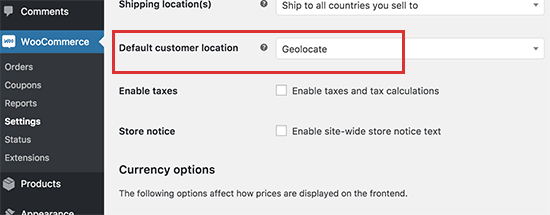
Under the General tab, you need to scroll down to ‘Default customer location’ option.

Disable Geolocation

It would be set to ‘Geolocate (with page caching support)’. You need to change it to either ‘No location by default’ or ‘Shop base address’.

Don’t forget to click on the save changes button to store your settings.

If you are using a caching plugin, then you will need to clear your WordPress cache. After that you can visit your website, and the geolocation string will disappear from your WordPress URLs.

ِ

How to GeoLocate Default Location Without the URL String?

You can do that by selecting the ‘Geolocate’ option in the ‘Default customer location’ setting.

Geolocate without caching

However, this option is not compatible with static caching plugins, and it will show incorrect shipping and tax information to users due to previously cached page.

Running WooCommerce without caching is not recommended because it will slow down your site’s speed and performance.

If you must use Geolocate to calculate shipping and taxes on the fly, then for the time being you will have to tolerate the ugly v=xxxx string in your WordPress URLs.

We hope this article helped you learn how to remove v=xxxx string from your WordPress URLs. You may also want to see our ultimate list of the most common WordPress errors and how to fix them.

If you liked this article, then please subscribe to our YouTube Channel for WordPress video tutorials. You can also find us on Twitter and Facebook.

The post How to Remove v=XXXX string from WordPress URLs appeared first on WPBeginner.