What’s New in WordPress 4.9

WordPress 4.9 was released just few hours ago. It is the second and last major WordPress release of 2017 with some exciting new features and enhancements. In this article, we will show you what’s new in WordPress 4.9 and which features you should try after updating your websites.

What's new in WordPress 4.9

4.9 is a major WordPress release, and unless you are on a managed WordPress hosting service, you will have to manually initiate the update.

Important: Don’t forget to create a complete WordPress backup before starting the update.

New Theme Browsing Experience in The Customizer

WordPress 4.9 brings several improvements to the customizer. These changes offer a better user experience and a new set of tools for developers.

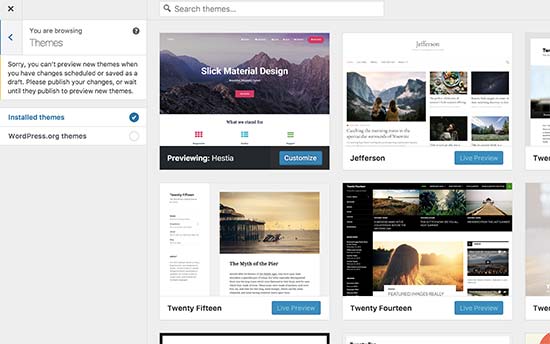
Previewing and changing themes directly from customizer is now more user friendly. You can view all your installed themes in the preview panel and click on the live preview button to load them in customizer.

Browsing themes in customizer

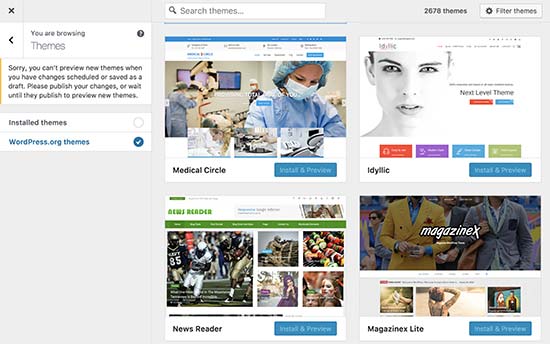
You can also browse and search WordPress.org themes and install them directly from customizer.

Install and preview WordPress.org themes directly from customizer

Save and Schedule Changes in The Customizer

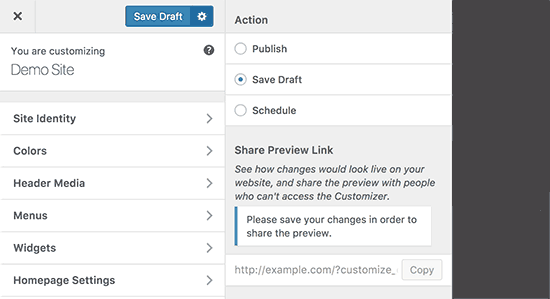
WordPress 4.9 brings changesets to theme customizer. It is like post revisions but for your theme changes. You can store changes without applying them.

Save theme draft

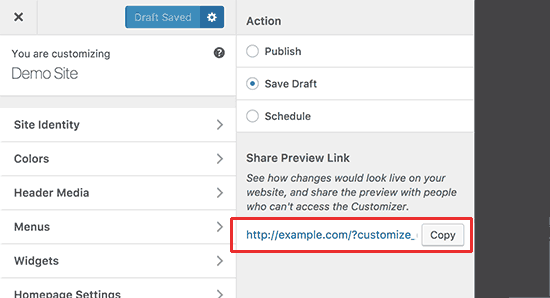
This new feature also allows you to easily share a preview of those changes with anyone. Simply copy the preview URL and send it to any user. They will be able to see the new changes without login.

Share customizer changes preview

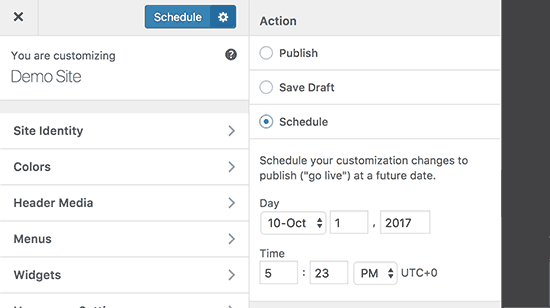
WordPress 4.9 also allows you to easily schedule theme changes to be automatically published later.

Schedule theme changes in customizer

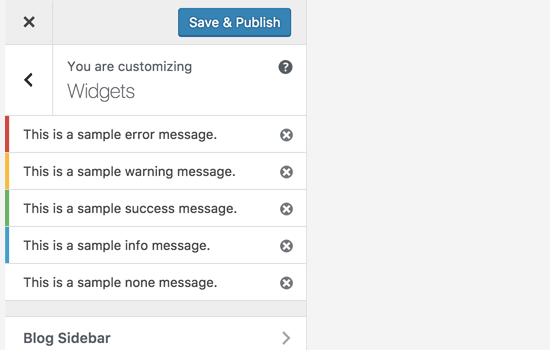
Theme developers will now be able to use these new changes in the customizer JS API. These changes will allow them to add better controls, beautiful outer panels, and display notifications on screen.

Better notifications in customizer

New Gallery Widget in WordPress 4.9

WordPress 4.8 introduced new media widgets which included rich text, audio, image, and video. WordPress 4.9 builds up on that with the introduction of the new gallery widget.

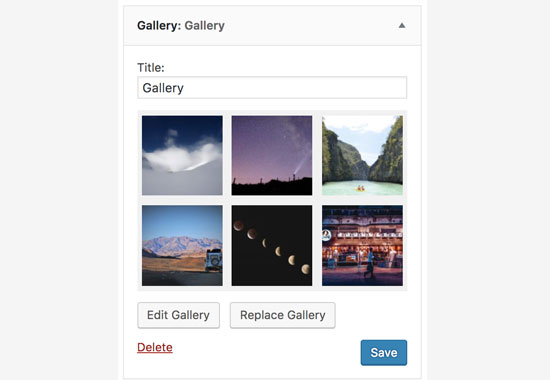
This new widgets allows you to create a native WordPress gallery and add it to your WordPress sidebar or any widget ready areas.

New gallery widget in WordPress 4.9

Just like the native WordPress galleries, this widget is also limited in terms of functionality. If you want a more powerful gallery with albums, then you need to look at a third-party plugin like Envira Gallery.

Add Media Button in Text Widget

The text widget in WordPress 4.8 came with plain text and HTML tabs. However, if you wanted to add an image in sidebar text widget, then you still had to write the HTML code.

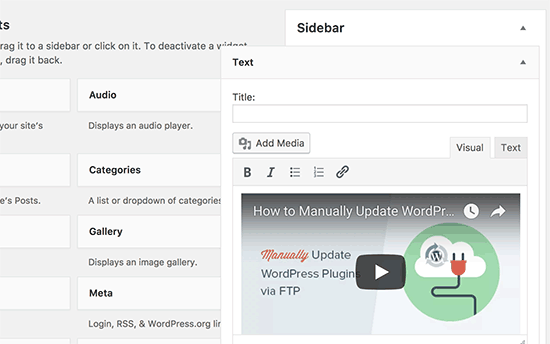
WordPress 4.9 has fixed this by adding the ‘Add Media’ button in the text widget. Now you can easily select or upload an image directly inside the text widget.

Add Media button in text widget

OEmbed Support Outside Post Content

Previously automatic embeds didn’t work in areas other than post content. With WordPress 4.9, oEmbeds will now work in text widgets and other areas as well.

oEmbed in sidebar widgets

Shortcode in Sidebar Text Widgets

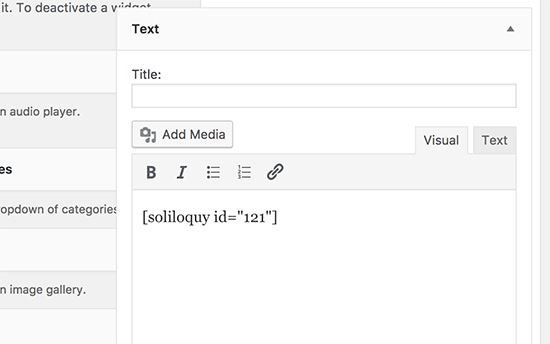
WordPress didn’t allow shortcode execution in text widgets. Users had to explicitly enable shortcodes in text widgets. WordPress 4.9 will finally change that and users will be able to add shortcodes in text widgets out of the box.

Shortcodes in sidebar widgets

New Code Editing Experience in WordPress 4.9

WordPress allows you to add HTML/CSS code at various places like theme editor, custom CSS panel, or in custom HTML widget.

Previously, these areas were plain text boxes and didn’t look or act like a proper code editor.

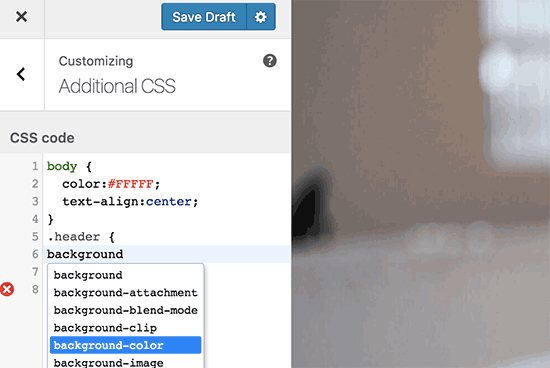
WordPress 4.9 has changed that by adding syntax highlighting, code suggestions, and auto-completion into those areas.

Code editing in WordPress 4.9

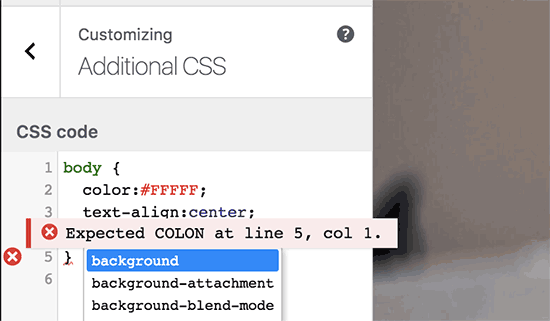
If you have ever faced syntax error when editing your theme, then this enhancement will automatically fix many common mistakes that cause such errors.

Error highlighting

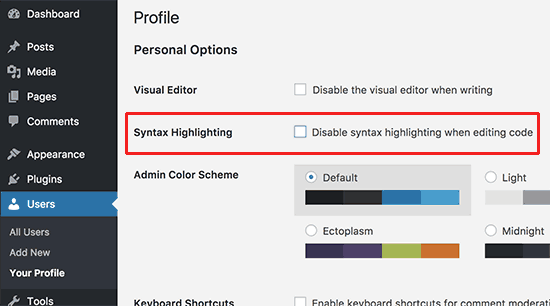
If you don’t want to use the syntax highlighting feature, then you can still easily disable it. Simply go to your profile page and uncheck the syntax highlighting option.

Disable syntax highlighting

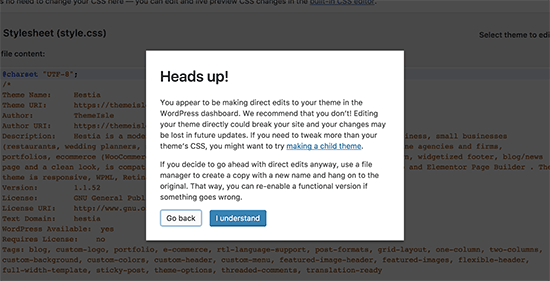
One of the big usability issues beginners faced was directly making changes from WordPress built-in editor without fully understanding the consequences. A slightest mistake would lead to a syntax error and making their websites inaccessible.

WordPress 4.9 now shows a warning to users when they access the editor.

Theme editor warning

It will also show users helpful tips and point them to custom CSS panel in the customizer.

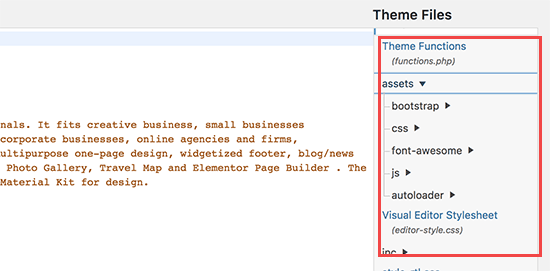
However, many users access the editor not to make changes but to quickly look up code. Particularly when they are working on child themes. To help those users, the editor will now recursively show files and folder in the sidebar for easier browsing of all files in a theme folder.

Files and directories in theme editor

Under The Hood Changes

WordPress 4.9 also brings several great changes for developers as well. Here are some of those under the hood improvements.

Better mapping for theme widgets and navigation menus after switching themes. #39693, #39692

Removal of SWFUpload library from the core. #41752

Require a confirmation link in an email to be clicked by admin when a user attempts to change their email address. #16470

We hope this article offered you a good insight into what’s new in WordPress 4.9. We are particularly excited about the customizer changes. What are you excited about?

If you liked this article, then please subscribe to our YouTube Channel for WordPress video tutorials. You can also find us on Twitter and Facebook.

The post What’s New in WordPress 4.9 appeared first on WPBeginner.

How to Fix Secure Connection Error in WordPress

Are you seeing ‘Unable to establish secure connection error’ in WordPress? It is a common WordPress error and usually occurs when you are trying to install or update a WordPress plugin or theme from official WordPress.org directory. In this article, we will show you why this error occurs and how to easily fix secure connection error in WordPress.

Fixing secure connection error in WordPress

What Causes Unable to Establish Secure Connection Error in WordPress?

WordPress comes with a built-in system to manage updates. This system regularly checks for updates and show notifications for you to install plugin / theme updates.

However, it needs to connect to the WordPress.org website in order to check for updates or install them. Due to some misconfiguration on your WordPress hosting server, your website may fail to connect with WordPress.org website.

This will result in a secure connection error, and you will see an error message like this:

An unexpected error occurred. Something may be wrong with WordPress.org or this server’s configuration. If you continue to have problems, please try the support forums. (WordPress could not establish a secure connection to WordPress.org. Please contact your server administrator.) in /home/username/public_html/wp-admin/includes/update.php on line 122

Secure connection error in WordPress

That being said, let’s see how to easily fix secure connection error in WordPress.

Fixing Secure Connection Error in WordPress

There are multiple ways to fix the unexpected secure connection error in WordPress. You can try one of the following solutions based on your situation.

Hosting and Server Related Issues

If your shared hosting server is under DDoS attack, then it is likely that the connection to WordPress.org will timeout causing the secure connection error.

In that case, you can wait for a few minutes and try again. If the error persists, then you need to reach out to your web hosting company’s support team.

Cloud or VPS Server Connectivity Issue

If you are on a cloud or VPS hosting, then it is possible that your server is unable to connect to WordPress.org due to some DNS issues.

In that case, you can point your server directly to WordPress.org servers. You will need to connect to your server using SSH.

SSH is short for secure shell which is an encrypted protocol that allows you to connect to your server using command line tools.

Windows users can use a tool called PuTTy whereas Mac / Linux users can use the terminal app.

You will need login credentials for the account with shell access to your hosting account. You can get this information from your hosting account’s cPanel dashboard or ask your web hosting server provider.

In the terminal, you can connect to your server like this:

ssh [email protected]

Don’t forget to replace username with your own username and example.com with your own domain name.

Once connected, you need to run the following command:

sudo nano /etc/hosts

This will open a file, and you will need to add the following code at the bottom of the file:

66.155.40.202 api.wordpress.org

You can now save your changes and exit the the editor. Visit your website to see if this resolved the error.

Fixing WordPress Secure Connection Error on Localhost

If you are running WordPress on your own computer (localhost), then you may not have cURL extension enabled for PHP. This extension is required to access WordPress.org for updates.

You will need to edit the php.ini file on your computer. This file is usually located in the PHP folder of your Mamp, Xampp, or WAMP folder.

If you are on a Windows computer, then look for the following line:

;extension=php_curl.dll

Mac and Linux users would have to look for this line:

;extension=curl.so

Now you need to remove the semicolon before the text to enable the extension. Don’t forget to save your php.ini file.

Lastly, don’t forget to restart the Apache server for changes to take affect.

Check Open Ports in Firewall

If cURL extension is properly installed on your local server, then the next step is to check your internet connection firewall.

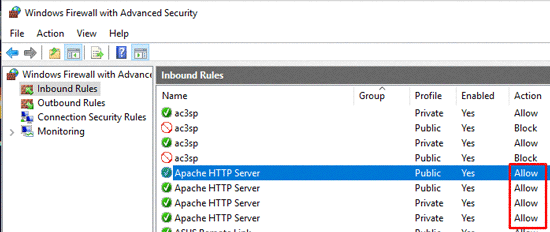
Your computer’s firewall may be blocking outgoing connections from local server to WordPress.org. If you are on Windows, then press the start button and search for Windows Firewall. Mac users can find firewall settings in System Preferences » Security & Privacy

You need to add Apache to your firewall’s allowed programs and allow both incoming and outgoing connections.

Firewall Apache

You will need to restart Apache for changes to take effect.

We hope this article helped you solve the WordPress secure connection error. You may also want to see our ultimate step by step WordPress security guide for beginners.

If you liked this article, then please subscribe to our YouTube Channel for WordPress video tutorials. You can also find us on Twitter and Facebook.

The post How to Fix Secure Connection Error in WordPress appeared first on WPBeginner.

How To Add Google Tag Manager To WordPress + Insert Scripts

When it comes to adding scripts to WordPress, most people recommend that you use a plugin like Code Snippets or your own custom plugin (or, if you’re wild and crazy, you can stick them right in your child theme’s template files). But lately on some of the Facebook WordPress groups, I’ve been seeing people talk ... Read more

The post How To Add Google Tag Manager To WordPress + Insert Scripts appeared first on Learn WordPress with WPLift.

How to Restrict Media Library Access to User’s Own Uploads in WordPress

By default, WordPress allows authors to see all images on your site’s media library. This could be problematic if you invite a lot of guest authors. In this article, we will show you how to restrict WordPress media library access to user’s own uploads.

Restrict WordPress media library access to user's own uploads

Why Restrict Media Library Access to User’s Own Uploads?

WordPress allows authors to see all files in the media library. They can also see images uploaded by an administrator, editor, or other authors.

To learn more, see our article on WordPress user roles and permissions.

Let’s say you are creating a new post to announce an upcoming product or deal. Authors and guest authors on your website will be able to see the images you upload to that article in the media library.

Your uploads will also be visible on the ‘Add Media’ popup which users see when adding images to their own articles.

For many websites, this may not be a big deal. However, if you run a multi-author website, then you may want to change this.

Let’s take a look at how to easily restrict media library access to user’s own uploads.

Method 1: Restrict Media Library Access Using a Plugin

This method is easier and is recommended for all users.

First thing you need to do is install and activate the Restrict Media Library Access plugin. For more details, see our step by step guide on how to install a WordPress plugin.

This plugin works out of the box, and there are no settings for you to configure.

Upon activation, it filters the media library query to see if the current user is an administrator or editor. If the user role does not match either of them, then it will only show user’s own uploads.

Users with the administrator or editor user role will be able to see all media uploads as usual.

Method 2: Restrict Media Library Access Manually

The first method would work for most websites as it limits media library access and allows only administrator and editor to view all media uploads.

However, if you want to add a custom user role or simply don’t want to use a plugin, then you can try this method instead. It uses the same code used by the plugin, but you will be able to modify it to meet your needs.

This method requires you to add code to your WordPress files. If you haven’t done this before, then take a look at our guide on how to copy and paste code in WordPress.

You’ll need to add the following code to your WordPress functions.php file or a site-specific plugin.

// Limit media library access
 
add_filter( 'ajax_query_attachments_args', 'wpb_show_current_user_attachments' );

function wpb_show_current_user_attachments( $query ) {
    $user_id = get_current_user_id();
    if ( $user_id && !current_user_can('activate_plugins') && !current_user_can('edit_others_posts
') ) {
        $query['author'] = $user_id;
    }
    return $query;
} 

This code uses current_user_can function to check if the user has the capability to activate plugins or edit other user’s posts. If they don’t, then it changes the query used to display media files and limit it to user’s ID.

We hope this article helped you learn how to restrict WordPress media library access to user’s own uploads. You may also want to limit authors to their own posts in WordPress admin area.

If you liked this article, then please subscribe to our YouTube Channel for WordPress video tutorials. You can also find us on Twitter and Facebook.

The post How to Restrict Media Library Access to User’s Own Uploads in WordPress appeared first on WPBeginner.

5 Best WordPress Maintenance Mode Plugins For Your Site

If you need to make changes to the live version of your WordPress site, you probably don’t want your visitors walking in on you at an awkward moment. That’s what maintenance mode is for. It lets you throw up a user-friendly page that tells users “Hey, the site isn’t available for a bit. Please come ... Read more

The post 5 Best WordPress Maintenance Mode Plugins For Your Site appeared first on Learn WordPress with WPLift.

How to Remove v=XXXX string from WordPress URLs

Are you seeing strange v=xxxx string in your WordPress URLs? Recently, one of our readers asked us how to get rid of v=xxxx string from their WordPress URLs. This string is made up of seemingly random letter and numbers added as a parameter to your permalinks. In this article, we will show you how to easily remove v=xxxx string from your WordPress URLs.

How to Remove v=xxxx string from WordPress URLs

Why Are You Seeing v=XXXX String in Your WordPress URLs?

This string appears on websites running an online store using WooCommerce. It is not a bug or an error, but an actual feature of the plugin.

String with letters and numbers added to WordPress URLs by WooCommerce

The purpose of this string is to help WooCommerce calculate tax and shipping based on a user’s geographic location. The string helps make the feature compatible with WordPress caching plugins like WP Super Cache or W3 Total Cache.

However, if you don’t need to calculate shipping and taxes based on different locations, then you probably accidentally enabled this feature.

Let’s take a look at how to easily disable it and remove the random v=xxxxxx strings from your WordPress URLs.

Removing v=xxxx String from WordPress URLs

First you need to login to your WordPress admin area and head over to the WooCommerce » Settings page.

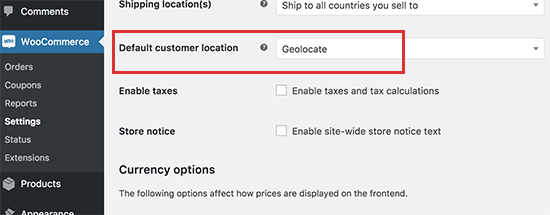
Under the General tab, you need to scroll down to ‘Default customer location’ option.

Disable Geolocation

It would be set to ‘Geolocate (with page caching support)’. You need to change it to either ‘No location by default’ or ‘Shop base address’.

Don’t forget to click on the save changes button to store your settings.

If you are using a caching plugin, then you will need to clear your WordPress cache. After that you can visit your website, and the geolocation string will disappear from your WordPress URLs.

ِ

How to GeoLocate Default Location Without the URL String?

You can do that by selecting the ‘Geolocate’ option in the ‘Default customer location’ setting.

Geolocate without caching

However, this option is not compatible with static caching plugins, and it will show incorrect shipping and tax information to users due to previously cached page.

Running WooCommerce without caching is not recommended because it will slow down your site’s speed and performance.

If you must use Geolocate to calculate shipping and taxes on the fly, then for the time being you will have to tolerate the ugly v=xxxx string in your WordPress URLs.

We hope this article helped you learn how to remove v=xxxx string from your WordPress URLs. You may also want to see our ultimate list of the most common WordPress errors and how to fix them.

If you liked this article, then please subscribe to our YouTube Channel for WordPress video tutorials. You can also find us on Twitter and Facebook.

The post How to Remove v=XXXX string from WordPress URLs appeared first on WPBeginner.

Weekly WordPress News: Elementor Gets Inline Editing

This week, one of our favorite page builders – Elementor – got a facelift with new inline text editing functionality. There was more rebranding as well – popular WordPress host, Kinsta, completely redesigned their site and launched new entry-tier plans starting at just $30 per month. Additionally, WP Newsify posted a neat look at the ... Read more

The post Weekly WordPress News: Elementor Gets Inline Editing appeared first on Learn WordPress with WPLift.

22 Best WordPress Themes for Life Coaches

Are you looking for the best WordPress themes for life coaches? If so, then you need a WordPress theme that helps you promote your personal brand and builds trust. In this article, we will show you the best WordPress themes for life coaches, speakers, and consultants.

Best WordPress themes for life coaches

Building a Life Coaching Website with WordPress

WordPress is the top platform used by many prominent public speakers and life coaches around the world. Mainly because of its flexibility and ease of use.

There are two versions of WordPress. WordPress.com and WordPress.org also known as self-hosted WordPress. (See our comparsion of WordPress.com vs WordPress.org for more details).

A self-hosted WordPress.org website gives you access to all the features of WordPress right out of the box, and this is what we recommend everyone to use.

You will need a domain name and a WordPress hosting account to start your own self-hosted WordPress website.

We recommend using Bluehost. They are one of the largest hosting companies in the world and an officially recommended WordPress hosting provider. They’re offering our users a free domain name and over 60% off hosting.

Once you have signed up for a hosting account. The next step is to install WordPress. You can follow the instructions in our step by step guide on how to make a website.

That being said, let’s take a look at some of the best WordPress themes for life coaches. This list contains both free and paid WordPress themes, and all of them are mobile friendly.
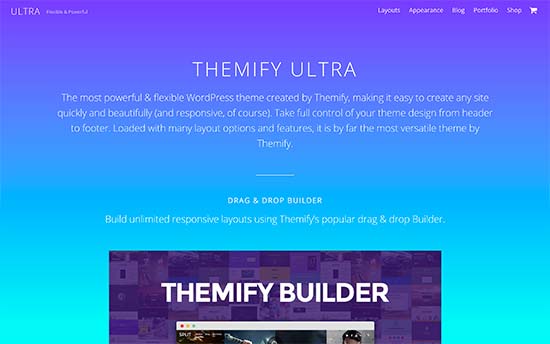
1. Ultra

Ultra

Ulta is an all-purpose WordPress theme suitable to build professional life coaching, motivational speaker, and mentorship websites. It comes with several ready-made website templates that can be installed with one click. It also includes a drag and drop page builder to edit those pages and create new pages as needed.

It ships with a wide range of design and layout choices. Inside you will also find an easy to use testimonials section, photo galleries, sliders, contact forms, and more.

2. One Page Business Pro

One Page Business Pro

One Page Business Pro is a one page WordPress theme for all kind of business websites including life coaches, speakers, and trainers. It comes with easy to manage sections all displayed on the same page with vertical navigation.

It includes beautiful full width header image followed by different sections including testimonials slider, team and portfolio section. It is very easy to use and can be setup using the custom theme options panel.
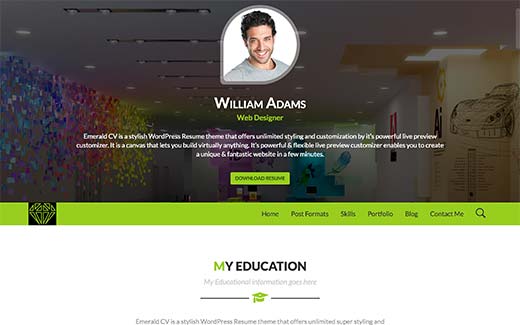
3. Emerald CV

Emerald CV

Emerald CV is a stylish WordPress resume theme with a focus on personal branding. It has a full width header on top with profile photo, short bio, and a call to action button.

It includes easy to manage sections to add your experience, skills, portfolio, with animated progress bars and custom widgets. It is easy to set up and includes several customization features that will help you make it uniquely yours.

4. Get Noticed

Get Noticed

Get Noticed is a premium WordPress theme designed to establish and promote your personal brand. It is one of the expensive WordPress themes in the list, but you’ll love how easy to use it is and how everything just works out of the box.

Our company’s founder and CEO, Syed Balkhi uses Get Noticed on his personal website.
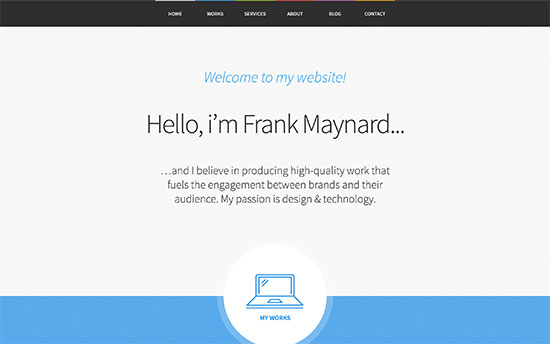
5. Freelancer

Freelancer

Freelancer is another beautiful WordPress theme designed to promote your personal brand. Despite the name, it is perfectly suitable for life coaches, motivational speakers, and anyone looking to promote and establish authority in their industry.

It can be used both as one page theme or a multi-page theme. It includes easy to add sections to display your expertise and skills with a custom theme options panel, photo galleries, portfolio and more.

6. Saturn

Saturn

Saturn is a WordPress theme for professionals, life coaches, and public figures. It comes with 3 different layout templates, each featuring a beautiful slider on the top and a modular homepage layout.

Other features include photo galleries, contact form, parallax background, Google Maps, and more. It includes a theme customization panel which helps you setup your website.
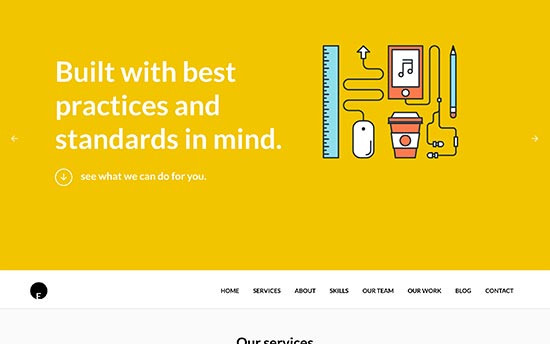
7. OneEngine

OneEngine

OneEngine is one-page multipurpose WordPress theme suitable for all kind of professional websites. It features beautiful design with bold color choices and beautiful parallax background effects.

It can be used as a single page template with separate blog section. It allows you to easily add an intro or bio section, services, portfolio, and team member sections. It includes a custom theme options panel which helps you easily modify your website.
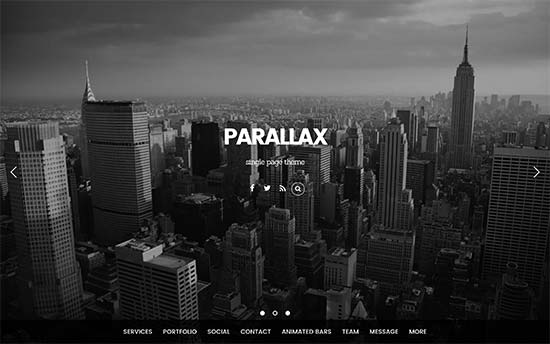
8. Parallax

Parallax

Parallax is a modern WordPress business theme featuring engaging parallax backgrounds, fullscreen background images, and a stunning layout. It comes with 60+ predefined layouts and a page builder which allows you to mix and match design elements to create a unique experience for your visitors.

It has built-in social media widgets, contact form integration, progress bars, beautiful CSS animations, and more. It is also translation ready and can be used to create multilingual websites as well.
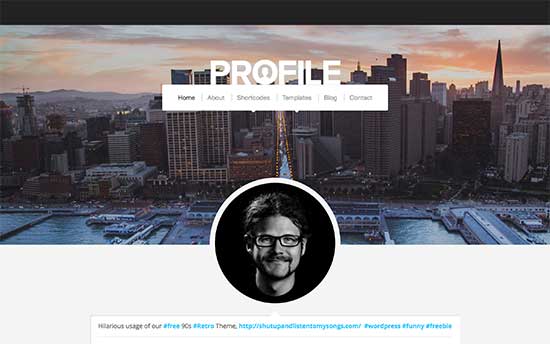
9. Profile

Profile

As the name suggests, Profile is a personal website WordPress theme for professionals like life coaches, consultants, and designers. It features a full width header image with a custom logo upload, navigation menu, and a profile photo.

Other notable features include page templates, shortcodes, featured videos, WooCommerce and contact form support.
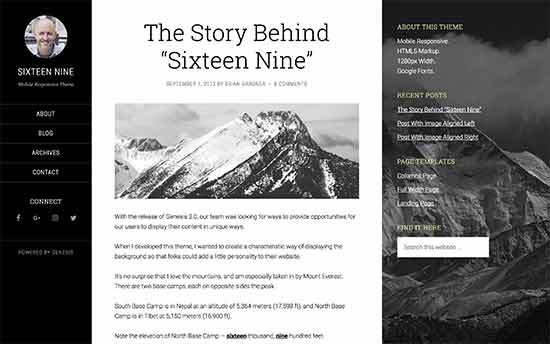
10. Sixteen Nine Pro

Sixteen Nine

Built on top of Genesis theme framework, Sixteen Nine is a beautiful WordPress theme for personal websites. It features a three column layout with one column used as a header section with profile photo and navigation menus.

It has a customizable header area, two widget ready areas, multiple page templates, and more. It has a super easy to use theme options panel and live theme customizer support.
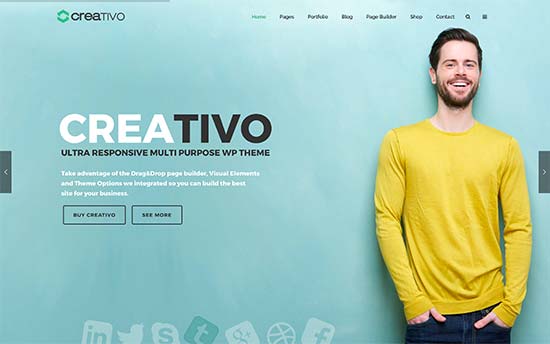
11. Creartivo

Creativo

Creativo is a multi-purpose WordPress theme for creative professionals, artists, life coaches and consultants. It ships with multiple ready-made website templates that can be installed with 1-click. It ships with a drag and drop page builder which allows you to create your own WordPress page layouts.

It includes booking form support, online store integration, custom widgets, multiple styles and templates, custom widgets, beautiful featured content slider. It is easy to use and has a theme options panel to setup your website.
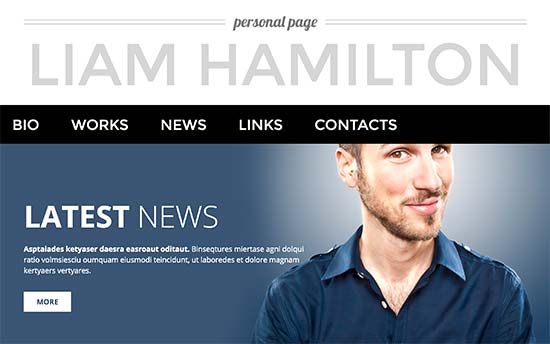
12. Personal Page

Personal Page

As the name suggests Personal Page is a WordPress theme to promote your personal brand as a life coach, freelancer, or consultant. It features bold design choices like larger fonts, bright colors, and large images.

It includes a bio template where you can list your biography, stats, experience, testimonials and more. It is easy to use and includes a theme settings page and live theme customizer support.

13. Spencer

Spencer

Spencer is a beautifully crafted WordPress theme for entrepreneurs, motivational speakers, life coaches, and bloggers. It features a fully widgetized homepage layout allowing you to just drag and drop widgets to set it up.

It includes separate templates for about, landing page, contact form, and blog section. It is easy to customize and works with all popular page builder plugins.

14. Presence

Presence

Presence is an all-purpose WordPress theme designed for businesses and individuals. It ships with 10 demos with 1-click installer and 6 color schemes.

Other notable features include built-in portfolio, testimonials, custom widgets, page templates, and more. It is compatible with multilingual websites using WPML and can also be used to add an online store.
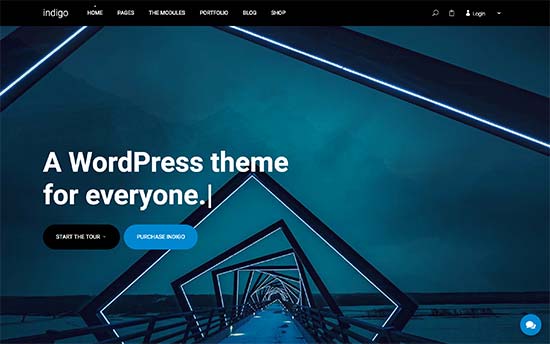
15. Indigo

Indigo

Indigo is a super-flexible WordPress theme that can be used to build any kind of website. It ships with 14 ready-made website templates that are fully editable with simple drag and drop modules.

Inside you will find tons of easy to use options to add contact forms, testimonials, sliders, image galleries, Google Maps, and more. It has beautiful theme options page that will make it easier for you to quickly build your website.

16. Smart Passive Income

Smart Passive Income

Smart Passive Income is another excellent theme for life coaches, consultants, and professionals. It has an easy to setup and fully widgetized homepage layout.

Inside you will find customizable header, multiple layout choices, multiple widget ready areas, and more. It is translation ready, supports WooCommerce, and includes full theme customizer support.
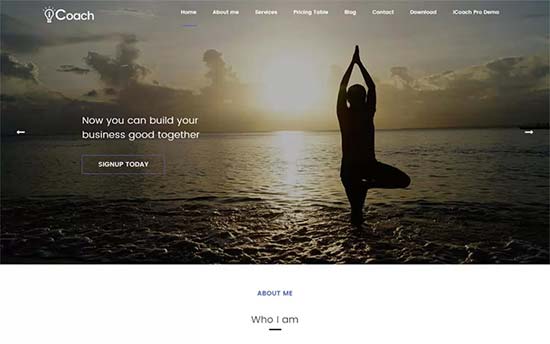
17. iCoach

iCoach

iCoach is a free WordPress theme for life coach, motivational speakers, freelancers, and other professionals. Designed to showcase your personal brand, this theme features a beautiful slider, parallax effects, and a professional homepage.

You can easily customize theme colors, header, background image, and more using live theme customizer. It is translation ready and compatible with all top WordPress plugins.
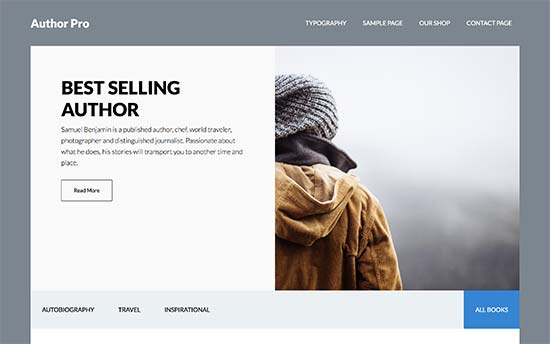
18. Author Pro

Author Pro

Author Pro is an elegant WordPress theme for authors, life coaches, speakers, and other professionals. It is designed to put your personal brand in front and center of your website. Built on Genesis framework, it is highly optimized for speed and performance.

It includes custom headers, background, widgetized home page, and a powerful theme options panel. It ships with Genesis Author Plugin which allows you to list your books and sell ebooks online.
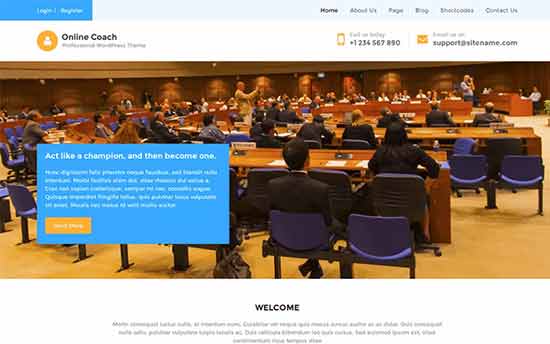
19. Online Coach

Online Coach

Online Coach is a free WordPress theme designed specifically for life coaches, trainers, and instructors. It can be used to build a membership website to sell online courses with an LMS WordPress plugin.

It is easy to use with only the options you will need. For customization it uses live theme customizer to change colors, set up header images, background color, and more.
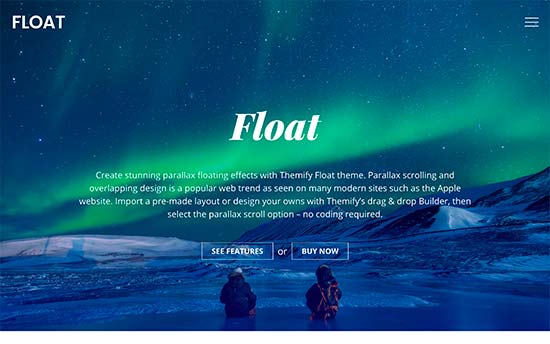
20. Float

Float

Float is another multi-purpose WordPress theme for professionals. It comes with a drag and drop page builder with unlimited layout choices, header styles, and colors. It also includes ready-made demos that you can install and use as a starting point.

It has built-in social media integration, parallax blog layout, contact form, photo galleries, and filterable portfolio. Its flexibility and ease of use makes it perfect to build your life coaching website in minutes.

21. Reel Story

Reel Story

Reel Story is a WordPress video theme suitable for websites with lots of video content. It comes with a video portfolio section and multiple layouts and unlimited color choices.

It includes a simple drag and drop page builder, a powerful theme options panel, and 1-click demo installer. All these tools make it super easy to create highly engaging websites in very little time.
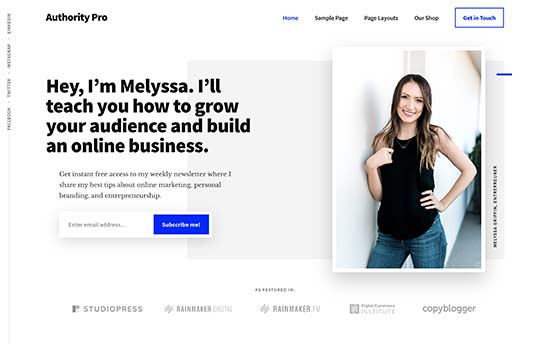
22. Authority Pro

Authority Pro

Authority is the perfect WordPress theme to build your online authority. It features a clean modern layout with a large header image, welcome message, and a email subscription form at the top.

It is easier to setup with a widgetized homepage layout. It includes 4 widget ready areas, two navigation menus, and a unique vertical navigation menu.

We hope this article helped you find the best WordPress themes for life coaches, motivational speakers, and consultants. You may also want to see our guide on how to build your personal brand using WordPress.

If you liked this article, then please subscribe to our YouTube Channel for WordPress video tutorials. You can also find us on Twitter and Facebook.

The post 22 Best WordPress Themes for Life Coaches appeared first on WPBeginner.
How to Show Weather Forecast in WordPress

Do you want to show weather forecast in WordPress? Some website owners may want to display weather forecast to keep their users informed about weather conditions for specific locations. In this article, we will show you how to easily show weather forecast in WordPress.

Showing weather forecase in WordPress

Why and Who Needs Weather Forecast in WordPress?

Not all websites need to display weather forecast to their users. However, there are many industries that rely on people making decisions based on this information.

This includes travel, events, hotels, bed & breakfasts and many others in the hospitality and tourism industry.

There are plenty of WordPress plugins that can pull weather information and display it beautifully on your website. You need to use a plugin that is fast, clutter-free, and doesn’t add links to weather services.

That being said, let’s take a look at how to easily show weather forecast in your WordPress posts, pages, or a sidebar widget.

Adding Weather Forecast in WordPress

First thing you need to do is install and activate the WP Cloudy plugin. For more details, see our step by step guide on how to install a WordPress plugin.

WP Cloudy can work without an API key. However, it is recommended to create an OpenWeatherMap API key to avoid timeouts.

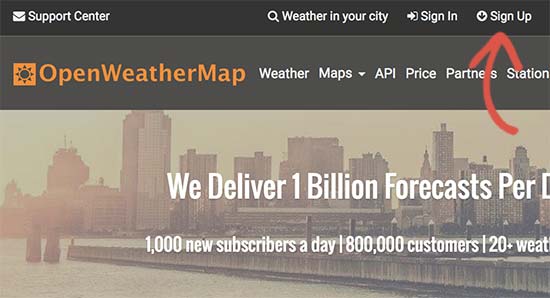
Simply head over to OpenWeatherMap website and click on the sign up link.

Sign up for open weather map api key

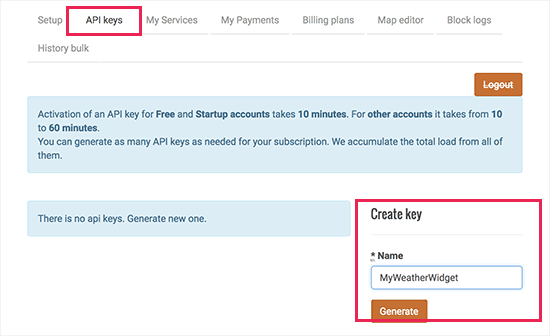
After sign up, you need to visit your profile page and click on the API Keys tab. You will be asked to provide a name for your keys and then click on the ‘Generate’ button.

Generate API Key

Open Weather Map will now generate an API key for you to use. You need to copy the API key.

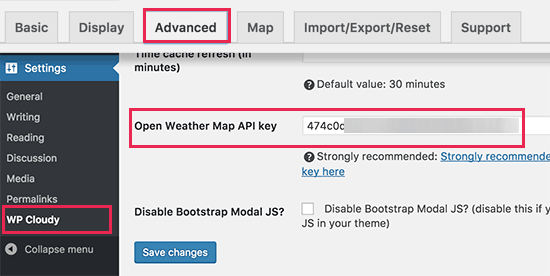
Next, you need to head over to Settings » WP Cloudy page in your WordPress admin area and click on the ‘Advanced’ tab.

Enter api key

On this screen, you need to scroll down to the ‘Open Weather Map API key’ option and paste the API key you copied earlier.

Don’t forget to click on save changes button to store your settings.

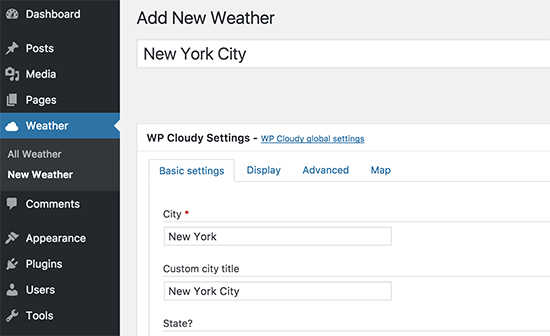
You are now ready to create your weather reports. You can do this by visiting Weather » Add New page to create your first weather report.

Creating a weather report

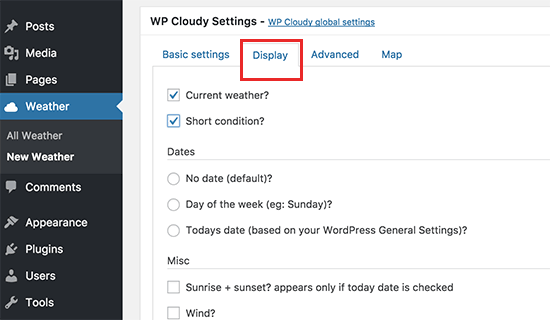
Simply enter the city, state, and country information and then switch to the ‘Display’ tab. Here you can configure different display settings. You can add / remove information that you want to show and configure the number of days to show in the forecast.

Display settings

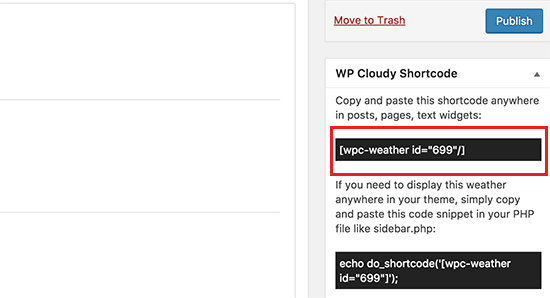
Once you are finished, click on the publish button to save your weather report and then copy the shortcode.

Copy the weather shortcode

You can now add this shortcode to any WordPress post or page. You can also add this shortcode to a sidebar widget.

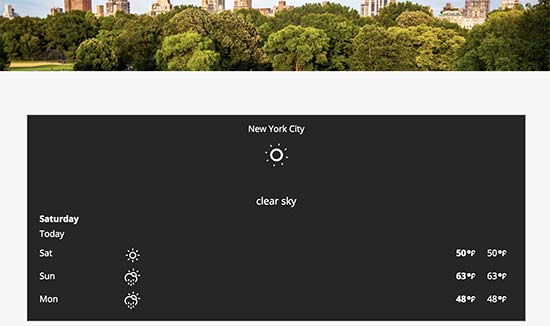
After that, you can view your website to see the weather forecast in action.

Weather forecaste displayed on a WordPress website

We hope this article helped you learn how to show weather forecast in your WordPress posts, pages, or sidebar widgets. You may also want to see our list of must have WordPress plugins for any website.

If you liked this article, then please subscribe to our YouTube Channel for WordPress video tutorials. You can also find us on Twitter and Facebook.

The post How to Show Weather Forecast in WordPress appeared first on WPBeginner.
5 Benefits Of Deploying Google Accelerated Mobile Pages On Your Blog

When Google came out with its Accelerated Mobile Pages framework, the idea had everything in it to attract blog and website owners to jump on to the bandwagon in no time. AMP helped bloggers and website owners bid farewell to mobile pages that were non-optimised, slow and messy. With more and more viewers using their ... Read more

The post 5 Benefits Of Deploying Google Accelerated Mobile Pages On Your Blog appeared first on Learn WordPress with WPLift.