Elementor Review: Is It Really As Good As They Say? (Feb 2021)

We were one of the first sites to write an Elementor review. It’s been over four years since then. And in those four-plus years, we’ve seen them undergo some incredible growth. Not only have they gone from zero to 700,000+ active installs (our 2018 update) to over five million installs (our 2020 update), but we’ve ... Read more

The post Elementor Review: Is It Really As Good As They Say? (Feb 2021) appeared first on Learn WordPress with WPLift.

How to Blog Anonymously Using WordPress

Do you want to blog anonymously using WordPress? There are many users who want to start a blog but don’t what to put their real name on it. In this beginner’s guide, we will show you how to easily blog anonymously using WordPress while keeping your personal information safe.

How to anonymously blog using WordPress

Note: This guide is not for journalists or whistle-blowers doing high-risk work. They should use something like TOR or other tools. This is for an average blogger who wants to blog anonymously.

Anonymous Blogging Pros & Cons

There are many users who simply want to blog anonymously to express their opinions. Most of them want to remain anonymous because they fear it may affect how people see them in real lives. Some want to do it just to be more creative.

There are pros and cons to blogging anonymously, and it’s important that you understand them before you start blogging.

Pros of Anonymous Blogging using WordPress

  • Freedom to express your opinions without being judged
  • Protect your personal identity and information
  • Creative and artistic freedom

Cons of Anonymous Blogging Using WordPress

  • Not able to meet with people who follow your blog
  • Limited monetization options, you can still use Google AdSense, but you will have to share your personal information with Google.
  • If someone is really determined, then they can still trace your blog back to you.

That being said, let’s see how to blog anonymously using WordPress.

How to Start an Anonymous Blog using WordPress

There are two types of WordPress websites. First, there is WordPress.com which is a hosted blogging service, and then you have WordPress.org also known as self-hosted WordPress. For comparison, see our guide on the difference between WordPress.com vs WordPress.org.

There are other blogging platforms as well. However, we recommend using self-hosted WordPress.org to have complete control on the privacy and ownership of your website.

You will need a domain name and a website hosting account to start your self-hosted WordPress blog.

We recommend using Bluehost. They are one of the largest hosting companies in the world and an officially recommended WordPress hosting provider. They’re offering our users a free domain and 60% off their web hosting.

For details, see our article on how to start a WordPress blog with complete step by step instructions.

After you have installed WordPress, let’s make it anonymous.

Using Whois Privacy

When you purchase a domain name, you are required to provide contact information, like name, address, phone number, and email address. This information is publicly accessible and anyone can look up for it.

To protect customer’s privacy, many domain name providers offer a service called Whois privacy. For a small fee, this service displays their contact information instead of yours. If someone sends an email to the address displayed on WHOIS privacy page it will be forwarded to you.

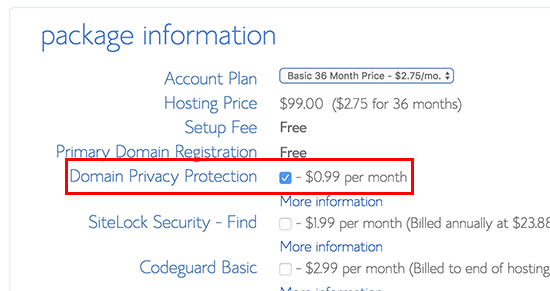
You can purchase domain privacy during the set up on most hosting companies. For example, Bluehost provides you an option to do so during the sign up. We normally don’t recommend it due to the additional cost, but since you want to create an anonymous blog, you would want to check this option.

Domain privacy

If you didn’t purchase it during set up, then you can always enable it from your hosting account’s dashboard under the domains section.

Using a Blogging Email Address

Next step is to create a new email account to use for your WordPress website, and your author profile in WordPress. You can use a free email service provider like Gmail or use a more private email service like Proton Mail.

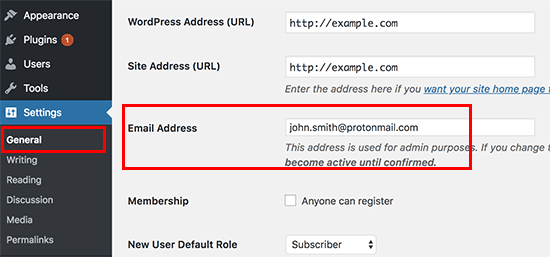
After you have created an email account, you need to add it as a WordPress administrative email address. This email address is used to send WordPress notification emails.

You can do this by going to Settings » General page in the WordPress admin area and add your new email address there.

Adding admin email address in WordPress

Don’t forget to click on the save changes button to store your settings.

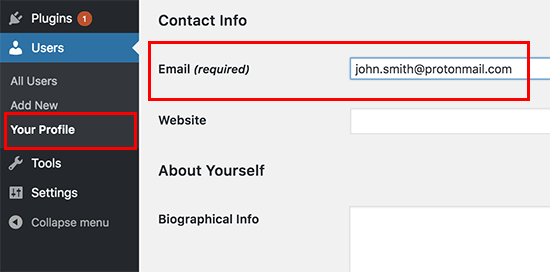
Next, you need to add the same email address to your author profile page. Simply go to the Users » Your Profile page and add the email address under your contact info.

Change your author profile email address

Don’t forget to click on the Update Profile button to save your changes.

You can also use gravatar to display an anonymous profile picture next to your author bio under your blog posts.

Tip: If you are not receiving WordPress emails, then see our guide on how to fix WordPress not sending emails issue.

Using a Psuedonym for Anonymous Blogging

You will need to choose and use a pseudonym on your blog. For better WordPress security, you cannot just use admin as your username or author name. You will need to think of a different nickname that you can use to sign your posts.

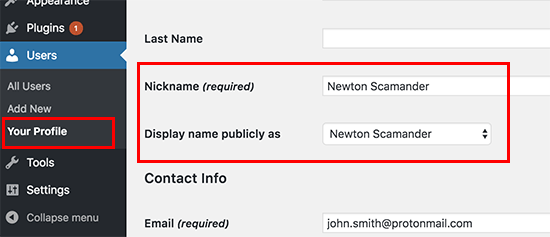
To add your pseudonym, you need to visit Users » Your Profile page and add the name next to the Nickname field. After entering your nickname, click on the drop-down menu next to ‘Display name publicly as’ option and select your nickname.

Pseudonym

It’s important that you don’t add your real first and last name in this user profile.

Don’t forget to click on the Update Profile button to save your changes.

Using a VPN

VPN is a Virtual Private Network that helps you secure your internet connection and protect your identity.

Normally, all your internet traffic travels through different servers spread across the world. Hackers and governments can spy on this traffic and see what you are doing online.

VPN acts as a network between your computer and outside world. All your internet traffic goes to a VPN service where it is encrypted and sent to the destination using a random server in a different geographic location.

How VPN works

Here is a list of the best VPN service providers. We recommend using IPVanish. They offer military grade encryption with hundreds of servers. They also have the easiest software to turn on VPN with the click of a button on any device including laptops, tablets, and mobile phones.

We hope this article helped you learn how to blog anonymously using WordPress. You may also want to see our ultimate step by step WordPress SEO guide for beginners.

If you liked this article, then please subscribe to our YouTube Channel for WordPress video tutorials. You can also find us on Twitter and Facebook.

The post How to Blog Anonymously Using WordPress appeared first on WPBeginner.

7 Best WordPress Donation Plugins in 2018: One-Off Donations To Fundraising

Need to accept donations on your WordPress site? Then you need one of these WordPress donation plugins! No matter if you’re a non-profit looking to run full-on fundraising campaigns or a blogger looking for a simple solution to accept donations, you can probably find a plugin that works for you on this list. You’ll even ... Read more7 Best WordPress Donation Plugins in 2018: One-Off Donations To Fundraising

The post 7 Best WordPress Donation Plugins in 2018: One-Off Donations To Fundraising appeared first on Learn WordPress with WPLift.

How to Create a Referral Program in WordPress

Do you want to create a referral program in WordPress? Referral programs are a great way to get more people to promote your products to a larger audience. In this article, we will show you how to easily create a referral program in WordPress and get more customers.

Creating referral program in WordPress

Why Create a Referral Program in WordPress?

Referral program or affiliate program allows you to get more people to help you sell your products and services. In return, you pay them a small commission on each sale they make. For more details, see our ultimate affiliate marketing guide to see how it works.

In simple terms, it is like building your own sales army without paying them a salary.

These affiliate marketers use tools and plugins to create marketing content. They make money online by referring their users to right products and services.

To manage a referral or affiliate program, you will need a tool that can manage your affiliate program. It will allow affiliate marketers to join your referral program. It will also help you track sales and traffic sent by each affiliate partner.

Why Use AffiliateWP to a Create Referral Program in WordPress?

For this tutorial, we will be using AffiliateWP plugin to create a referral program in WordPress. It is one of the best affiliate management plugins for WordPress.

Like everything else in life, AffiliateWP has it’s own pros and cons that you should consider.

Pros of Using AffiliateWP

Following are some of the benefits of using AffiliateWP to manage your referral program in WordPress.

  • Very easy to use and blends in your WordPress site like a native app.
  • Very cost effective with plans starting from $99/year to $499 for a lifetime license.
  • Integrates with WooCommerce stores, Easy Digital Downloads, PayPal, Stripe, and more
  • Large number of addons including free, paid, and third-party add-ons to extend AffiliateWP
  • Real-time affiliate tracking with detailed reports for you and your affiliate partners

Cons of Using AffiliateWP

Here are some of the disadvantages of using AffiliateWP to manage your referral program.

  • It has limited reach compared to affiliate networks which already have thousands of affiliate marketers actively looking for products to promote
  • It does not come with advanced fraud detection features that are offered by popular affiliate networks.
  • There is no automatic payout system, and you will have to manually send payments each month
  • Does not calculate taxes and 1099 forms for payouts. As a business owner, you will have to manage it on your own.
  • It is less convenient for affiliate partners. They will have to create an account and login to view their reports, compared to affiliate networks where they can see all their earnings at one place.

A good alternative to AffiliateWP would be ShareASale, which is a large affiliate network with thousands of skilled affiliate marketers actively looking for new products to recommend.

For a more detailed comparison, you may want to see this article on setting up your own affiliate program by Syed Balkhi (Founder and CEO of WPBeginner).

With that being said, let’s take a look at how to create a referral program in WordPress using AffiliateWP.

Creating a Referral Program in WordPress

First thing you need to do is install and activate the AffiliateWP plugin. For more details, see our step by step guide on how to install a WordPress plugin.

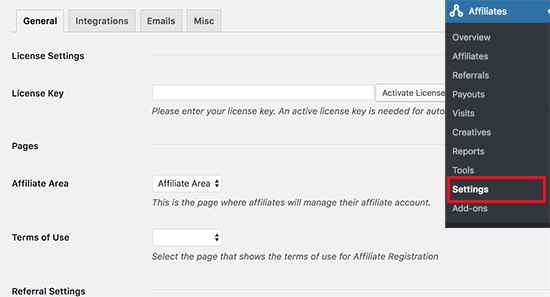
Upon activation, you need to visit Affiliates » Settings page to enter your license key. You can find this information under your account on AffiliateWP website.

Enter your license key

After activating your license key, you need to select a page to be used for Affiliate Area. AffiliateWP automatically creates one for you, but if you want to use a different page, then you can select it here.

Next, you need to choose the terms of service page. You can check out affiliate program terms pages on other websites to create one for your own site. After creating the page you can select it here.

After that, you need to review other settings on the page and set them up based on your own referral program policies.

Don’t forget to click on the ‘Save Changes’ button to store your settings.

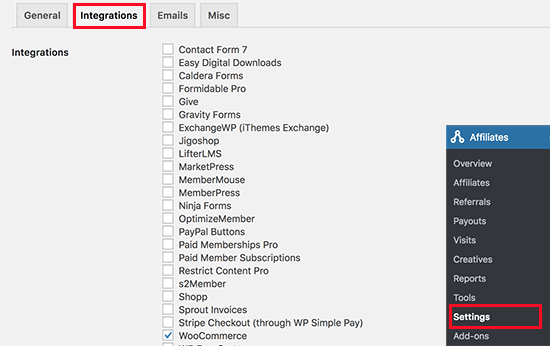
Next, you need to switch to the integrations tab on the Settings page. From here you need to select the integrations you want to enable. AffiliateWP supports most popular eCommerce, membership, contact form, and LMS plugins.

AffiliateWP integrations

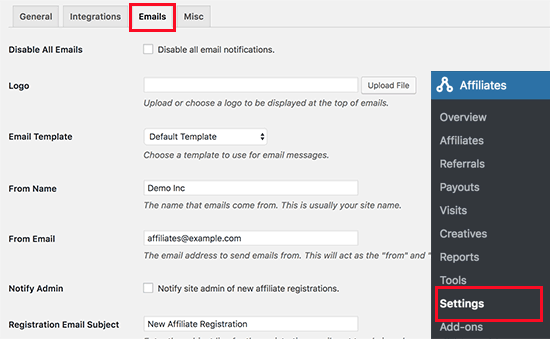
Click on the save changes button and then switch to ‘Emails’ tab on the Settings page.

AffiliateWP allows you to edit emails sent out to your affiliates. You can also upload your business logo, create your own email templates, and choose the email address you want to use to send out affiliate emails.

Email notifications

Note: If you are unable to receive email notifications, then follow our guide on how to fix WordPess not sending email issue.

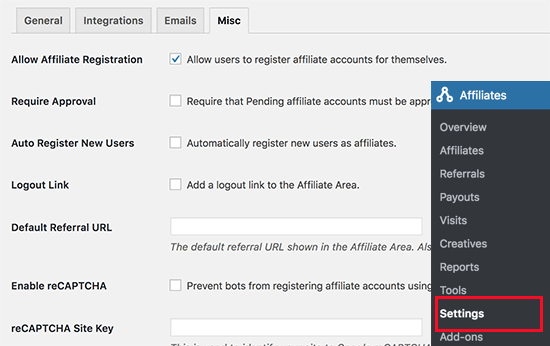
Lastly, switch to the Misc tab on the settings page to set up advanced settings for your affiliate program. The first option on the page is to allow affiliates to register themselves. You can check this if you want affiliates to be able to sign up for your referral program.

Misc settings

Next, you would also want to enable reCAPTCHA to prevent bots from registering as affiliates.

You will need to carefully review each setting and change them as needed. Don’t forget to click on the save changes button to store your settings.

Adding Links to Your Referral Program

Now that you have set up your referral program, the next step is to add links to it. For example, if you have enabled affiliate registration, then you may want to add a link to affiliate area so that interested marketers can register themselves.

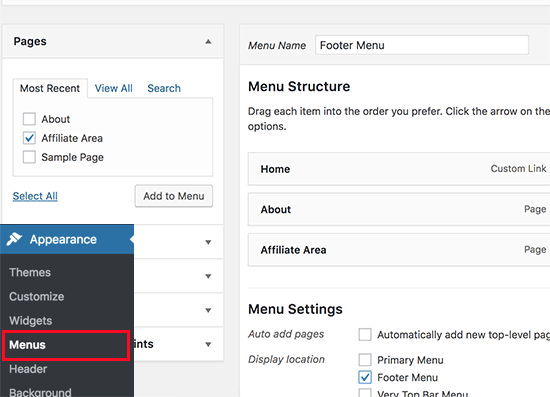
Simply go to Appearance » Menus page and add your affiliate area page to a navigation menu. For detailed instructions, see our beginner’s guide to adding navigation menus in WordPress.

Add link to affiliate area

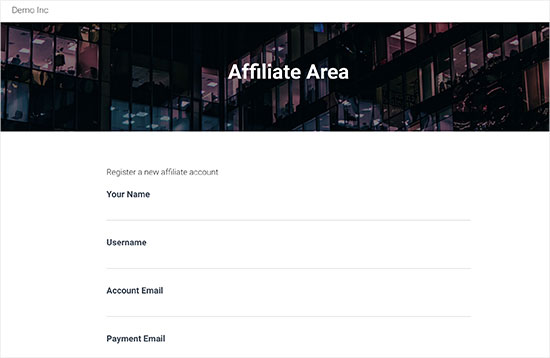
Clicking on the link will take users to the affiliate area where they can register to join as a new affiliate, or login to their account to see their reports.

Affiliate area

Managing Your Referral Program in AffiliateWP

AffiliateWP comes with powerful tools to manage your affiliates, view reports, and effectively run your affiliate program without leaving WordPress.

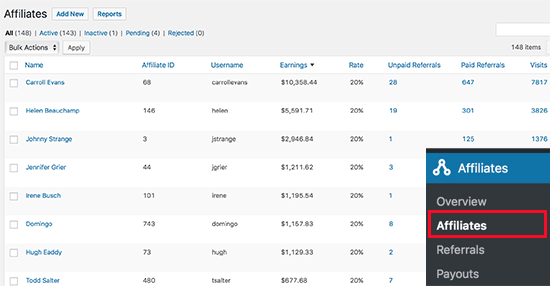
To view affiliates that have joined your referral program, simply go to Affiliates » Affiliates page.

Affiliates

On this page, you can see a list of all your affiliate partners, their earnings, unpaid earnings, referral visits, and more. You can edit any affiliate account individually.

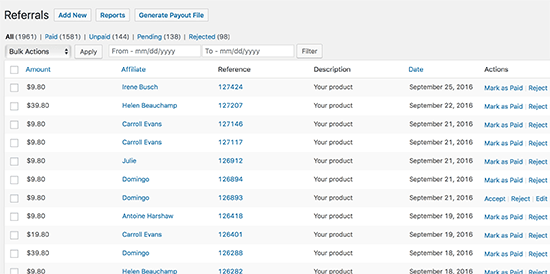
To view each sale made through a referral partner, you need to visit Affiliates » Referrals page. Here you will see all referral sales, affiliate partner, amount, and more. You can also click on ‘Reject’ link if you suspect a referral to be fraudulent.

Referrals

Viewing Your Referral Program Reports in AffiliateWP

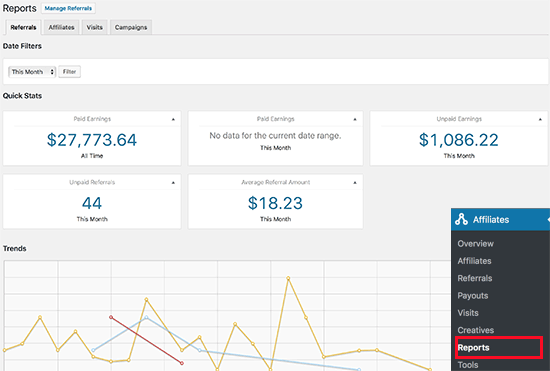
Reporting is crucial to run a successful referral program, and AffiliateWP comes with powerful reporting features. Head over to Affiliates » Affiliates page for a full overview.

Reports overview

You can filter the reporting period by time and specific affiliate partner name. You can also view reports for affiliates, referral visits, and campaigns.

Sending Payments to Your Affiliates

Unfortunately, AffiliateWP doesn’t come with automatic payouts, which means you will have to manually send payments. AffiliateWP makes it easy to manage your payouts.

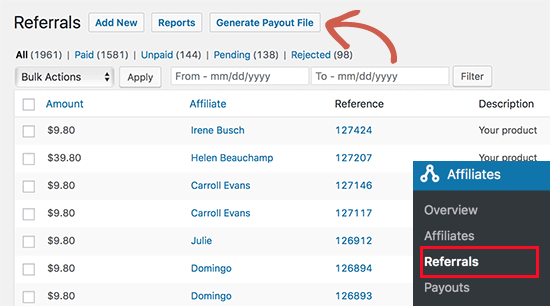
Depending on when and how often you want to pay your referral partners, you can head over to the Affiliates » Referrals page and click on the ‘Generate Payout File’ button.

Generate payout file

This will generate a payout file which is compatible with PayPal’s mass payment system. The file also works with Skrill and other payment services that support mass payment feature. It contains the amount and payment email addresses for all your unpaid referrals.

We hope this article helped you learn how to create a referral program in WordPress. You may also want to see our ultimate step by step WordPress SEO guide for beginners.

If you liked this article, then please subscribe to our YouTube Channel for WordPress video tutorials. You can also find us on Twitter and Facebook.

The post How to Create a Referral Program in WordPress appeared first on WPBeginner.

12 Best WooCommerce Recover Abandoned Cart Plugins in 2022

If you run an online store, this article is for you as it explains why a WooCommerce recover abandoned cart plugin is an essential addition to your site. As an online store owner, you’ll know how frustrating it is when you have put tons of effort into creating an outstanding online shopping experience, only for [...]

Read More...

The post 12 Best WooCommerce Recover Abandoned Cart Plugins in 2022 appeared first on Learn WordPress with WPLift.

How to Create Interactive Images in WordPress

Do you want to create an interactive image for your WordPress blog? An interactive image allows you to highlight, link, and animate certain areas of your image. In this article, we will show you how to create interactive images in WordPress.

Create Interactive Images in WordPress

What is an Interactive Image?

An interactive image has hotspot areas, highlights, links, colors, and more. It’s different from a simple image that you upload in WordPress. Interactive images are eye-catching and attract users to see details of the image. You can add description on different parts of an image, add links to pages, highlight sections, and more.

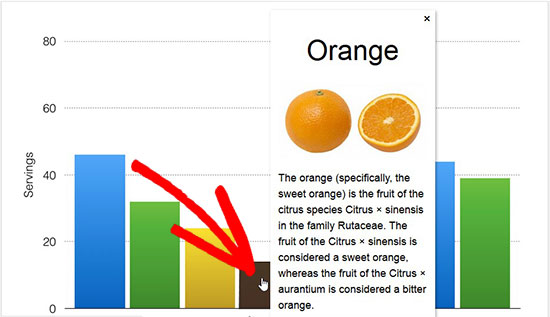
Description Demo for Interactive Images

In this image, you can see the description of fruits on mouse over to different bars. You can use these interactive images to boost user engagement and time spent on site.

Let’s take a look on how you can draw attention of your visitors with interactive images.

Creating Interactive Images in WordPress

First thing you need to do is install and activate the Draw Attention plugin. For more details, see our step by step guide on how to install a WordPress plugin.

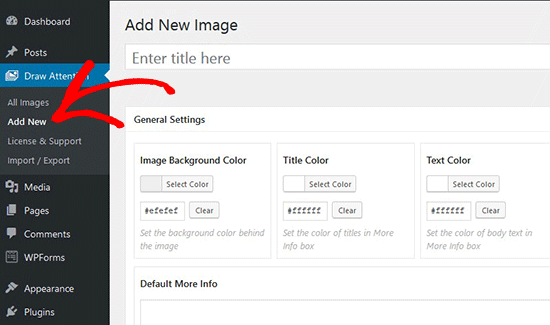
Upon activation, you’ll see a new custom post type in your WordPress admin area. You need to go to the Draw Attention » Add New page to create an interactive image.

Add New Image

Start by adding a title for this new interactive image, so you can easily remember it. On this page, you can create interactive design on new or previously uploaded images. You can add a new image by clicking on the upload image icon, or you can select an image from your WordPress media library.

Upload or Select Image

Next, you need to click on Publish button.

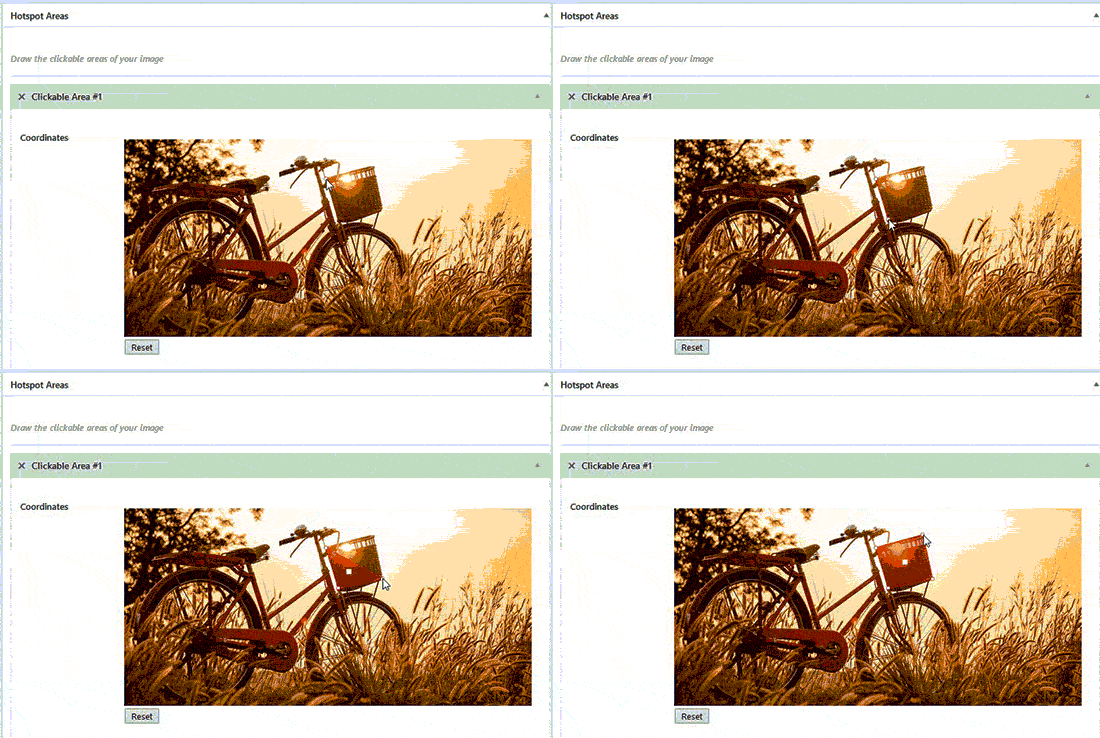
After publishing, the plugin allows you to edit the image and highlight specific areas, add colors, links, draw hotspot areas, and more. You can scroll down to the Hotspot Areas section and expand the clickable area to preview image.

Simply move your mouse and draw clickable areas on the image. You can easily select the hotspot areas and expand them to create a selection.

Draw Hotspot Areas

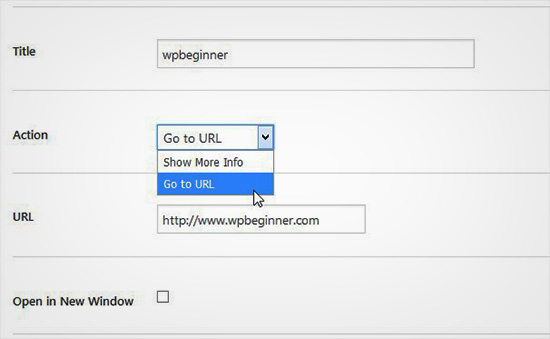
After drawing the hotspot area, you need to scroll down to the Action dropdown and select an action for the selected area on image. If you choose Show More Info, then you can simply add a description to explain the hotspot area on the image. You can also add a link on the selected area by using the ‘Go to URL’ option.

Add Action

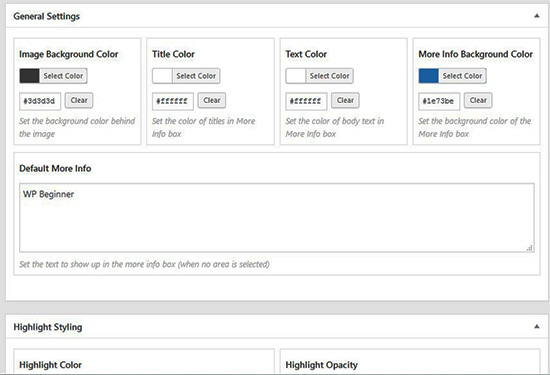
You can also manage general settings and highlight styling for action link, action text, info background and more. These settings can help in making your image more interactive.

General Settings

Next you need to click on the Update button and copy the shortcode to add it in your WordPress post or page.

Copy Shortcodes

The plugin allows you to create as many interactive images as you need using your previously uploaded or new images.

Clickable Interactive Image

Import and Export Interactive Images

If you are working on multiple sites and want to import / export interactive images, then it requires the same Draw Attention plugin on both sites.

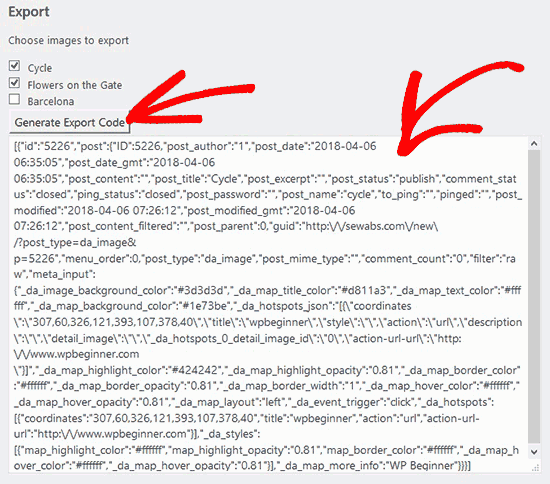
On the first site, you need to visit Draw Attention » Import / Export page and check mark the images that you want to export. Next, click on the Generate Export Code button and copy the code.

Export Code Interactive Images

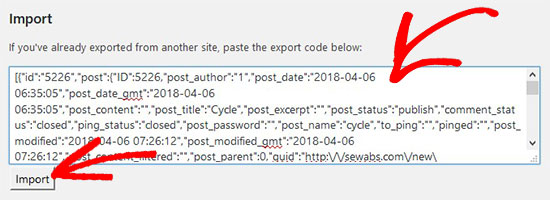
After that you need to go to the next website and make sure that you have Draw Attention plugin activated. Next, you need to go to Draw Attention » Import / Export page from WordPress admin and paste the code in import field.

Paste Code Interactive Images

Go ahead and click on the Import button and your images will be imported will all the interactive details that you added previously.

These interactive images are good for WordPress SEO and attract more visitors on your site. However, it’s recommended to compress images before you upload them to improve site performance.

We hope this article helped you learn how to create interactive images in WordPress. You may also want to check our guide on how to lazy load images in WordPress.

If you liked this article, then please subscribe to our YouTube Channel for WordPress video tutorials. You can also find us on Twitter and Facebook.

The post How to Create Interactive Images in WordPress appeared first on WPBeginner.

Weekly WordPress News: Gutenberg Gets Drag And Drop

This week, Gutenberg 2.6 dropped with a much-needed new feature: drag and drop block sorting. Now, instead of needing to jam on the up or down arrows, you can simply drag a block to a new location. We also featured an EasyThemePacks review, that’s Daan’s new project which sells premium Elementor templates. A great place ... Read moreWeekly WordPress News: Gutenberg Gets Drag And Drop

The post Weekly WordPress News: Gutenberg Gets Drag And Drop appeared first on Learn WordPress with WPLift.

How To Insert Ads Within Your Post Content In WordPress

Struggling with how to insert ads within your post content in WordPress? This is a common strategy that big publishers use to get people to pay more attention to display ads, but it can be a little tricky to set up with WordPress. Here’s the good news: You have much better options than trying to ... Read moreHow To Insert Ads Within Your Post Content In WordPress

The post How To Insert Ads Within Your Post Content In WordPress appeared first on Learn WordPress with WPLift.

24 Best WordPress Themes for SEO Experts

Are you looking for the best WordPress themes for SEO experts? As an SEO expert, you may want to choose a theme that showcases your SEO and marketing skills while helping you convert visitors into clients. In this article, we have hand-picked some of the best WordPress themes for SEO experts that you can use for your website.

Best WordPress themes for SEO experts

Building an SEO Business Website Using WordPress

WordPress is the most search engine friendly website builder in the world. That’s why top brands are using WordPress for their websites.

There are two types of WordPress available. WordPress.com which is a fully hosted platform and WordPress.org also known as self-hosted WordPress. For a detailed comparison, see our guide on the difference between WordPress.com vs WordPress.org.

We recommend using WordPress.org because it instantly gives you access to all WordPress features out of the box.

You will need to purchase a domain name and hosting to build a self-hosted WordPress website.

We recommend using Bluehost. It is one of the largest hosting companies in the world and an officially recommended WordPress hosting provider.

Once you have purchased hosting, follow our guide on how to make a website for step by step set up instructions.

That being said, let’s take a look at some of the best WordPress themes for SEO experts, consultants, and marketing experts.

1. Ultra

Themify Ultra

Ultra is a multi-purpose WordPress theme with complete ready-made designs suitable for SEO experts. All of these designs can be installed with 1-click including the demo content. You can then just go ahead and replace the content with your own to make it yours.

It includes a powerful drag and drop page builder, which allows you to edit any page layout with a simple point and click interface. Inside you will find multiple design options with several templates, header designs, blog layouts, page templates, and sidebars.

2. Spencer

Spencer

Spencer is an elegantly designed WordPress theme for SEO businesses, marketing agencies, and entrepreneurs. It has a modern business homepage style which is easy to set up with simple drag and drop widgets.

It has ready to use templates for to add landing page, contact form, about page, and a separate blog page. All theme options are neatly organized under live theme customizer which allows you to easily customize every option and set up your website.

3. Corporate

Corporate

As the name suggests, Corporate is a WordPress business theme designed to be suitable for any type of business including SEO experts and agencies. It ships with several ready-made landing page designs and a built-in drag and drop builder to easily edit them.

It has multiple layout choices for different page templates, smooth background color change effect, CSS animations, testimonials, and more. It comes with a beginner friendly theme options panel with 1-click demo installer and full customizer support.

4. Academy Pro

Academy Pro

Academy Pro is a powerful WordPress theme built on top of the Genesis theme framework. It is perfect for SEO websites selling online courses and training along with SEO services and other products.

It is super easy to set up with a widgetized homepage layout, custom widgets, and a theme options page. It is eCommerce ready with full support for WooCommerce.

5. Indigo

Indigo

Indigo is a multi-purpose WordPress theme suitable for SEO experts, agencies, and businesses. It takes a modular approach to design and allows you to just drag and drop modules to create page layouts. You also get several ready-made designs that can be installed with 1-click.

Other notable features include custom widgets, social media icons, contact form, Google fonts, and more. All theme settings are quite straightforward and easy to follow even for beginners.

6. Authority Pro

Authority Pro

Authority Pro is another powerful WordPress theme to build your online presence as an SEO expert. Built on Genesis framework, it features a fresh and modern design with a large header image, welcome message, and an email subscription form at the top.

It includes 4 widget ready areas, two navigation menus, and a unique vertical navigation menu. Theme settings are controlled by a theme options panel and live theme customizer which makes it quite easy to set up and use.

7. Roxima

Roxima

Roxima is a modern WordPress business theme perfect for SEO consultants and agencies. Its homepage features a large background image with your call to action and beautiful parallax background effects.

It comes with custom widgets, several widget ready areas, page templates, unlimited color choices, and more. It is easy to use with tons of options in live theme customizer.

8. Create

Create

Create is a clean and professional WordPress theme perfect for SEO and marketing agencies. Its homepage features a highly engaging layout with beautiful slider on top followed by your most important content.

It has multiple header styles, built-in mega menu navigation, contact forms, icon fonts, and more. It ships with a slider plugin and works well with popular page builder plugins. It is easy to use with tons of options to customize it in any way you want.
9. Plum

Plum

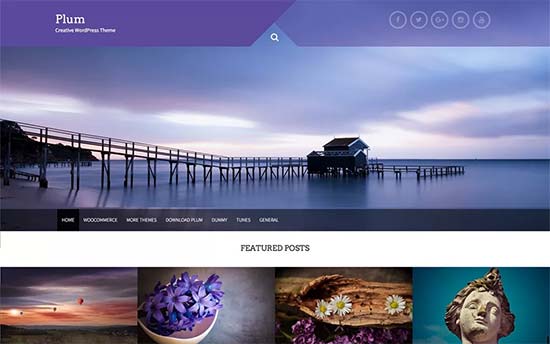
If you are looking for a free WordPress theme for SEO services provider, then check out Plum. This multi-purpose WordPress theme includes a beautiful homepage with slider, CSS animations, a featured content area, and widget-ready areas.

It can be used with any top page builder plugins to create your own page layout if needed. It is ready for WooCommerce and can be easily translated into other languages.

10. Presence

Presence

Presence is a multi-purpose WordPress theme created for all kind of business websites. It comes with 10 ready-to-use demos including one for digital agencies, which would be perfect for SEO service providers.

It includes portfolio section, team members, testimonials, custom widgets, with flexible layouts and 6 color schemes. It is designed to work out of the box for beginners while offering tons of choices for advanced users.
11. Creativo

Creativo

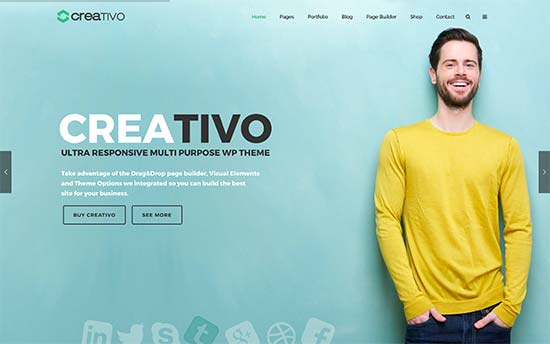
Creativo is a stylish and powerful multi-purpose WordPress theme. It comes in 7 skins, 3 design layouts, multiple header styles, and unlimited color combinations.

It includes freebies like a page builder, slider, and live chat plugin to extend theme features. Inside you will also find portfolio and testimonial sections, sidebars, custom widgets, social media integration, and more. It is WooCommerce ready out of the box and has beautiful templates for shop and product pages.

12. Capital

Capital

Capital features a modern and professional business website look, which is perfect for SEO consultants. This WooCommerce ready WordPress theme comes with easy to use sections to add your services, portfolio, client testimonials, team members, and more.

It is quite easy to use with visual settings, live customizer support, and tons of easy to use options to make it your own. It is translation ready and can also be used to create multilingual WordPress websites.

13. Corner

Corner

If you are looking for a minimalist and distraction-free design, then take a look at Corner. This clean and simple WordPress business theme comes with a simple two column layout.

It features a narrow left sidebar and a wider content area with lots of white space. It is designed to work out of the box but offers color controls, custom widgets for Twitter, Flickr, and content discovery widgets. It is powerful enough to be extended with any page builder plugin or add an online store with WooCommerce.

14. Bulk

Bulk

Bulk is another excellent free WordPress theme that can be used to build any kind of business website. Designed to work with popular WordPress landing page plugin, it allows you to create engaging page layouts that help you win customers.

It is WooCommerce ready and can also be used as a one-page WordPress theme. All theme options are simple and easy to use allowing you to quickly set it up with minimal effort.

15. Koehn

Koehn

Koehn is a uniquely designed WordPress theme suitable for SEO experts, marketing agencies, and similar businesses. Its homepage features a fullscreen slider on top followed by widget ready areas, which allow you to just drag and drop content widgets to set up.

It also includes projects, team members, testimonials, and custom widgets for social media and content discovery features. It is tested for SEO and compatibility with essential WordPress plugins.
16. Atmosphere Pro

Atmosphere Pro

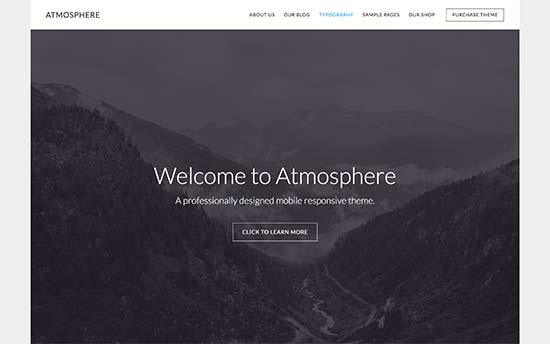
Atmosphere Pro is built on top of Genesis theme framework. It is a WordPress business theme featuring a beautiful full-screen header image with a call to action on top.

It uses large featured images and elegant typography to make your content stand out. Other features include a customizable header, custom widgets, theme options panel, and live customization support.

17. Atomic

Atomic

If you are looking for an elegant design with beautiful typography, then you’ll love Atomic. This multi-purpose WordPress theme is suitable for all type of business websites.

Its main features include large images, spacious layout, a customizable header, and full WooCommerce support. It is designed to work out of the box and requires a minimum set up.
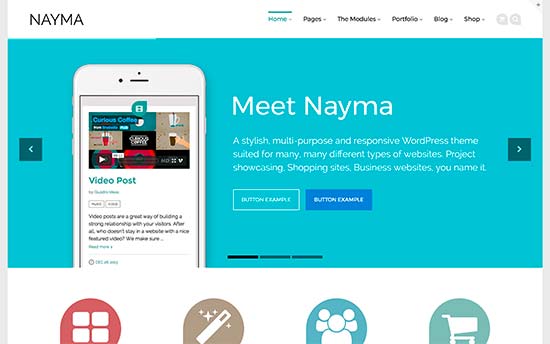
18. Nayma

Nayma

Nayma is another excellent WordPress multi-purpose theme suitable for SEO experts, affiliate marketers, and agencies. It uses modules to build page layouts which allows you to just drag and drop elements to readjust design for your needs.

It includes ready to use modules for sliders, testimonials, portfolio, contact forms, and more. It comes with full WooCommerce support and can also be used for multilingual websites.

19. Highend

Highend

Highend is a feature-packed WordPress multi-purpose theme which is designed to be suitable for any kind of business website. It comes with several ready-to-use demo templates, including a beautiful landing page demo.

It ships with a drag and drop page builder, sliders, and icon fonts. Other notable features included are page templates, custom widgets, multiple sidebars and navigation menu styles.

20. Integral

Integral

Integral is a free WordPress business theme that can also be used as a one-page theme. It features a modern homepage design with a large background image, welcome message, and call to action buttons.

It comes with beautiful parallax background effects, multiple sidebars, projects and features section, and more. You can change theme colors, fonts, widget sections, and more through live customizer.

21. Propel

Propel

Propel is a stunningly beautiful WordPress business theme which is designed to impress and engage. It is a one-page theme, but works just as beautifully on multi-page websites.

Notable features include a portfolio section, beautiful animations, parallax backgrounds, fullscreen header, and more. It comes with a 1-click demo installer to quickly set up your website.

22. Potenza

Potenza

If you are looking for a more formal design for your SEO agency website, then take a look at Potenza. It is a WordPress business theme with a professional and corporate feel to it. It is a one-page WordPress theme with vertical navigation with links to different sections on the page.

The homepage is made up of widget-ready areas, which means you need to add content widgets to fill it up and you will be good to go. It includes a contact form, multiple colors, social media icons, Google Maps and support for popular page builders.

23. Float

Float

Need a more versatile WordPress theme for your SEO business? Check out Float. This multi-purpose WordPress theme is packed with multiple designs, layout choices, header, and navigation styles.

It includes an integrated page builder, templates for blog, shop, single pages, and posts. It has multiple sidebars and several custom widgets. You will find theme settings quite easy to follow with a custom theme dashboard with all the options.

24. Port

Port

Port is an amazingly elegant WordPress theme for agencies, SEO consultants, and other businesses. Its homepage has a fullscreen background image with a welcome message, your logo or business name, and a collapsed navigation menu. Other sections appear with parallax effects as users scroll down the page.

It has services, projects, testimonials, and video sections. Other features include shortcodes, contact form page, Google fonts, and localization support.

We hope this article helped you find the best WordPress themes for SEO experts. You may also want to see our ultimate guide on how to improve WordPress speed and performance for a faster website.

If you liked this article, then please subscribe to our YouTube Channel for WordPress video tutorials. You can also find us on Twitter and Facebook.

The post 24 Best WordPress Themes for SEO Experts appeared first on WPBeginner.
How to Instantly Switch Between User Accounts in WordPress

Do you want to instantly switch between user accounts in WordPress? Sometimes when testing new features on your website, you may need to switch back and forth between user accounts with different user roles. While you can manually log out and login to the new account, it’s not the most efficient use of your time. In this article, we will show you how to instantly switch between user accounts in WordPress.

Instantly Switch User Accounts in WordPress

Why and When Do You Need to Switch User Accounts?

By default, WordPress allows you to add new users and authors to your website. Each user on your website has a user role assigned to them which gives them permissions to perform different tasks on your website.

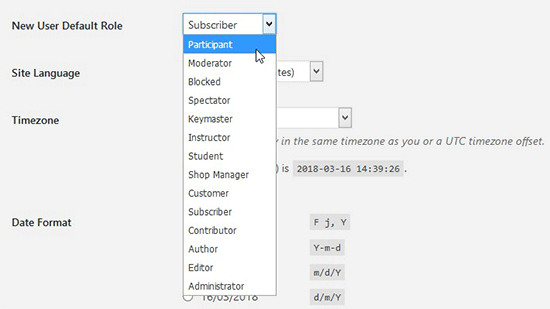
You can also allow users to register on your website and set a default user role for all new users by visiting the Settings » General page.

New Default User Role

As the site owner, you are automatically assigned the administrator user role on your website. This gives you complete control including the ability to manage all user accounts.

While testing new features on your website, you may need to see how things would look for users with different user roles and permissions. This is particularly essential when you are running a WordPress membership website or an online store. The manual way to do this is to simply log in using the credentials for each user account and test those features.

However, this would take a lot of time. Wouldn’t it be better if you could just switch to any user account instantly and then switch back when you are done testing?

Let’s take a look at how to instantly switch between user accounts in WordPress without entering passwords.

Using a Plugin to Instantly Switch Between User Accounts

First you need to install and activate the User Switching plugin. For more details, see our step by step guide on how to install a WordPress plugin.

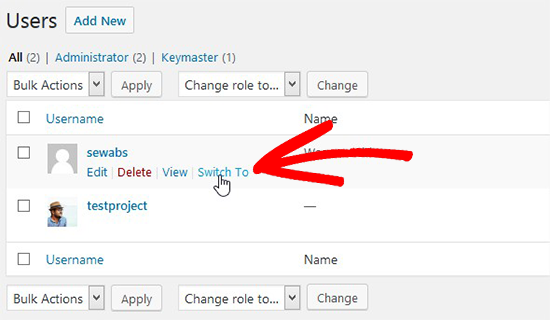
Once activated, you need to go to the Users page in your WordPress admin. On this page, you will see a ‘Switch to’ link next to each user account.

Swtich to Option

User switching is only available for users with an administrator user role. Once you have switched to a new user account, you can continue testing your website logged in as that user.

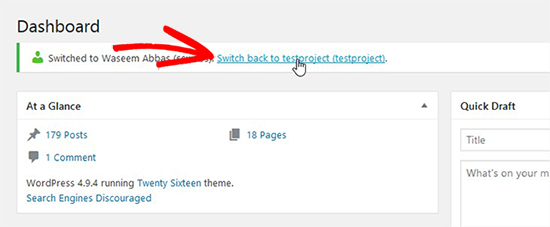
Switch Back Account

Once you are done, you can switch back to your own user account by clicking on the notification displayed on the screen.

We hope this article helped you instantly switch between user accounts in WordPress. You may also want to check out our guide on how to allow website visitors to submit blog posts in WordPress without logging into your website.

If you liked this article, then please subscribe to our YouTube Channel for WordPress video tutorials. You can also find us on Twitter and Facebook.

The post How to Instantly Switch Between User Accounts in WordPress appeared first on WPBeginner.