How to Fix Add Media Button Not Working in WordPress

Recently one of our users reported that the ‘Add Media’ button on their WordPress site has suddenly stopped working. This problem does not display any error or warning which leaves users clueless about why their ‘Add Media’ button is not working. In this article, we will show you how to easily fix the ‘Add Media’ button not working issue in WordPress.

Fixing add media button not working in WordPress

What causes the WordPress ‘Add Media’ Button to Stop Working?

This problem is commonly caused by conflicting scripts or stylesheets loaded by WordPress plugins or themes installed on your site. The default behavior of WordPress is to load all required scripts and stylesheets by combining the requests.

This is usually done in the WordPress admin area to improve performance and speed.

The WordPress post editor uses JavaScript for all buttons on the screen including the add media button. A conflict can stop JavaScript from working which will disable the ‘Add Media’ button.
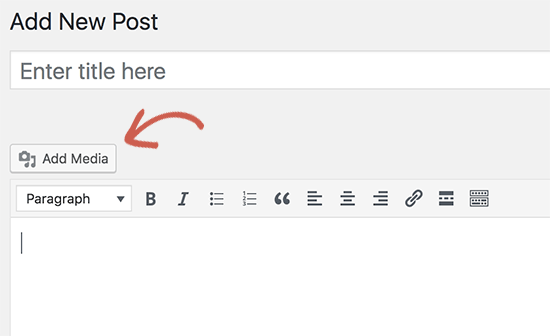
Add media button stopped working in WordPress

That being said, let’s take a look at how to troubleshoot and fix the ‘Add Media’ button not working in WordPress.

Fixing Add Media Button Not Working Issue in WordPress

The quick fix is to add the following code to your wp-config.php file. You can do this by editing wp-config.php file and adding this code just before the line that says ‘That’s all, stop editing! Happy blogging’.

define('CONCATENATE_SCRIPTS', false );

This code simply tells WordPress to load each script separately which helps avoiding a JavaScript conflict with buggy scripts and the core WordPress features.

After you have added the code, go ahead and the visit post edit screen to see if the add media button is working as expected.

Note: Adding this code is not a proper long-term solution because you still have a script that is causing the issue. An easier way to find the source of the problem is by using the inspect tool. It will show you console errors which can lead you to the source of the conflict.

If you want a long-term fix for this issue, then you need to perform the basic WordPress troubleshooting tips to figure out which plugin or theme may be causing the issue.

We strongly recommend that you do this on your staging site instead of a live site. Here’s a step by step guide on how to create a WordPress staging site. All the best WordPress hosting companies like Bluehost, SiteGround, WP Engine, and Liquid Web offer 1-click staging functionality.

On your staging site, you need to start by deactivating all your WordPress plugins and then check if it fixed the ‘Add Media’ button. If it does, then this means one of the plugins was causing the issue.
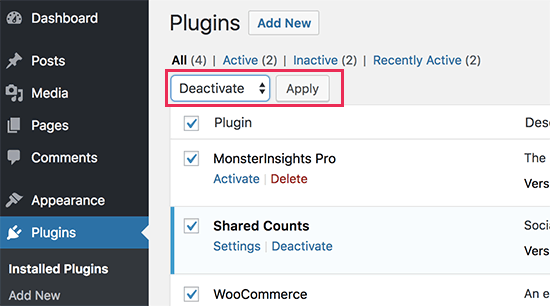
Deactivate all plugins

You can now activate the plugins one-by-one, and after activating a plugin check the ‘Add Media’ button. This will help you find out which plugin is causing the issue. After you find the culprit, you can replace it with another plugin or ask plugin author for help.

If deactivating plugins doesn’t solve the issue, then the next step is to temporarily switch to a default WordPress theme like Twenty Seventeen.

Switch to a default WordPress theme

If switching to the default theme fixes the issue for you, then this means your theme is causing the conflict. You can ask theme author for support or switch to a different WordPress theme.

Once you find the source of the problem on your staging site, then you can apply the fix on your live WordPress site.

We hope this article helped you learn how to fix add media button not working in WordPress. You may also want to see our list of the most common WordPress errors and how to fix them.

If you liked this article, then please subscribe to our YouTube Channel for WordPress video tutorials. You can also find us on Twitter and Facebook.

The post How to Fix Add Media Button Not Working in WordPress appeared first on WPBeginner.

Metorik Review: Awesome WooCommerce Analytics And Reports

If you run an eCommerce store, you need data. It tells you who your most valuable customers are, what products perform the best, how your vital signs are doing, and lots more. More than needing data, you need that data to be in a format that you can quickly access and actually apply to making ... Read moreMetorik Review: Awesome WooCommerce Analytics And Reports

The post Metorik Review: Awesome WooCommerce Analytics And Reports appeared first on Learn WordPress with WPLift.

(Really) Marvellous Metrics Review: Analytics Made Easy

In this (Really) Marvellous Metrics review we’ll be taking a look at this new WordPress plugin that has been created to help you easily track and understand your page web analytics. Whether you run a humble blog, an expanding eCommerce store, or a multinational business site, (Really) Marvellous Metrics could be just what you need ... Read more(Really) Marvellous Metrics Review: Analytics Made Easy

The post (Really) Marvellous Metrics Review: Analytics Made Easy appeared first on Learn WordPress with WPLift.

How to Easily Import and Export WordPress Users

Do you want to import and export WordPress users from one website to another? This could be really helpful when you are merging multiple sites and want to automatically shift all users from existing websites. In this article, we will share how you can easily import and export users in WordPress.

Import and Export Users in WordPress

Why or When You May Need to Import and Export Users in WordPress?

While there are several use-cases for importing and exporting WordPress users, the most common scenarios when you need to import and export users are:

  • When you purchase a website and want to merge the content and user base.
  • When you want to consolidate two sites and merge their content and user base.
  • When you want to import all users into an email list or your CRM.

On large multi-author sites or a membership site in WordPress, each user profile has tons of useful data (like profile photo, bio information, social links, and more).

While you can surely ask them to recreate their profile, it’s inconvenient and not an ideal user experience.

Let’s take a look at how you can easily import and export users from one WordPress site to another.

Exporting Users in WordPress

First thing you need to do is install and activate the Import Export WordPress Users plugin. For more details, see our step by step guide on how to install a WordPress plugin.

Upon activation, you need to visit Users » User Import Export page and scroll down to the export section.

User Export

On this page, you need to select a user role to export from your website, select fields that you want to export with the user, and more.

By default, all user fields will be exported. If you don’t want to export a specific item, then you can simply uncheck it from the columns section.

After selecting the settings, you need to click on the Export button. It will save a CSV export file in your computer.

You can use this file to import users into another WordPress site.

Importing Users in WordPress

This step will also require the same Import Export WordPress Users plugin that we used above to export users. Make sure that you have this plugin installed and activated on the site where you want to import users.

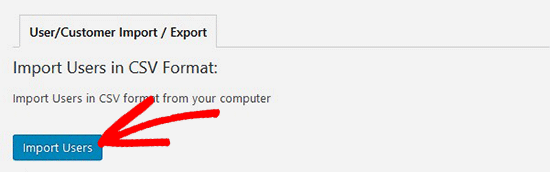
Next, you need to visit Users » User Import Export page and click on the Import Users button.

Import Users

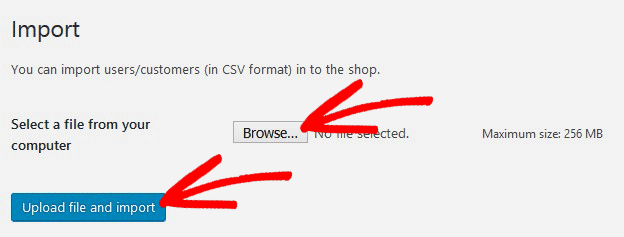
On this page, first you need to click on the Browse button and then select the CSV file you want to import. After selecting the CSV file, you need to click the Upload file and import button.

Upload File

Once done, you will see a success message with details on how many users imported, status message, and more details on the process.

User Import

The plugin will not only import users, it will also automatically assign them correct user role and fill in other profile settings.

We hope this article helped you learn how to easily import and export WordPress users. You may also want to see our guide on how to track user engagement in WordPress.

If you liked this article, then please subscribe to our YouTube Channel for WordPress video tutorials. You can also find us on Twitter and Facebook.

The post How to Easily Import and Export WordPress Users appeared first on WPBeginner.

9 Best WordPress Facebook Plugins to Grow Your Blog

Ae you looking for the best Facebook plugins for WordPress? Facebook is the world’s largest social media platform with more than 1 billion active users. In this article, we have hand-picked the best WordPress Facebook plugins to help you grow your blog and get more traffic.

Best Facebook plugins for WordPress

1. Shared Counts

Shared Counts

Shared Counts is one of the best social media plugins for WordPress. It allows you to easily add social sharing buttons to your WordPress posts including the Facebook share button.

It is highly optimized for speed and performance and can accurately show shares count for Facebook, Twitter, LinkedIn, and more. It comes with multiple button styles which allows you to choose the one that looks best on your site.

2. Custom Facebook Feed

Custom Facebook Feed

Custom Facebook Feed allows you to display your posts from a Facebook page on your WordPress website. This custom Facebook feed is responsive, SEO friendly, and customizable. You can even fetch multiple feeds from different Facebook pages and display them anywhere on your website using a shortcode.

You can create a new page for your Facebook feed or display it in your blog’s sidebar. The plugin is optimized for speed and makes it super easy to change colors / style of your feeds from the WordPress admin area. For detailed instructions, see our article on how to create a custom Facebook feed in WordPress.

3. Pixel Cat – Facebook Pixel

Pixel Cat - Facebook Pixel

Pixel Cat Facebook Pixel plugin allows you to add your Facebook retargeting pixel to your WordPress site. This pixel allows you to show customized ads to Facebook users who have visited your website. To learn more, see our article on how to install Facebook retargeting pixel in WordPress.

Aside from making it easy to install the Facebook pixel in WordPress, this plugin also helps you track WooCommerce customers and show them better ads in their Facebook feeds.

4. Facebook Reviews

Facebook Reviews

Facebook Reviews plugin allows you to display Facebook page reviews on your WordPress website. It comes with an easy to use widget that allows you to connect your website to your Facebook page and display Facebook users reviews.

This helps you add social proof to your website and build trust in your brand. The free version works fine, but you will need the pro version to display reviews in Schema.org rich snippets format.

5. Facebook Widget

Facebook Widget

Facebook Widget plugin allows you to easily add a Facebook page plugin to your blog’s sidebar. It is extremely easy to use and comes with a shortcode that you can use to display the Facebook Like box anywhere on your website.

It comes with the same customization options as the default Facebook page plugin. You can show or hide profile pics, page cover, customize width / height, and select language.

6. Nextend Social Connect

Nextend Social Login

Nextend Social Connect plugin allows users to register and login on your website using their social profiles. It supports login with Facebook, Google, and Twitter.

It works seamlessly with the default WordPress login and registration forms, so users have the option to use Facebook or use the default signup method. Once registered, users can disconnect their social account at any time by visiting their user profile page inside the admin area.

7. AccessPress Facebook Auto Post

As the name suggests, AccessPress Facebook Auto post allows you to automatically share new articles on your Facebook page or profile. Upon activation, you will need to connect to your profile and authorize your website.

It allows you to choose which content you want to share: posts, pages, and custom post types. You can even disable sharing for a single item before publishing it. For detailed setup instructions, see our article on how to automatically post to Facebook from WordPress.

8. WP Embed Facebook

WP Embed Facebook

WP Embed Facebook plugin makes it easier to embed Facebook events, pages, profiles, and Facebook videos on your WordPress website.

You can also use it to add a Facebook like or share button. The plugin comes with a handy shortcode that you can use to embed different items anywhere on your site. It also comes with really good documentation to help you make the most out of it.

9. Yoast SEO

Yoast SEO

Yoast SEO is the complete WordPress SEO plugin on the market. Apart from adding SEO meta tags, it does so many other things to improve your website including social features.

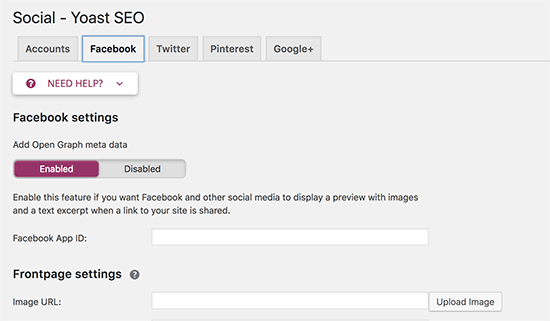
You can use it to fix incorrect Facebook thumbnail issue and automatically add Facebook Open Graph meta tags to every page on your website. You can also let search engines discover social media profiles associated with your website.

That’s all, we hope this article helped you discover the best WordPress Facebook plugins to grow your blog. You may also want to see these actionable tips to drive traffic to your WordPress site.

If you liked this article, then please subscribe to our YouTube Channel for WordPress video tutorials. You can also find us on Twitter and Facebook.

The post 9 Best WordPress Facebook Plugins to Grow Your Blog appeared first on WPBeginner.

WooCommerce Order Form: Increase Your Conversion Rates

When your default layout doesn’t fit with how your customers browse and buy products, a WooCommerce order form could be exactly what you need. For many online stores, adding a WooCommerce bulk order form is one of the most efficient ways to improve the customer experience, increase conversion rates and boost sales. Shops with large product ... Read moreWooCommerce Order Form: Increase Your Conversion Rates

The post WooCommerce Order Form: Increase Your Conversion Rates appeared first on Learn WordPress with WPLift.

How to Create Your Company Org Chart in WordPress

Do you want to display a beautiful organizational chart on your WordPress site? Org charts are helpful in showing the company hierarchy and introducing users to the team running the business. In this article, we will show you how to create a company org chart in WordPress.

How to Create an Org Chart in WordPress

What is an Organizational Chart and Why is it Important?

An organizational chart present a company’s hierarchical structure based on job title and responsibilities, from top management to the executives.

It helps improve your brand’s reputation by showing the human side of your business. At the same time, it also allows users to find who they should contact for various business opportunities, feedback, and suggestions.

Organizational Chart

That being said, let’s take a look at how to easily create and manage a company organization chart in WordPress.

Creating an Organization Chart in WordPress

First thing you need to do is install and activate the Easy Org Chart plugin. For more details, see our step by step guide on how to install a WordPress plugin.

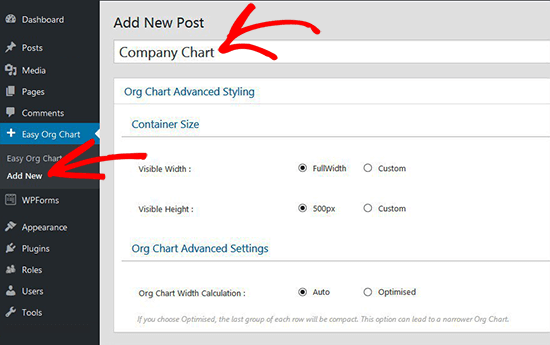
Upon activation, you need to visit Easy Org Chart » Add New from your WordPress admin area to create a new org chart.

Add New Chart

First, you need to provide a title for your chart. After that, your need to scroll down to the Build your Org Chart section to start adding team members.

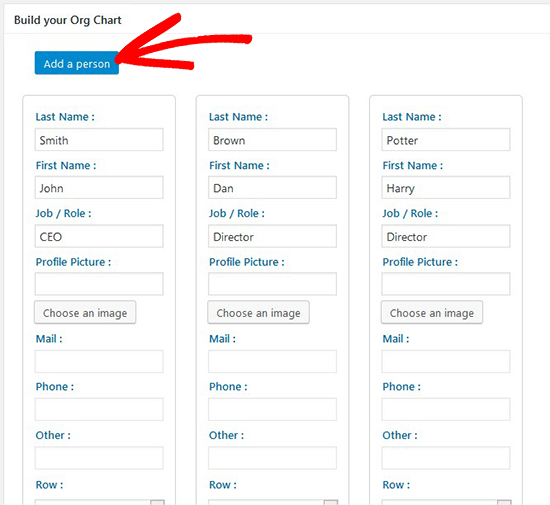
In the first column, you will need to add details of your team members like their name, job title, profile picture, and contact information.

Next, you need to click on Add a person button to add another team member. Go ahead and repeat the process to add all team members that you want to show in your org chart.

Add New Member

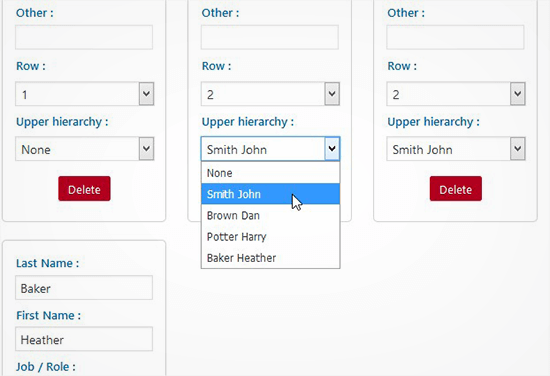
You can drag and drop team members to the right or left in the WordPress admin area. You will also need to define the upper hierarchy and row number for each team member according to your company’s hierarchical structure.

Set Upper Hierarchy

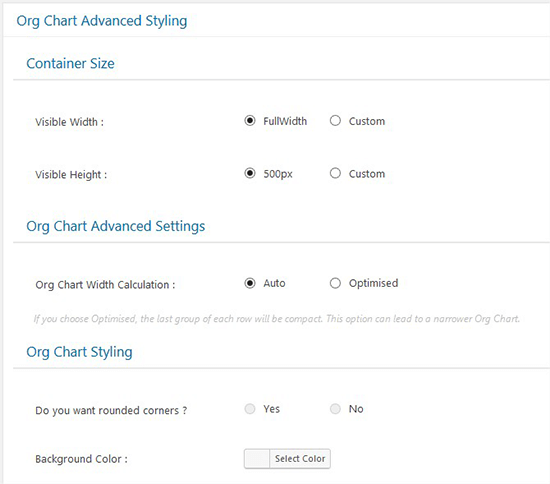
After adding team members, you need to scroll down to advanced styling section. From here, you can configure how the chart should appear. You can choose the container size, corners, background color, box template, field styling, and more.

Chart Advanced Styling

Once you are done with styling, click on the Publish button to save your changes.

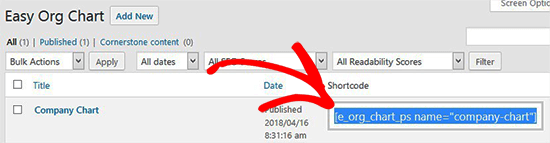
To display your org chart on your website, you need to visit the Easy Org Chart page in WordPress admin to copy the shortcode.

Copy Shortcode

You can now paste this shortcode in any WordPress post, page, or sidebar widget to display your organization chart.

Organizational Chart

It would be a good idea to add a contact form below your org chart in WordPress. We recommend using WPForms because it’s the best contact form plugin in the market. They also allow users to select recipients in WordPress contact form.

We hope this article helped you learn how to create a company org chart in WordPress. You may also want to see our guide on how to create a WordPress intranet for your organization while keeping it private and secure.

If you liked this article, then please subscribe to our YouTube Channel for WordPress video tutorials. You can also find us on Twitter and Facebook.

The post How to Create Your Company Org Chart in WordPress appeared first on WPBeginner.

Weekly WordPress News: Elementor Gets Theme Building

This week, Elementor, the page builder that we use here at WPLift, got a massive new feature. Elementer Pro now offers full theme building. You can use the same Elementor interface to build your header, footer, single post, and archive pages. It’s super cool. And what’s awesome is that this is a core Elementer Pro ... Read moreWeekly WordPress News: Elementor Gets Theme Building

The post Weekly WordPress News: Elementor Gets Theme Building appeared first on Learn WordPress with WPLift.

7 Best WordPress Real Estate Plugins Compared (2018)

Are you looking for the best WordPress real estate plugins? WordPress is used by many real estate websites to showcase listings and get new customers. In this article, we have hand-picked the best WordPress real estate plugins that you can use to grow your business.

Best WordPress real estate plugins

How to Make a Real Estate Website Using WordPress?

WordPress is the most popular website builder in the world. It is easy to use and flexible enough to make almost any kind of website imaginable.

There are two different types of WordPress which often confuses beginners. First, there is WordPress.com which is a hosted solution. Second, you have WordPress.org also known as self-hosted WordPress. See our article on WordPress.com vs WordPress.org for a side-by-side comparison.

We recommend using WordPress.org because it allows you to use all WordPress features out of the box without any restrictions.

To start your own self-hosted WordPress.org website, you will need a domain name and website hosting.

We recommend using Bluehost. They are one of the largest hosting companies in the world and an officially recommended WordPress hosting provider. They’re offering our users over 60% off and a free domain name.

Once you have purchased hosting, head over to our guide on how to make a website for step by step set up instructions.

That being said, let’s take a look at the best WordPress real estate plugins that you can use. These plugins will allow you to easily add your real estate listings and attract more customers.

1. IMPress Listings

IMPress Listings

IMPress Listings is one of the best WordPress real estate plugins. It is easy for beginners to get started, and flexible for advanced users to create powerful real estate websites.

It is mobile responsive and works with any WordPress theme. You can add as many details for each listing as you want with images and video support. Listings are beautifully displayed in a grid layout, and a single listing page allow users to get all the information they need including location maps.

It also allows you to import listings from your MLS database and support IDX integration with an addon plugin. It comes equipped with contact forms so that interested buyers can directly contact you.

2. WP-Property

WP-Property

WP-Property is another all-in-one WordPress real estate management plugin. It includes an easy to use interface to add and manage all your listings. You can add detailed information with tons of fields to add rooms, bathrooms, area, features, and more.

Listings are beautifully displayed on your website and the plugin website also offers free themes that you can use. It includes Google Maps support, powerful search feature with filters, SEO friendly URLs, featured listings, and more.

It is available in multiple languages and can be easily translated into any other language. It also comes with sidebar widgets and shortcodes that allow you to display listings through-out your website.

3. Estatik

Estatik

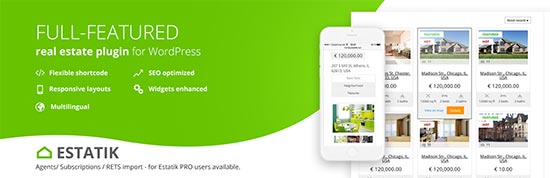
Estatik plugin is another excellent option to manage your real estate listings in WordPress. This powerful plugin comes with an easy to use property management system allowing you to easily add listings to your website.

It includes photo gallery, property search widget, Google Maps support, built-in social sharing, and multilingual support. It also includes a fields builder which allows you to easily add new fields to your listings.

It has an ajax powered search feature with auto-complete. Users can also sort listings by price, date, and popularity. Plugin developer also provides paid IDX/MLS services and add-ons to add more features if needed.

4. Easy Property Listings

Easy Property Listings

Easy Property Listings is another powerful and highly customizable WordPress real estate plugin. It allows you to easily build a real estate website without touching code and without changing themes.

It has a beginner friendly listing management interface which makes it super easy to manage your properties. It comes with mobile-friendly listing templates to display your properties in a grid layout or a single listing page.

Advanced features include support for REAXML, JUPIX, worldwide MLS systems, translations / multilingual support, advanced maps, and more. Paid addons and extensions allow you to add many other features including a real estate agents directory and management system.

5. WP Real Estate

WP Real Estate

WP Real Estate is a relatively new real estate plugin for WordPress with tons of cool features. It can be used for buying, selling, and rental properties as well.

It includes an advanced search feature, Google Maps, IDX/MLS integration, contact forms, custom fields, and list or grid layout views. It also comes with shortcodes and widgets so that you can display different real estate listings throughout your website or create your own landing pages for different properties.

6. AgentPress Listings

AgentPress

AgentPress requires Genesis theme framework and is designed to work with their own AgentPress Pro theme which helps you quickly create a real estate website.

The plugin adds a listings custom post type and taxonomies to help you categorize properties. You can also use widgets to add listings search to a widget ready area.

7. WPL Real Estate

WPL Real Estate

WPL Real Estate plugin is flexible and powerful WordPress real estate management system. It has an easy to manage section to add your listings with a filterable search feature for the front-end. It has real estate agent profiles, Google Maps, different listing views, and a powerful custom fields feature to add property features.

It can be integrated with MLS/IDX services as an additional paid feature, other customizations are also provided by the plugin developer as a service. It already works well with some of the best WordPress themes in the market.

We hope this article helped you find the best WordPress real estate plugins for your website. You may also want to see our list of the best WordPress real estate themes.

If you liked this article, then please subscribe to our YouTube Channel for WordPress video tutorials. You can also find us on Twitter and Facebook.

The post 7 Best WordPress Real Estate Plugins Compared (2018) appeared first on WPBeginner.

6 Best Product Review Plugins for WordPress

Are you looking for the best product review plugins for WordPress? If you regularly add detailed product reviews on your website, then you can use a product review plugin to make them more SEO friendly. In this article, we have hand-picked the best product review plugins for WordPress.

Best product review plugins for WordPress

Why Use Product Review Plugin in WordPress?

What do you do when you want to buy something? If you are like most people, then you probably check out product reviews to compare different options.

That’s why there are so many popular reviews websites like Yelp, TripAdvisor, Rotten Tomatoes, and more. Even Amazon, world’s largest online store features product reviews so prominently.

Many WordPress site owners write product reviews to make money online. Some get paid directly by the company for the review while others use affiliate marketing to earn revenue.

You can write a product review as a blog post. However, a plain blog post does not use product review format supported by search engines. This means your article will not be highlighted in search results as a review.

SEO Reviews Snippet

For better SEO, you need to write your reviews with schema.org rich snippets format. A product review plugin helps you easily write search engine friendly reviews that also look great on your website.

Let’s take a look at some of the best product review plugins for WordPress.

1. WP Product Review Pro

WP Product Review

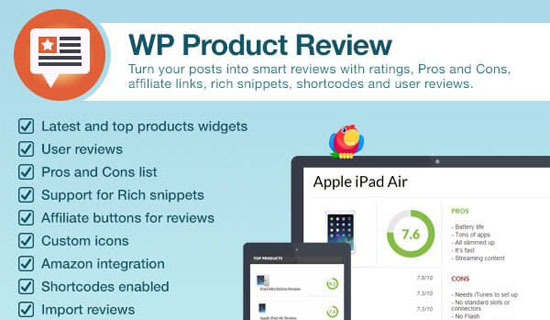
WP Product Review is the best WordPress product review plugin. It comes with a detailed settings section allowing you to choose how you want to manage and display reviews on your website.

Adding a product review is quite easy. Simply select the product review option when writing a blog post and the plugin will show you all settings to write your review. You can break down your review into features, add images, pros and cons, and more.

It comes with sidebar widgets allowing you to showcase your reviews. You can also use it to collect user submitted reviews or allow your users to add their own rating and reviews in the comments. All reviews are displayed in schema.org rich snippet format for maximum SEO benefit.

For detailed instructions, see our guide on how to create a niche review website in WordPress.

2. All in One Schema Rich Snippets

All in One Schema Rich Snippets

As we mentioned earlier, your reviews need to be in a proper SEO friendly format. All in one Schema Rich Snippets plugin allows you to write different types of posts using the rich snippets format including product reviews.

Simply select ‘Item Review’ from a drop-down menu when writing a blog post, and the plugin will show review options like reviewer name, product name, and star rating. It will display this information below your blog post with the correct SEO friendly markup.

The plugin can also be used to add articles, products, recipes, software and more. For detailed instructions see our article on how to add rich snippets in WordPress.

3. WP Review Pro

WP Review

WP Review is another excellent option to add product reviews in WordPress. It is beginner friendly and quite easy to use. Upon activation, simply write a new post and select the review type.

It supports three types of review ratings stars, points, and percentage. You can also add different ratings for individual features if you want. It also supports user ratings which simply allows users to submit their own ratings for a product.

It also comes with styling options located under Settings » WP Review page. From here you can choose your own colors for the review box to match your theme colors.

4. Rich Reviews

Rich Reviews

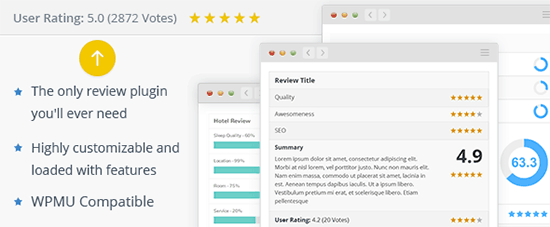
Rich Reviews is a simple free plugin that allows you to add reviews of your own products, services, or website. You can also allow your users to submit reviews.

It uses shortcodes to display reviews, and you can display a review anywhere on your website including posts, pages, and sidebar widgets.

If you are collecting user-submitted reviews, then this plugin allows you to manually approve each review before publishing it. The plugin’s settings panel comes with detailed instructions on how to use it.

5. WP Customer Reviews

WP Customer Reviews

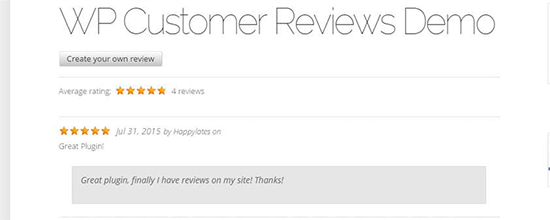
WP Customer Reviews plugin allows you to collect customers reviews as well as create your own product reviews. Upon activation, simply edit a blog post where you want to add a product review and check the reviews option.

Next, you need to go to the Reviews » All Reviews page and click on the add new button. After that, you can select the post and write your review. The plugin also allows you to enable user submitted reviews which you can then approve and publish to display on your website.

This plugin also allows you to customize the review form shown to users and comes with a how to use page with detailed instructions.

6. Site Reviews

Site Reviews

Site Reviews allows you to collect customer reviews for your products, services, or local business. It comes with a simple settings page allowing you to control how you want to gather reviews, and how you want to display them. You can customize the review form and display it anywhere on your website using a shortcode.

You can also display reviews using the shortcode. The plugin adds an easy to use shortcode inserter on the post edit screen to manually display reviews, review form, and review summary.

We hope this article helped you find the best product review plugins for WordPress. You may also want to see our list of the best testimonial plugins for WordPress.

If you liked this article, then please subscribe to our YouTube Channel for WordPress video tutorials. You can also find us on Twitter and Facebook.

The post 6 Best Product Review Plugins for WordPress appeared first on WPBeginner.