How To Accept Stripe Payments On WordPress: Detailed Guide

Need to accept Stripe payments on your WordPress site? Stripe is great because it’s easy to use, charges transparent fees, and is not named PayPal (ok – that last one is kind of a cheap shot – but PayPal doesn’t have the best reputation). We’ve previously written a detailed guide on how to use Stripe ... Read moreHow To Accept Stripe Payments On WordPress: Detailed Guide

The post How To Accept Stripe Payments On WordPress: Detailed Guide appeared first on Learn WordPress with WPLift.

How to Use Shortcodes in your WordPress Sidebar Widgets

Do you want to learn how to use shortcodes in your WordPress sidebar widgets? Shortcodes allow you to do add additional features in your WordPress post content and other areas of your website. In this article, we will show you how to use shortcodes in your WordPress sidebar widgets.

How to use shortcodes in WordPress sidebar widgets

What Are Shortcodes?

Shortcodes allow you to add dynamic items like contact form, tables, and others inside your WordPress content area.

You can also use shortcodes in your widgets to add these dynamic items in your sidebars and other widget-ready area.

Let’s take a look at how to easily add and use shortcodes in your WordPress sidebar widgets.

Method 1: Adding Shortcode in WordPress Sidebar Using Text Widget

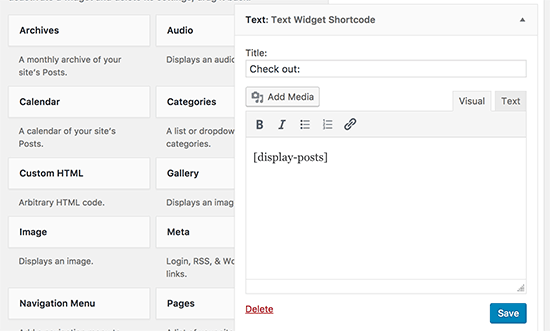
First thing you need to do is drag & drop a Text widget to your WordPress sidebar on the Appearance » Widgets screen in your dashboard. After adding the widget, you can simply add your shortcode inside the text edit area of the widget.

Adding shortcode in Text widget

Don’t forget to click on the ‘Save’ button to store your widget settings.

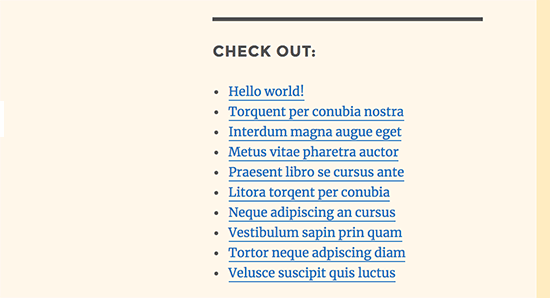
You can now visit your website and see the shortcode in action.

Shortcode displayed in sidebar widget

Method 2: Adding Shortcode in WordPress Using Custom HTML Widget

Sometimes you may want to add custom HTML code around your shortcode which may not work so well in the plain text widget. In that case, you will need to add your shortcode using the ‘Custom HTML’ widget.

By default, shortcodes are not allowed to be executed in a custom HTML widget. To change this, you will need to add the following code to your theme’s functions.php file or a site-specific plugin.

add_filter( 'widget_text', 'do_shortcode' );

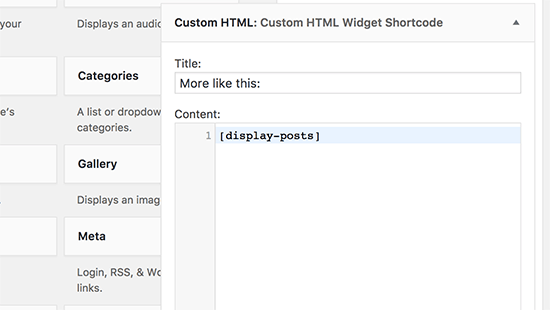
After that, you can simply add a ‘Custom HTML’ widget to your sidebar and add your shortcode inside it.

Adding shortcode inside Custom HTML widget in WordPress

Don’t forget to click on the save button to store your widget settings.

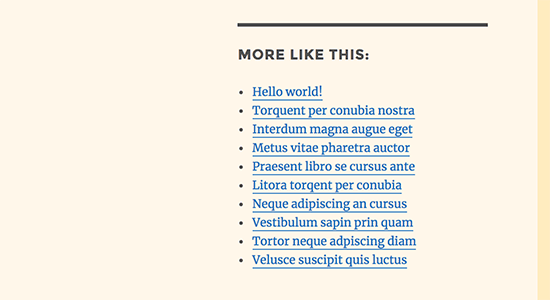
You can now visit your website to see your shortcode in action.

Shortcode added by Custom HTML widget

We hope this article helped you learn how to easily add shortcode to your WordPress sidebar widgets. You may also want to see these essential tips for using shortcodes in WordPress.

If you liked this article, then please subscribe to our YouTube Channel for WordPress video tutorials. You can also find us on Twitter and Facebook.

The post How to Use Shortcodes in your WordPress Sidebar Widgets appeared first on WPBeginner.

The Best Free WordPress Themes February 2018

As February comes to an end, we bring a wonderful list of WordPress themes for you and your friends. Let’s walk a way to find what’s there in February’s theme basket. Surely The Surely theme is an ideal choice for those looking to run a blog centered around premium content. As such, all the elements of ... Read moreThe Best Free WordPress Themes February 2018

The post The Best Free WordPress Themes February 2018 appeared first on Learn WordPress with WPLift.

How to Create an Interactive Poll in WordPress (Step by Step)

Do you want to create an online poll on your WordPress site?

Polls are an interactive way to engage your audience while getting useful information from them. You can get feedback from your users and find out what they like.

In this article, we will show you how to easily create and add a poll in your WordPress.

How to Create an interactive poll in WordPress

Which Tool to Choose for Adding a Poll in WordPress?

Adding interactive polls to your website is a great way to engage users, as it instantly grabs their attention. You can generate leads using polls and, at the same time, collect valuable feedback from your audience.

That said, there are plenty of plugins and online tools that allow you to embed polls on your WordPress site. Many of them require you to create an account, some store data on their own servers, and others have a terrible user experience.

If you are looking for a good user experience with full control of poll data, then you’ll need WPForms. It is the best WordPress form builder plugin and includes powerful surveys and polls addon.

With WPForms, you’ll be able to do the following:

  • Create polls in WordPress using a drag-and-drop form builder
  • Gather poll results on your own websites
  • Show votes count when user submit their vote
  • Display poll anywhere on your website
  • Show poll results anywhere on your website

With that, let’s look at how to easily create online polls in WordPress using WPForms.

Creating Online Polls in WordPress

The first thing you need to do is install and activate the WPForms plugin. For more details, see our step-by-step guide on how to install a WordPress plugin.

You will need the WPForms Pro plan because it includes the survey and polls addon. WPBeginner users get an additional discount by using the WPForms coupon code. There is also a WPForms Lite version you can try for free.

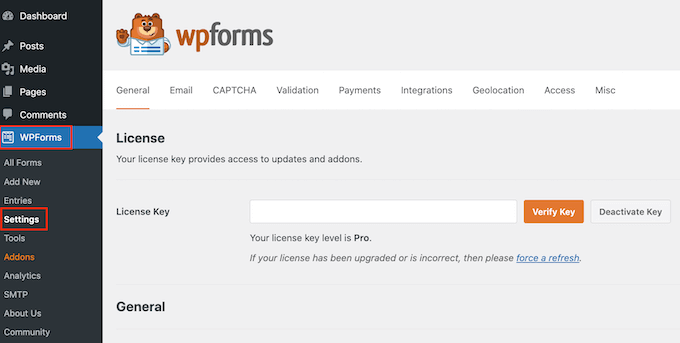
Upon activation, you need to visit the WPForms » Settings page to enter your license key. You can find this information in your WPForms account.

Entering the WPForms license key

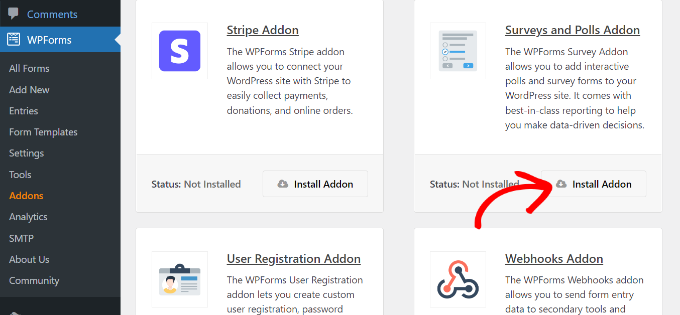
Next, you need to visit WPForms » Addons page and scroll down to the Surveys and Polls addon.

Go ahead and click on the ‘Install’ addon button.

Install surveys and polls addon

Now you are ready to create an online poll.

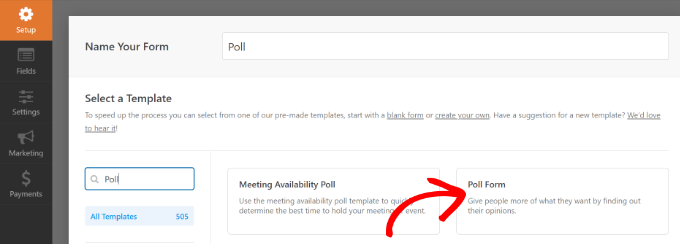
You can start by going to WPForms » Add New page to create a new form. First, you need to provide a title for your poll form and then select the ‘Poll Form’ template.

Select the poll form template

This will launch the WPForms drag-and-drop form builder interface.

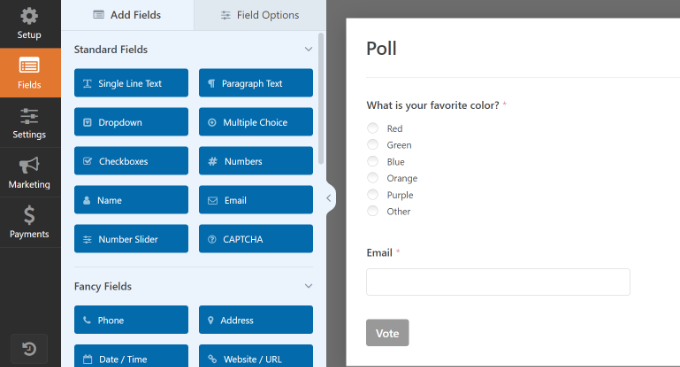
You will see a pre-made poll form template with example fields already added to the form.

Edit your poll form template

There are options to add new form fields from the left column. All you have to do is drag and drop the field you’d like to add to the form.

Besides that, you can just point and click to edit any field, rearrange them, or remove them.

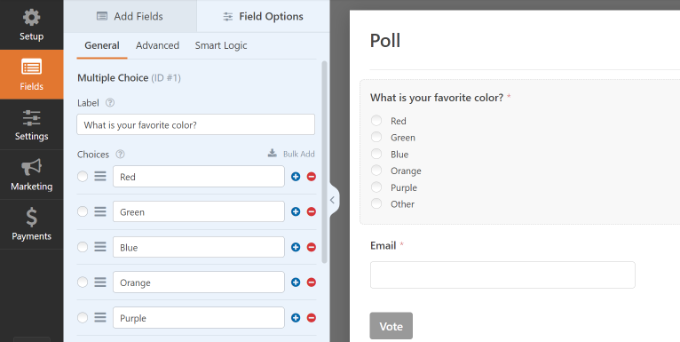
For example, if you click the poll question in the template, then you will see more options in the menu on your left. Simply rearrange the order, and edit their titles, labels, and more.

Rearrange poll question order

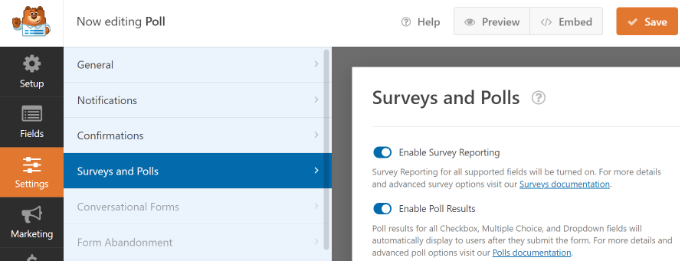
Next, you need to click on the Settings button from the left menu and then go to the ‘Surveys and Polls’ tab. Here you can enable or disable the poll results option.

By default, the WPForms poll template will display poll results to users after they submit their votes. If you disable this option, then users will not see the poll results.

Enable survey and poll results option

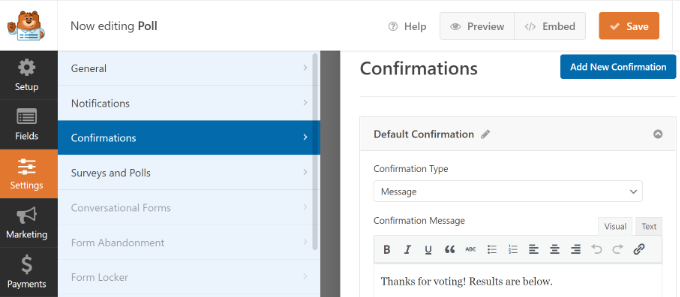
On the other hand, you can show users a custom message or redirect them to another page or URL.

Simply go to the ‘Confirmation’ tab. Here, you can choose the Confirmation Type from the dropdown menu.

Go to confirmation settings

Once you have created the poll form, go ahead and click on the ‘Save’ button to store your form settings.

Adding The Poll to Your WordPress Website

WPForms makes it easy to add your online poll anywhere on your website, including posts, pages, custom post types, and sidebar widgets.

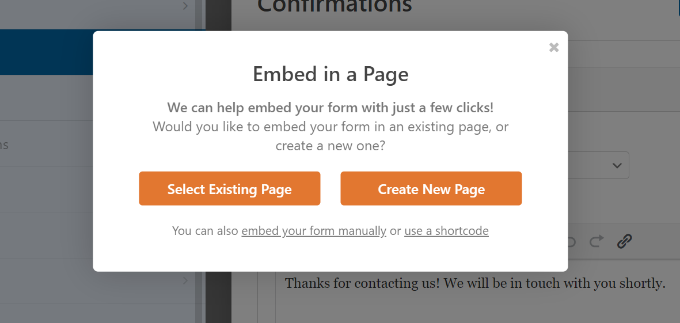
You can click the ‘Embed’ button in the form builder to add your poll form. Once you do that, a new popup window will open. You can select an existing page or create a new one to embed your form.

Embed a form in page

Let’s select the ‘Create New Page’ button for this tutorial.

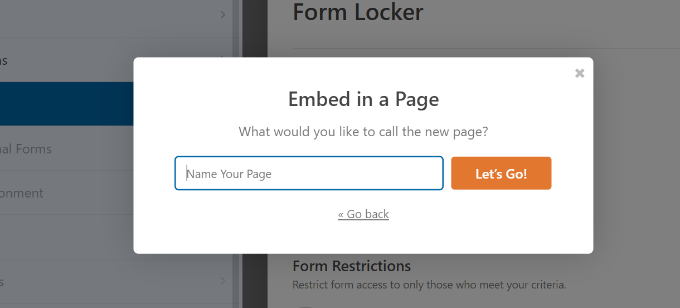
In the next step, you’ll need to enter a name for your page. After that, you can click the ‘Let’s Go’ button.

Enter name for your new page

You should now see your poll form embedded in the WordPress content editor.

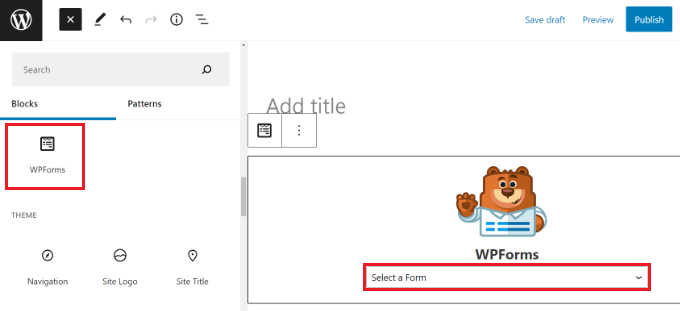
Another way of adding your form is by using the WPForms block. Simply click the ‘+’ button to add the WPForms and select your form from the dropdown menu.

Add a WPForms block in wordpress

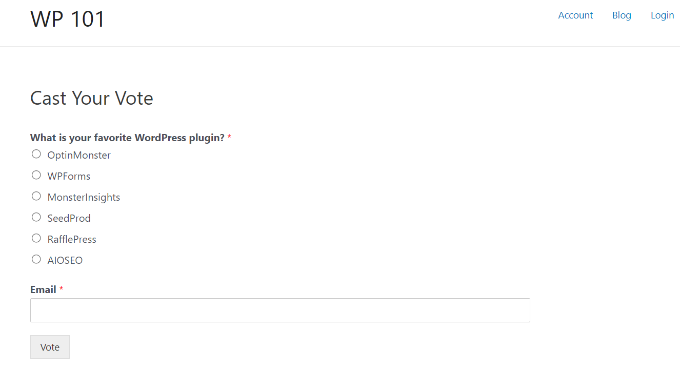
Next, you’ll see a preview of your form.

You can save or publish your post/page and visit your website to see your poll in action.

View poll form preview

You can also add your poll to a sidebar or widget-ready area.

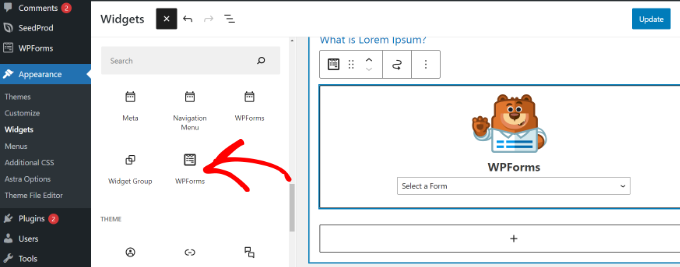
To do that, you need to go to the Appearance » Widgets page and add the WPForms widget block to a sidebar where you want to display the poll.

Add WPForms widget block

In the WPForms widget block, you need to select the poll form you created earlier.

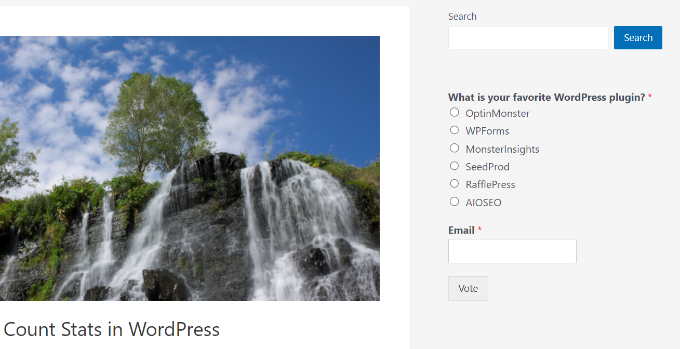
Don’t forget to click the ‘Update’ button to store your widget settings. You can now visit your website to see your online poll displayed in a sidebar or another widget-ready area.

View poll form in sidebar

Viewing Live Poll Results

If you have enabled poll results, then your users will see the results after submitting their votes.

View your poll results

You can also view poll results at any time without submitting a vote.

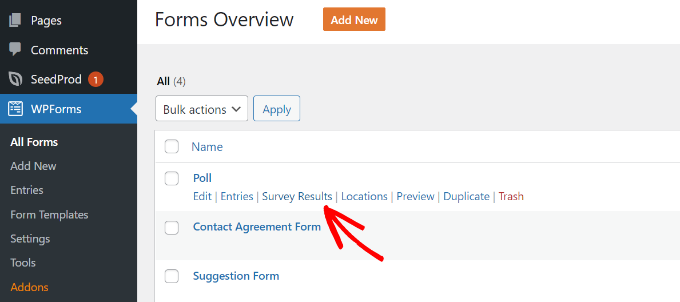
Simply visit WPForms » All Forms page and click on the ‘Survey Results’ link below your poll form.

Click the survey results option

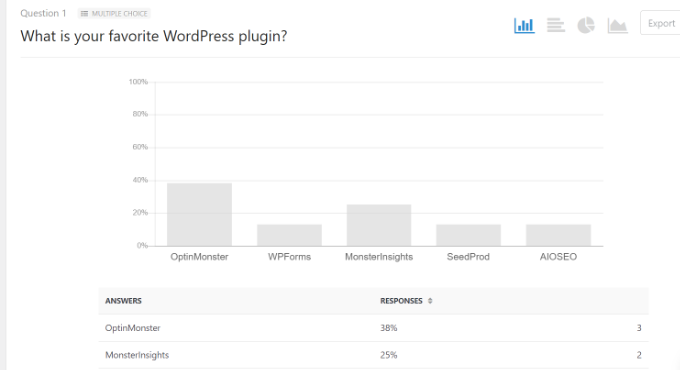
This will take you to the poll results page, where you will see poll responses in an interactive chart.

You can change the charge type and export the results in JPEG, PDF, and print formats.

See poll results in dashboard

Embed Poll Results Anywhere in WordPress

WPForms also allows you to easily embed your online poll results anywhere on your website. This is particularly useful if you have disabled poll results and want to share them later.

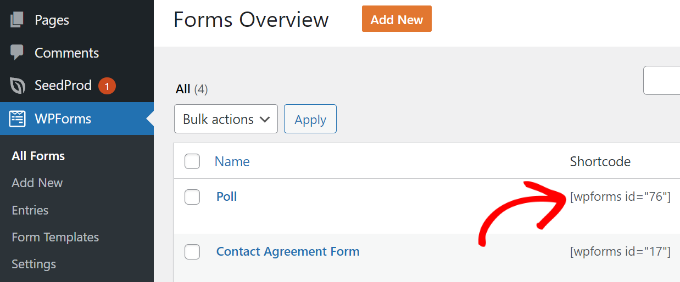
First, you will need to find out your poll form’s ID. You can do this by going to WPForms » All Forms page and looking for the shortcode next to your poll form.

View form shortcode

In the shortcode, you will find your poll’s ID number. For example, our test poll’s ID is 76, as shown in the screenshot above.

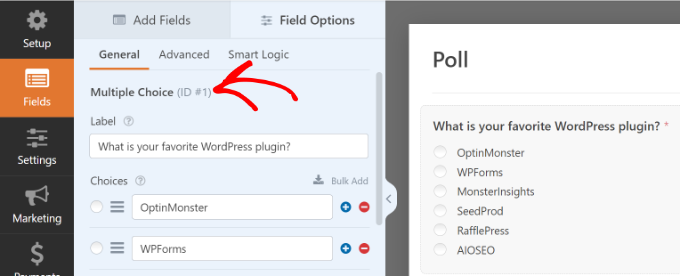
Next, you need to find out the field ID. This is the field in your form for which you want to show the results.

Simply edit your poll form and click on the poll field. You will find the field ID in the left column.

View the field ID

Now that you have both required IDs, you can go ahead and add the poll results shortcode like this:

Don’t forget to replace the form ID and field ID values with your own. You can use this shortcode in WordPress posts, pages, and text widgets.

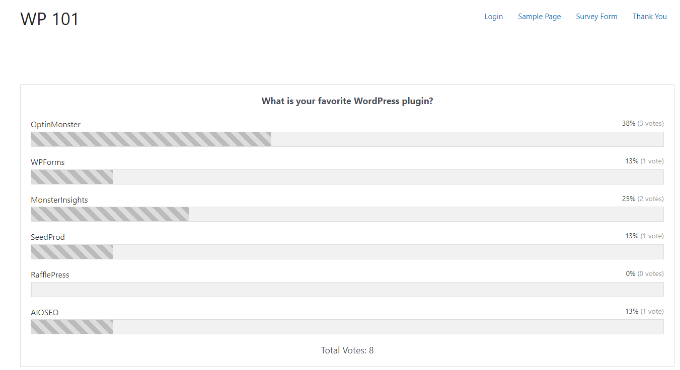
Here’s a preview of what your poll results will look like:

Preview of form results

We hope this article helped you create an interactive poll in WordPress. You may also want to see our guide on how to start a WordPress blog and the best email marketing services.

If you liked this article, then please subscribe to our YouTube Channel for WordPress video tutorials. You can also find us on Twitter and Facebook.

The post How to Create an Interactive Poll in WordPress (Step by Step) first appeared on WPBeginner.

How to Fix the Mixed Content Error in WordPress (Step by Step)

Are you seeing the mixed content error in WordPress? Mixed content error in WordPress is caused by incorrect HTTPs/SSL settings. Often times it doesn’t affect your website’s functionality, but it can have adverse affects on your website’s SEO and user experience. In this article, we will show you how to fix the mixed content error in WordPress.

How to fix the mixed content error in WordPress

What is Mixed Content Error in WordPress?

It is highly recommended to add HTTPS / SSL in WordPress because after July 2018 Google Chrome will mark all http versions of website as insecure.

SSL adds an additional security layer around data transferred from your website to users’ browsers. Search engines like Google recommend using SSL on your website as well.

All best WordPress hosting companies are now offering free SSL as part of their packages. If your hosting company doesn’t offer that, then you can get free SSL through Let’s Encrypt for your WordPress site.

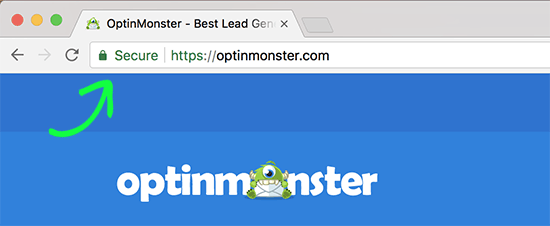
If you have correctly implemented SSL on your website, then you will see a green padlock icon next to your website’s URL in the browser address bar.

Secure content sign

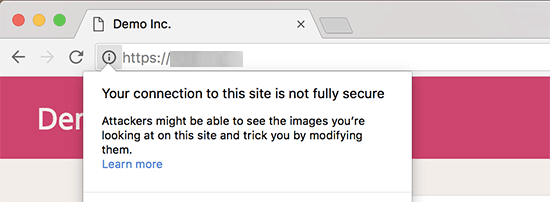
On the other hand if your HTTPs/SSL settings are not properly setup, then you will see an info sign or a broken padlock icon in the address bar.

Not fully secure due to mixed content

This indicates that while your website is using a SSL certificate, some content on your website is still served from non HTTPS urls.

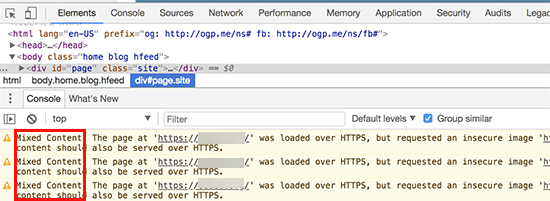
You can find out which content is served through insecure protocol by using the Inspect tool. The mixed content error will be displayed as a warning in the console with details for each mixed content item.

Mixed content displayed in developer tools

If it is just a single item that you can manually fix, then you can go ahead and fix it by editing the post, page, or theme file where it appears.

However, in most cases these items are added dynamically by WordPress or stored in your database. In that case, it will be hard to detect all of them and fix them manually.

That being said, let’s take a look at how to easily fix the mixed content error in WordPress.

Fixing Mixed Content Error in WordPress

First thing you need to do is install and activate the SSL Insecure Content Fixer plugin. For more details, see our step by step guide on how to install a WordPress plugin.

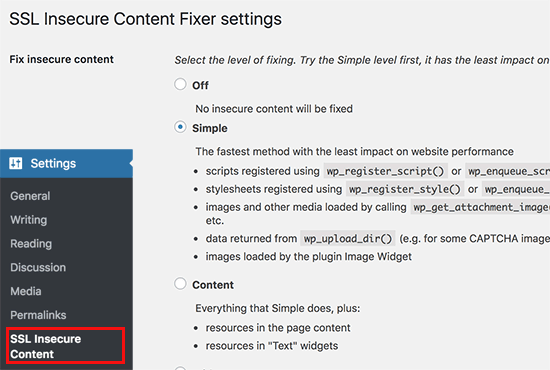
Upon activation, you need to visit Settings » SSL Insecure Content page to configure the plugin settings.

SSL secure content plugin settings

This plugin provides different levels of fixes to the mixed content error. We will explain each one of them, what they do, and which one is best for you.

1. Simple

This is the fastest and recommended method for all beginner users. It automatically fixes the mixed content error in WordPress for scripts, stylesheets, and WordPress media library images.

2. Content

If the simple method doesn’t fix the mixed content error on your website, then you should try this method. It will use all the features of simple, in addition to checks for fixes inside WordPress content and text widgets.

3. Widgets

This includes all fixes applied in content level plus an additional fix to resources loaded in all WordPress widgets on your website.

4. Capture

This method captures everything on every page of your website from header to footer and replaces all URLs with HTTPs. It is slower and would affect performance of your website.

5. Capture all

When all above levels fail, then you can try this method. It attempts to fix everything which may result in some unexpected behavior on your website. It will also have the most negative impact on performance.

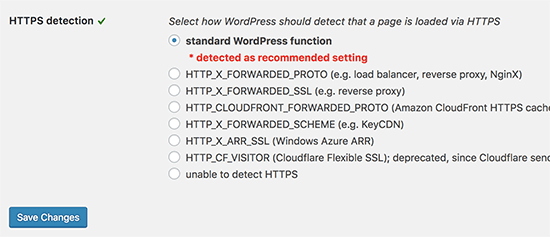
After selecting a content fix level, you need to scroll down to the HTTPS detection section. This is where you can choose how to detect the HTTPs content on your website.

HTTPS detect

The default option is to use a WordPress function, which would work for most website.

Below that you will find other options which are particularly useful if you’re using Cloudflare CDN, nginx web server, and more. Go ahead and select the method that you think applies to your website depending on your particular setup.

Don’t forget to click on the save changes button to store your settings.

You can now visit your website to see if this resolved the insecure content issues on your website. Make sure to clear your WordPress cache before checking your website.

If the mixed content error in WordPress is not fixed, then revisit the plugin’s settings page and readjust the fix levels.

We hope this article helped you learn how to fix the mixed content error in WordPress. You may also want to see our list of the most common WordPress errors and how to fix them.

If you liked this article, then please subscribe to our YouTube Channel for WordPress video tutorials. You can also find us on Twitter and Facebook.

The post How to Fix the Mixed Content Error in WordPress (Step by Step) appeared first on WPBeginner.

Swarmify SmartVideo Review: A Better Way To Embed Videos In WordPress

If you’ve been using WordPress for some time, you probably know that it’s a horrible idea to use the WordPress Media Library to host videos on your site. Not only are those files large and going to use a lot of bandwidth, but your visitors are probably going to have an equally horrible experience because ... Read moreSwarmify SmartVideo Review: A Better Way To Embed Videos In WordPress

The post Swarmify SmartVideo Review: A Better Way To Embed Videos In WordPress appeared first on Learn WordPress with WPLift.

How to Disable Specific WordPress Plugins for Mobile Users

Recently one of our readers asked if it is possible to disable specific WordPress plugins on the mobile version of their website? Like with anything in WordPress, there’s a plugin for that. In this article, we will show you how to easily disable specific WordPress plugins in mobile version of your site.

Disable specific WordPress plugins in mobile

Why Disable Specific WordPress Plugins for Mobile Users

WordPress does not load inactive plugins when someone visits your website. However, it does loads all the active plugins and then depending on a plugin it will load required scripts and stylesheets as well.

See our guide on how WordPress works for a behind the scene look at how it loads plugins.

All good WordPress plugins try to only load when needed. However, sometimes it is difficult for plugin authors to guess whether you will need the plugin or not. In such situations, they opt to load the required files just in case.

Some users who want to get a perfect score in the Google speed and performance test, often want to disable specific plugins for mobile.

That’s where this article can help.

Let’s take a look at how to easily disable individual WordPress plugins for mobile version of your website.

Setting up WordPress Plugin Organizer Plugin

First thing you need to do is install and activate the Plugin Organizer plugin. For more details, see our step by step guide on how to install a WordPress plugin.

Important: Plugin organizer is a very powerful plugin. Reordering or disabling plugins can cause conflicts and unexpected behavior which could make your site inaccessible. We recommend that you create a complete WordPress backup before disabling or reordering any plugins.

Upon activation, you need to visit Plugin Organizer » Settings page to configure plugin settings.

Apart from default options, right now you just need to turn on the following options.

  • Selective plugin loading
  • Selective mobile plugin loading

Don’t forget to click on the ‘Save Settings’ button to store your changes.

Creating a Must-Use Plugin for Plugin Organizer

Plugin Organizer needs a must-use plugin to work properly. It will automatically try to create it for you, but if it fails, then you will have to create it on your own.

Let’s start by checking if the plugin was able to create the MU plugin automatically.

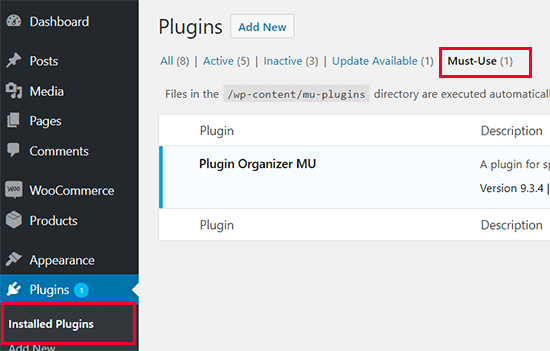
You can do this by going to the Plugins » Installed Plugins page. You will see a new link labeled Must-Use and clicking on it will show you the installed MU plugins on your site.

Must use plugin installed

If you don’t see the plugin or Must-Use plugins link, then this means that the plugin organizer failed to create the file, and you will need to manually do it yourself.

First, you need to connect to your website using an FTP client or File Manager app in cPanel.

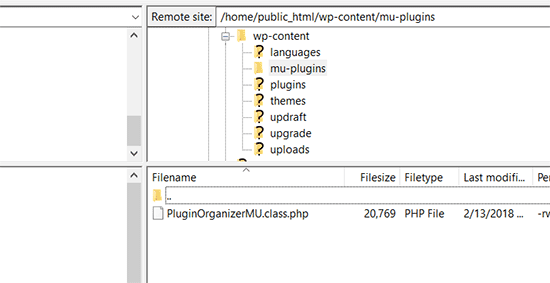
Next, you need to go to the /wp-content/mu-plugins/ folder. If you don’t have a mu-plugins folder in your /wp-content/ folder, then you need to create one.

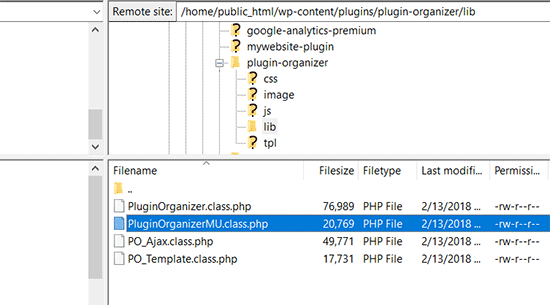
After that you need to go to /wp-content/plugins/plugin-organizer/lib/ folder and download the file called ‘PluginOrganizerMU.class.php’ to your computer.

Copy MU Plugin

Next, you need to go to the /wp-content/mu-plugins/ folder and upload the file from your computer.

Upload MU plugin

The Plugin Organizer can now use this file to properly manage your plugins on mobile as well as desktop.

Disable Specific WordPress Plugins in Mobile Version

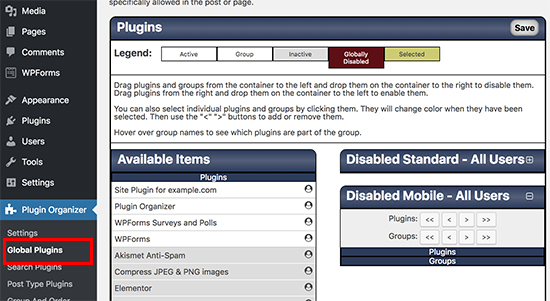
Plugin Organizer makes it very easy to disable any WordPress plugins on mobile. Simply head over to the Plugin Organizer » Global Plugins page.

You will see two columns on the screen. The first column is for ‘Available items’ which contains all your installed WordPress plugins. The second column is for ‘Disabled items’ with disabled standard and disabled mobile boxes.

Global Plugins

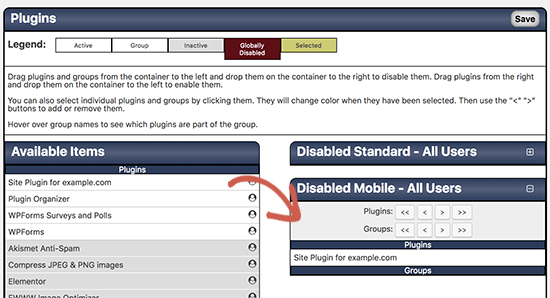
First you need to click on the Disabled Mobile box to expand it. After that drag and drop the plugins you want to disable from the available column to the disabled mobile box.

Disable plugins in mobile version

After adding the plugins don’t forget to click on the ‘Save’ button to store your changes.

That’s all. The plugin organizer will now disable these plugins on your mobile site.

Plugin Organizer also makes it easy to disable individual WordPress plugins for specific posts, pages, user role, and other parameters. For more detailed instructions, see our guide on how to use Plugin Organizer to speed up WordPress.

We hope this guide helped you learn how to easily disable specific WordPress plugins in mobile version. You may also want to see our list of must have WordPress plugins you should install on your website.

If you liked this article, then please subscribe to our YouTube Channel for WordPress video tutorials. You can also find us on Twitter and Facebook.

The post How to Disable Specific WordPress Plugins for Mobile Users appeared first on WPBeginner.

31 Best WordPress Multi-purpose Themes

Are you looking for the best multi-purpose themes for your WordPress website? Multi-purpose themes are flexible WordPress templates that can be used to create almost any kind of website imaginable. In this article, we have hand-picked the best WordPress multi-purpose themes for your site.

Best WordPress multi-purpose themes

Building a WordPress Website with a Multi-purpose Theme

First you need to make sure that you are using the right blogging platform. A self-hosted WordPress.org website gives you the flexibility to use all WordPress features out of the box. For more details, see our comparison of WordPress.com vs WordPress.org.

To build a self-hosted WordPress.org website, you’ll need a domain name and website hosting.

We recommend using Bluehost. They are one of the largest hosting companies in the world and an officially recommended WordPress hosting provider.

After purchasing hosting, you can head over to our guide on how to make a website for step by step setup instructions.

That being said, let’s take a look at the best WordPress multi-purpose themes that you can use to build your website.
1. Ultra

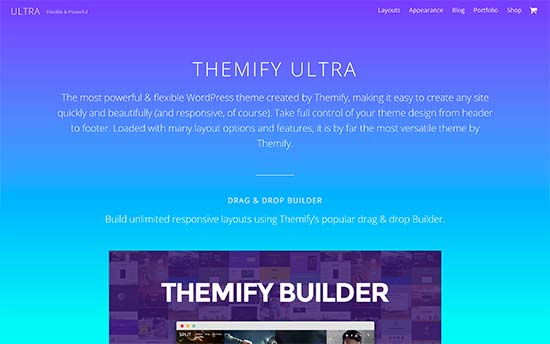
Ultra

Ultra is a super-flexible truly multi-purpose WordPress theme suitable for all kind of websites. It comes with multiple ready-made websites that can be installed with 1-click. It also includes a powerful drag and drop page builder to edit those designs.

Inside you will find unlimited layout choices, multiple sidebars, custom widgets, social media integration, unlimited colors, and more. Despite its flexibility, it is still fairly easy to use and can be easily set up with custom theme options page.

2. Spencer

Spencer

Spencer is a modern and stylish WordPress multi-purpose theme suitable for all kind of business websites as well as blogs. It features a fully widgetized homepage layout that allows you to just drag and drop widgets to set it up.

It also includes multiple page templates, full width page template, custom widgets for social media and content discovery features. It can be easily set up using live customizer and supports all popular page builder plugins.
3. Create

Create

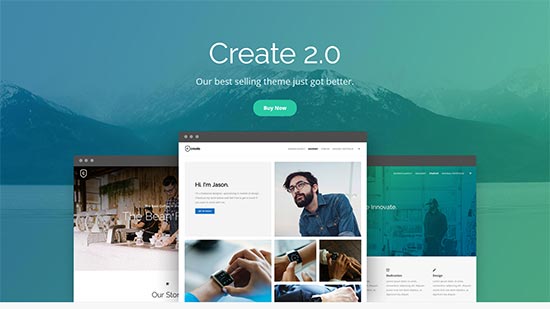
Create is a powerful WordPress multipurpose theme featuring a modern and professional design. It includes a drag and drop homepage layout with support for free page builder plugin. It ships with a premium WordPress slider plugin as a bonus.

It includes parallax backgrounds, video backgrounds, mega menus, pricing tables, contact form, and more. It fully supports WooCommerce and can be easily used to start an online store.

4. Shoppe

Shoppe

Shoppe is a versatile WordPress WooCommerce theme with multi-purpose design and features. It comes with 4 website skins that can be installed with 1-click, and a powerful page builder to create your own page layouts if needed.

It also includes beautiful blog page templates, unlimited layout combinations, full social media integration, product share, ajax shopping cart, and more. You will find theme set up to be quite straightforward with custom theme options page.

See also: Shopify vs WooCommerce – Which one is better?

5. Indigo

Indigo

Indigo is another powerful multi-purpose WordPress theme with a modular approach to design. It comes with several turnkey website designs that you can install with 1-click. You can also just drag and drop modules to create your own layout.

Other notable features include easy contact form page, Google Fonts, Google Maps, beautiful typography, built-in social sharing, and more. It is very easy to use and customize even for absolute beginners.
6. Hellomouse

Hellomouse

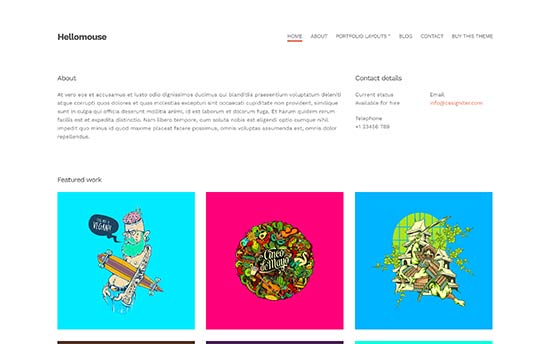
Hellomouse is an elegant WordPress multi-purpose theme that can beautifully showcase photos, illustrations, portfolio, and blog posts in a grid layout. Using a minimalist design, it makes your content truly stand out.

Its homepage design is fully-widgetized and easy to setup. It also includes multiple widget ready areas, custom widgets, page builder support, and more. It can be easily set up using theme customizer with live preview of your website.

7. Parallax

Parallax

Parallax is a modern and stylish WordPress multi-purpose theme using parallax backgrounds to create highly engaging homepage layout. It can also be used as a single page WordPress theme with vertical navigation.

This uniquely designed theme comes with a powerful page builder, portfolio section, several layout combinations, social media integration, contact form, and more. With unlimited colors, infinite layouts, page templates, and custom widgets you can make truly unique websites with in minutes.

8. Latest

Latest

Latest is a multipurpose WordPress theme for ecommerce websites, blogs, businesses, and magazine websites. This truly versatile WordPress theme includes all the options that you’ll actually use and none that you wouldn’t need.

It is designed to work out of the box with minimum tinkering which makes it very easy to use. It also includes a getting started guide to help you walk through the set up process.

9. Presence

Presence

As the name suggests, Presence is a WordPress theme for anyone who wants to build an online presence with strong brand recognition. This super-flexible WordPress theme comes with multiple website designs and color skins which allows you to create any kind of website you need.

It includes demos for real estate, music, church, portfolio, ecommerce, and other demos which help you set up your website with in minutes. All theme options are organized with theme dashboard page and live customizer.
10. Loft

Loft

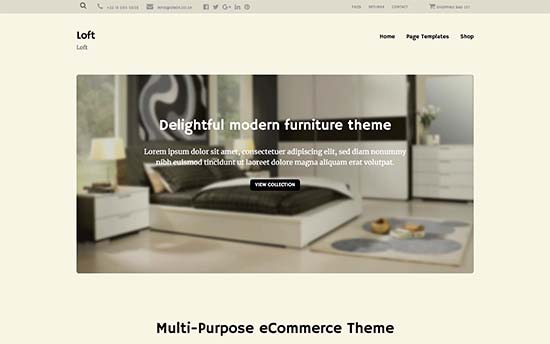
If you are looking for gorgeous typography and a stunning layout for your ecommerce website, then checkout Loft. This beautiful multi-purpose WordPress theme features crisp typography, elegant design, and excellent user experience.

Notable features inbclude a sticky navigation menu, call to action buttons, custom widgets, services, portfolio, team members, and testimonials section.

11. Highend

Highend

Highend is another excellent choice for a multi-purpose WordPress theme. It comes with several ready-made demo templates with 1-click installer and a powerful drag and drop page builder.

It also includes several page templates with different styles, custom widgets, multiple sidebars, and navigation menu areas. You can easily add your portfolio, team members, photo galleries, and can even use it to build an ecommerce website.

12. Feltmag

Feltmag

Feltmag is a magazine style WordPress multipurpose theme for content rich websites. Its homepage features a fullscreen header, which is followed by your most important content in a grid layout.

It has two navigation menus on top, large featured images, multiple layout combinations, stylish headers, social icons, and more. It is designed to work out of the box and you will find plenty of customization options to make it uniquely yours.
13. Veni

Veni

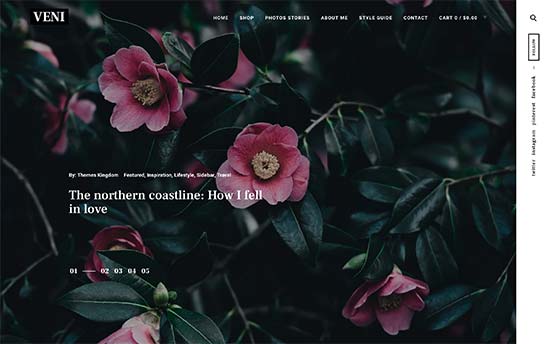
Veni is a beautiful magazine style WordPress multipurpose theme suitable for blogs, magazines, and business websites. It comes with full WooCommerce support which allows you to easily add an online store to your website.

Other notable features includes portrait and landscape featured images, featured pages, flexible layouts, Google fonts, unlimited colors, contact form support, and more. It is super easy to customize and set up and includes a beginner friendly theme dashboard.
14. Creativo

Creativo

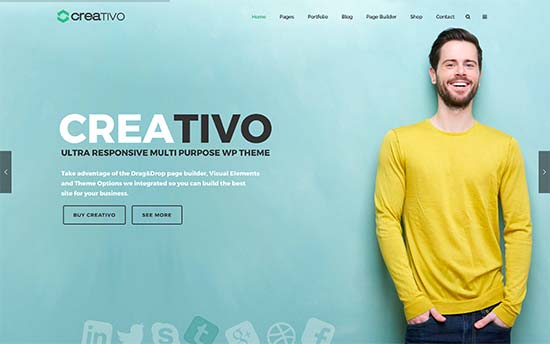
Creativo is another powerful WordPress multi-purpose theme with 11 ready-made websites with 1-click install. Each one of these designs can be customized using a premium drag and drop builder plugin included with the theme.

It also has an easy to use custom theme options dashboard which helps you easily set up your website. Other features include multiple layout styles, different header styles, unlimited colors, sidebars, custom widgets, and more.
15. Bento

Bento

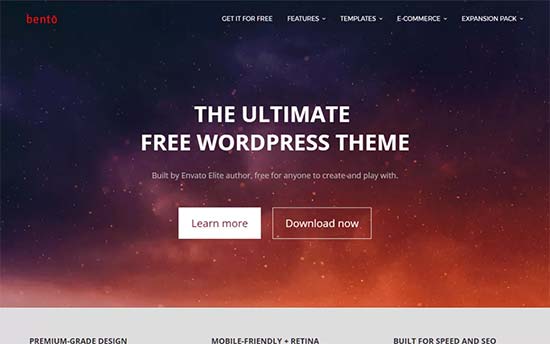
If you are looking for a free WordPress multi-purpose theme, then take a look at Bento. This stylish WordPress theme is designed to build any kind of website. It can be used with any page builder and even recommends one upon activation.

It has tons of neat features and flexible customization options, all easily organized under a live theme customizer.
16. Lenscap

Lenscap

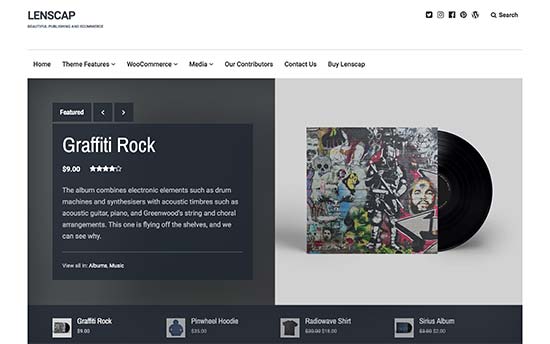
Lenscap is a multi-purpose WordPress theme with a magazine style layout and full WooCommerce support. Its homepage features a large featured content slider and a category browser just below it.

It comes with a dynamic color scheme generator that automatically adjusts colors based on your selection. It also has multiple ready to use color schemes, lightbox popup for images and videos, product page templates, beautiful typography, and more. It is easy to use and utilizes live theme customizer for quicker setup.
17. Atmosphere Pro

Atmosphere

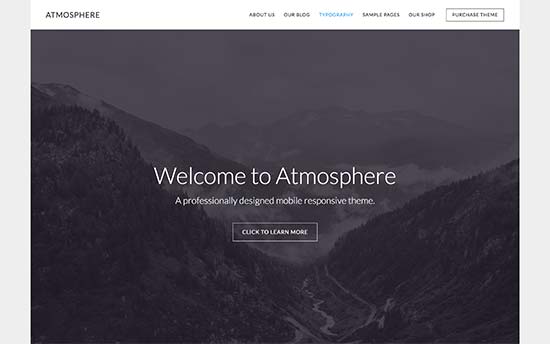
Atmosphere Pro is a professional WordPress multi-purpose theme with minimalist design. It is built on top of Genesis theme framework which is known for speed and performance.

It has a widgetized homepage layout with 4 widget-ready areas. For setup, it has theme options panel and live customizer support. It is also eCommerce ready and can be easily used with WooCommerce.
18. OceanWP

OceanWP

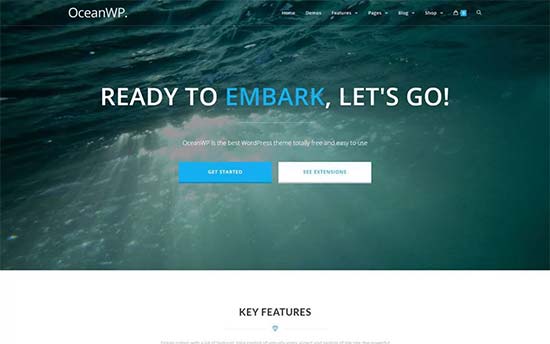
OceanWP is a free WordPress multi-purpose theme with tons of powerful features. It comes with its own companion plugin and recommends installing a free page builder plugin upon activation.

It is super-easy to use, and you will find all theme options easy to understand. It includes multiple layout choices, full width pages, two navigation menus on top, custom logo support, and full WooCommerce support.
19. Nectar

Nectar

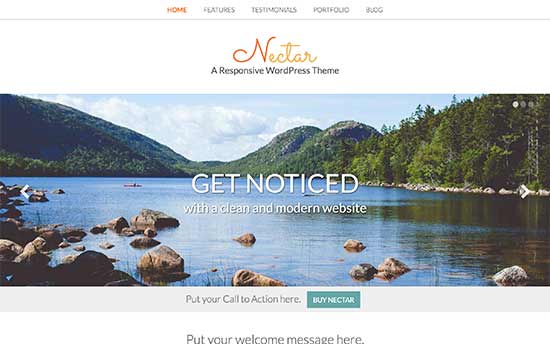
Nectar is a spacious WordPress multi-purpose theme with a beautiful color scheme and stylish layout. Its homepage uses parallax slider on top, followed by call to action and your most important content.

It includes multiple layout combinations, portfolio and testimonials post types, custom widgets, multiple sidebars, and more. It comes with a theme options panel, which allows you to set up your website quickly without struggling with settings.
20. Plum

Plum

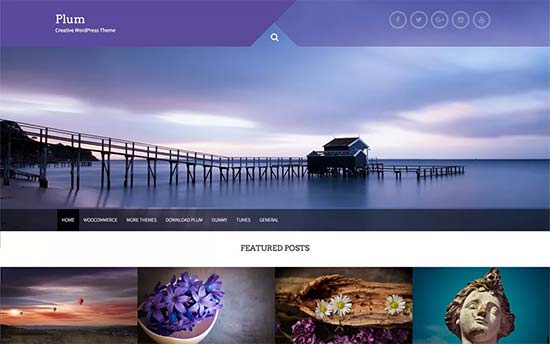
Plum is another free WordPress multi-purpose theme suitable for all kind of business websites and blogs. Its homepage features a beautiful slider on top, CSS animations, featured content area, and custom widgets.

This beginner friendly free WordPress theme also supports WooCommerce. All theme options can be easily set up using the live customizer.
21. Authority Pro

Authority Pro

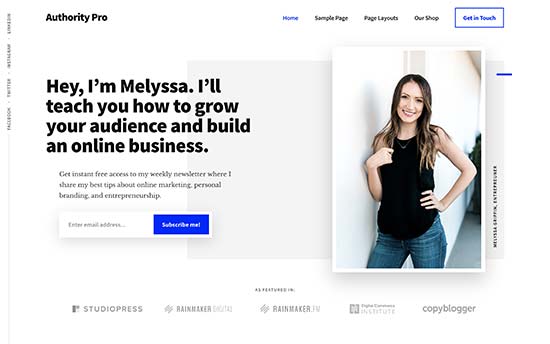
Authority Pro is a multi-purpose WordPress theme for bloggers, entrepreneurs, freelancers, and anyone who wants to build their personal brand. It is built on top of the rock solid Genesis theme framework and tested to work with all essential WordPress plugins.

It has a widgetized homepage layout with multiple widget ready areas, customizable header, theme options page, live customization support, and more. It is also WooCommerce ready, so you can use it to sell any kind of products.

22. Explorer

Explorer

Need a flexible blog/magazine style WordPress theme? Check out Explorer. Its homepage features a sticky navigation menu on top, followed by your recent articles, and flexible sections.

It works with all top page builders which allows you to create your own page layouts if needed. It is translation ready, and can also be used to create multilingual WordPress websites.

23. Hestia

Hestia

Hestia is a premium-like free WordPress multi-purpose theme for business, magazine, and blog websites. It comes with a free companion plugin, which adds client testimonials, services, and a homepage section to your website.

It includes multilingual support, translation ready, WooCommerce ready, and compatible with all top page builders. Theme set up is quite easy and all theme options are accessible through live customizer.

24. Inspiro

Inspiro

If you want to add video content to your website, then you will love Inspiro. This beautiful multi-purpose WordPress theme comes with fullscreen video backgrounds, a powerful portfolio section, and stunning images/video galleries.

It has custom widgets for portfolio items, multiple page templates, and a drag and drop page builder. It also has video lightbox allowing users to watch videos in distraction free mode.
25. Peak

Peak

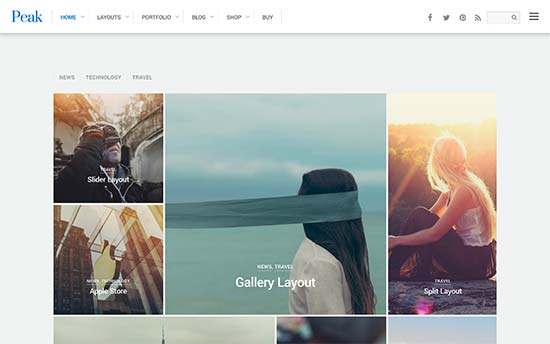
If you intend to add lots of photos to your website, then take a look at Peak. This multi-purpose WordPress theme is designed for photography, artists, designers, bloggers, and anyone who wants to showcase their photos with style.

It includes multiple gallery styles, different page templates, animated widgets, page title banner and more. It is highly flexible yet simple and easy to use. All theme options are located under theme dashboard with simple set up instructions.

26. Struct

Struct

Struct is designed to be a flexible multi-purpose WordPress theme for business websites. Featuring a clean and professional design with large header image and strategically placed call to action buttons.

Its homepage layout is fully widgetized with custom widgets to easily add content discovery features anywhere. Other features included are services, projects, team members, and an FAQs section. It is very easy to use and suitable for beginners who need a professional business website.

27. Modules

Modules

Modules is a modular multipurpose WordPress theme with several turnkey designs that can be instantly setup. It allows you to easily change page layouts with simple drag and drop modules.

There are modules for all common website elements like pricing tables, recent posts, contact form, accordions, tabs, sliders, and more. It supports both TypeKit and Google Fonts for improved typography. It is easy to use and truly versatile in terms of design and features.
28. Mesmerize

Mesmerize

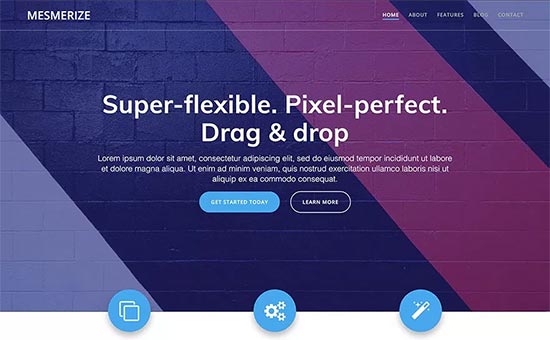
Mesmerize is another great free WordPress theme with truly multi-purpose design. It packs tons of flexible options to easily create any kind of website without struggling with theme options or writing custom CSS.

It has a modern homepage design with 5 header styles and over 30 ready-to-use content sections that you can easily add. It also includes video backgrounds, slideshows, header content types, gradient overlays, and more.

29. Elegant

Elegant

If you are looking for a clean and minimalist WordPress theme, then take a look at Elegant. This flexible WordPress theme features multiple homepage designs and comes in 6 color schemes. It also includes a 1-click demo installer for faster setup.

Inside you will find an integrated page builder, multi-column layouts, social media icons, portfolio, and complete WooCommerce support. It has a custom theme options page which makes customization easier for beginners.

30. True North

True North

If you need a multi-purpose WordPress theme to showcase photos or portfolio, then True North will be an excellent choice. It has a built-in portfolio section which makes it easier to share your photographs or work samples.

Theme homepage uses a minimalist design with a grid layout of your portfolio or photography items. Other notable features include custom backgrounds, large headers, custom widgets, and live customization.

31. Float

Float

For a modern and stylish look, check out Float. It is an all-purpose WordPress theme with beautiful parallax background effects on the homepage which create a very immersive user experience.

It packs multiple read-to-use demos with 1-click installer and you can choose from a number of layout choices for your pages and posts. Customizing theme to your own taste is easier with an integrated page builder and a powerful theme options panel.

We hope this article helped you find the best multi-purpose WordPress themes for your website. You may also want to see our ultimate step by step WordPress SEO guide for beginners.

If you liked this article, then please subscribe to our YouTube Channel for WordPress video tutorials. You can also find us on Twitter and Facebook.

The post 31 Best WordPress Multi-purpose Themes appeared first on WPBeginner.
Weekly WordPress News: Surveying The WordPress Facebook Community

Like last week, there wasn’t very much WordPress news this week. We did find a neat post from Cloudways where they survived a bunch of WordPress users on Facebook on various topics. And Greg Schoppe also posted some interesting Gutenberg benchmarks. Other than that, we have plenty of helpful tutorials, as well as some of ... Read moreWeekly WordPress News: Surveying The WordPress Facebook Community

The post Weekly WordPress News: Surveying The WordPress Facebook Community appeared first on Learn WordPress with WPLift.